

Replacing a VPN or appliance
Move off a VPN one team at a time, with the old path still there to fall back on. No weekend cutover.
What you will achieve
Your people reach what they reached before, without the VPN, and you switch the appliance off when it is genuinely unused.
Nothing is cut over in one go. Teams move one at a time while the VPN keeps running, so a rollback takes minutes (step 7), not an outage.
When to use this
Use this when a VPN or appliance already serves your people and you want it gone:
- The licence is up for renewal and the hardware is aging.
- The concentrator is a bottleneck, or a single point of failure.
- You cannot answer "who can reach production?" without reading firewall rules.
For the conversation with whoever owns the appliance today, SXAccess vs. traditional VPN compares the two side by side.
What you need
The rows marked Required are enough to move your first team.
| What | Why | |
|---|---|---|
| Required | The VPN's current configuration, and the right to change its profiles | Your specification. Step 7 takes a team out of a profile |
| Required | The Owner or Admin role in the SXAccess dashboard | You create a key, a network, groups and rules, and set members' groups |
| Required | One team that will tell you clearly if something breaks | Your pilot. Step 6 puts the SXAccess app on their laptops |
| Required | One always-on Linux machine on the same network as the services, with root or sudo | It runs the CLI agent and carries the traffic (step 2) |
| Optional | A second always-on machine there | A second routing device, so the site does not depend on one machine |
| Optional | Access to the VPN's session log | The evidence that it is safe to switch off |
| Advanced | The VPN's client address pool and every site subnet | Before you publish a whole range or a second site, to avoid address collisions |
Before you start
Three stages. The VPN keeps running beside SXAccess until the last team has moved, so there is no cutover.
Setup
- 1
Write down what the VPN grants today
Read it off the concentrator's configuration, not from memory. For each profile: who is in it, and what it opens. In SXAccess, each team becomes a group and each service a resource of its own.
Why first: this list is your specification and your progress bar. Expect it to be wider than people think: a VPN profile grants a subnet because a subnet was the only unit it had.
- 2
Put a routing device beside the concentrator
One always-on Linux machine on the LAN the VPN already terminates into, running the CLI agent. Nothing on the appliance changes.
Create its key first: Access › Enrollment keys › Create enrollment key, with Name
router-site-a, Expires in1day and every switch off. Leave Auto-assigned groups empty: step 5 picks this machine by name. Press Create enrollment key and copy the key, which is not shown again.Then open a terminal on the machine. Run the block in bash or zsh, as root. Paste the whole block and press Enter once. When
Enrollment key:appears, paste the key, and only the key, and press Enter. The key is not shown, and an empty line asks again. The key file is removed at the end, whether or not the join worked. If you stop the block with Ctrl-C, remove it withrm -f /run/secrets/sxaccess-key.The Install SXAccess button in step 5 creates a one-off key valid for 1 day and shows similar commands, but without
--hostname: the machine then joins under its own host name.Why a routing device: one machine on that LAN reaches what the VPN reached, with nothing installed on the servers.
You see:
This device is now connected, thensxaccess infostarting withConnected, androuter-site-aonline under Devices.curl -fsSL https://pkgs.sxaccess.com/install.sh | sh{ install -d -m 700 /run/secrets install -m 600 /dev/null /run/secrets/sxaccess-key KEY='' until [ -n "$KEY" ]; do printf 'Enrollment key: '; read -rs KEY || break; echo; done [ -n "$KEY" ] && printf '%s' "$KEY" > /run/secrets/sxaccess-key && unset KEY && sxaccess start --enrollment-key-file /run/secrets/sxaccess-key --hostname router-site-a && sxaccess info rm -f /run/secrets/sxaccess-key} - 3
Create the network and publish one service
Networks › Internal networks › Add internal network. Enter a Network Name for the site, such as
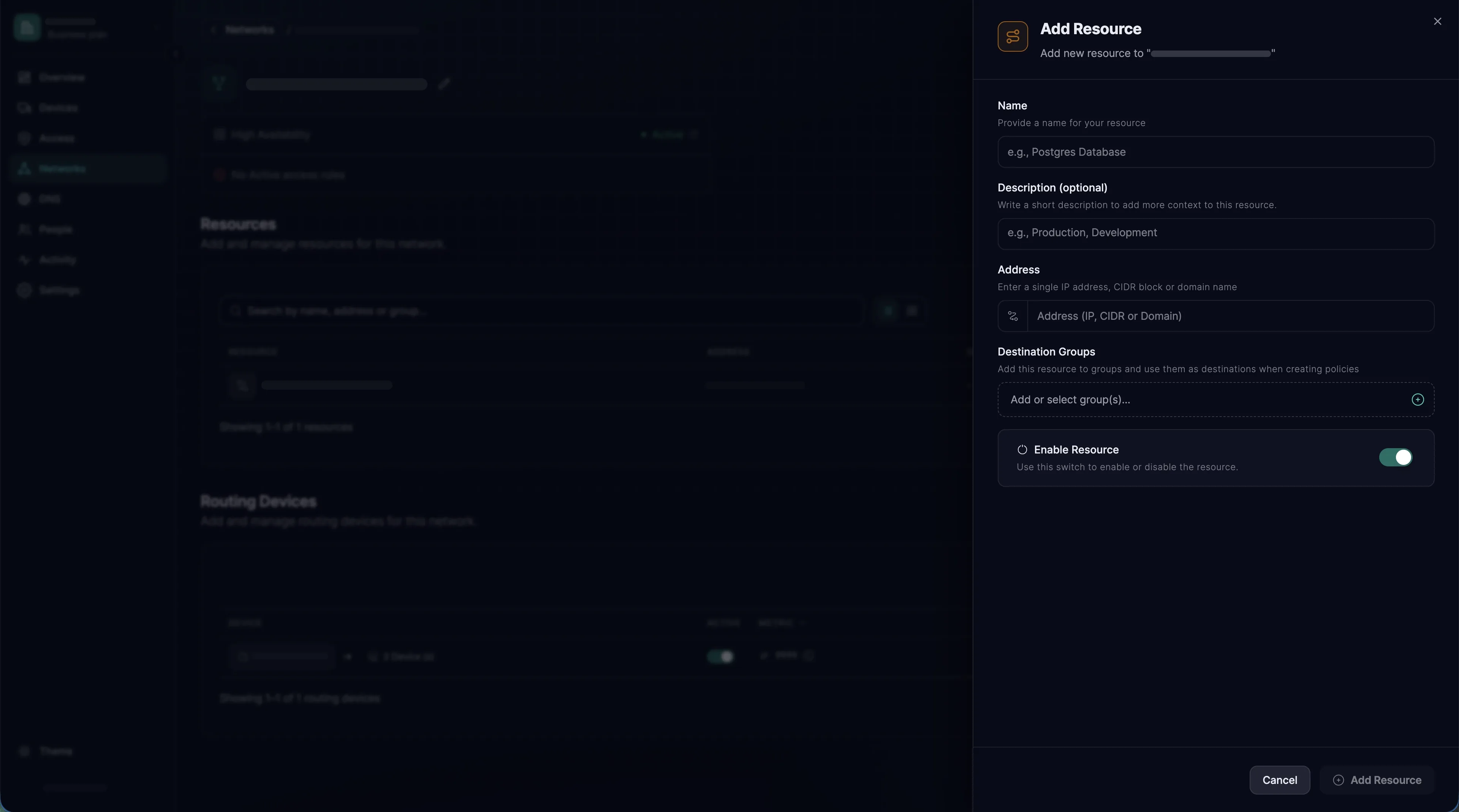
site-a, and press Add Network. The dashboard then opens each next form by itself: resource, access rule, routing device. This step and the next two follow that chain.Add Resource opens first. Add the one service you are piloting:
- Name - such as
erp-web. Required; it is also whatsxaccess reach listshows on a laptop. - Address - the service's single IP address, or the domain name people already use, such as
erp.internal, so their bookmarks keep working. - Destination Groups - type
erpand press Enter. The form requires a group. The pilot rule names the resource itself, soerpgrants nothing yet; it lets a later rule name every ERP resource at once.
Press Add Resource.
Why one service, not the subnet: copying the subnet rebuilds the concentrator with extra steps.
You see: Create access rule opens, with
Until an access rule names 'erp-web', no device is allowed to reach it.under its title. - Name - such as
- 4
Write the one rule that opens the pilot
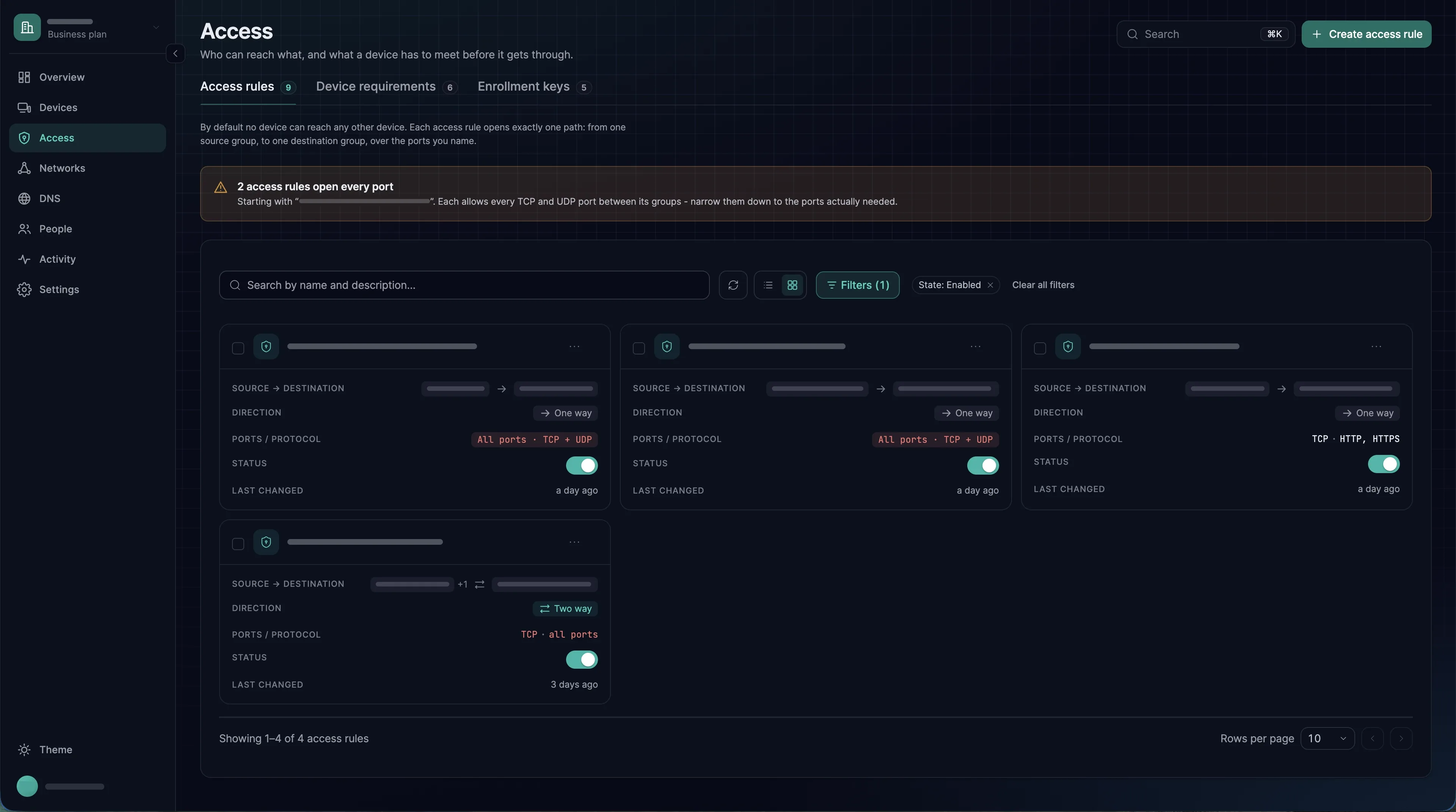
In Create access rule, the resource is already filled in as the destination, shown by its Name. Complete the sentence:
Allow
engineeringto reacherp-webover TCP on ports443.- Allow - type
engineeringand press Enter, which creates the group. Leave out the built-in groupAll: it holds every device. - over - TCP. A new rule starts at any protocol, which opens every port.
- on ports - click the field, type the port the service listens on, such as
443, and press Enter: the field shows it instead of All. Left empty, the rule opens every port. - Direction is locked to One-way: a resource never starts a connection back.
Press Create access rule. Closed the sheet by mistake? Open the network's page (click its name under Internal networks) and press Add Access rule in the resource's row.
Why: this one sentence is what the VPN profile meant; until a rule names the resource, no device gets it.
You see: the sheet closes and Add Routing Device opens.
- Allow - type
- 5
Add the routing device, and optionally a second one
On the Routing Devices tab, pick
router-site-aand press Continue. Leave Masquerade on and Metric at 9999, and press Add Routing Device. Closed the sheet? The network's page has an Add Routing Device button.Optional: a second routing device, so the site does not depend on one machine. Enrol it as in step 2, with a new key and
--hostname router-site-a-2, then add it in one of two ways:- As a second entry. On the network's page, press Add Routing Device and add
router-site-a-2as above. A lower Metric makes one device the preferred one; with equal Metrics, each laptop picks the one it reaches best. - As a device group. On each machine's page under Devices, type
routers-site-ain Assigned groups, press Enter, then Save changes. On the network's page, press Add Routing Device, choose the Device group tab and that group, and press Continue and Add Routing Device. Then remove the entry that namesrouter-site-aalone: Remove in its row menu under Routing Devices, and confirm with Remove. Machines you add to the group later carry traffic too.
Why masquerade: the service sees the routing device's own address, so it needs no route back.
You see:
router-site-a, androuter-site-a-2if you added it, online under Devices, with Last seen at Just now. - As a second entry. On the network's page, press Add Routing Device and add
- 6
Give the pilot team the group and the app
People › Members › each person in the pilot › Access: add
engineeringto Auto-assigned groups and press Save Changes. People who are not members yet get the group in Invite member and accept the email invitation. Group propagation, on by default, moves laptops they enrolled earlier into the group at once.Then each of them installs the SXAccess app (macOS, Windows, iOS and Android) and chooses Sign in with SXAccess account (macOS, Windows). On a phone, they tap Allow VPN configuration and then Sign in.
During the pilot, the VPN client stays installed but disconnected, so the team really works through SXAccess. If something fails, the person disconnects SXAccess in the app and connects the VPN client again. That is the rollback, and it needs no admin.
You see: each pilot laptop under Devices with
engineering. - 7
Move the pilot team off the VPN
When the pilot has held for a week, take that team out of the VPN profile on the appliance. Not the profile, and nobody else.
To roll back: put the team back into the profile. Each person disconnects SXAccess and connects the VPN client, which is still installed. Nothing in SXAccess needs undoing, which is why this takes minutes.
You see: the team's sessions stop appearing in the appliance's session log.
- 8
Repeat for each further service and team
Each further service goes into the same network. Open the network's page, press Add Resource and fill it in as in step 3. No rule sheet follows this time: in the new resource's row, press Add Access rule and complete it as in step 4. The routing devices already carry the new resource.
Each further team gets its own group: in the row of each service it uses, press Add Access rule and type the team's group under Allow. Then follow steps 6 and 7 for its people.
Work from the network's page: Add a resource on the network's card restarts the whole chain, routing device included.
You see: on the network's page, each service under Resources shows a shield in its Access rules column, with the number of active rules that apply to it.
- 9
Switch the appliance off
When the appliance's session log has shown nobody for long enough (see Verify), remove the VPN client from the laptops, so it cannot get in the way of SXAccess. Then switch the appliance off and close the port it had open on your firewall.
You see: nothing changes for anyone. That is the proof the move is finished.
Verify
Two different checks: one per team as it moves, and one before the box goes off.
Expected result, per team
With the VPN client disconnected, a pilot laptop reaches the service. In the SXAccess app, Resources lists erp-web, switched on, and Devices shows router-site-a online. Then open the service the way people do, by the Address you entered.
Then confirm someone outside engineering cannot - the half that is usually skipped. Their app does not list the resource at all.
From a terminal, the commands below check the same, with the resource's Address in place of <address> and your rule's port in place of <port>. The first must succeed; in PowerShell, that is TcpTestSucceeded : True. The second, on macOS or Linux, asks for a port no rule names and must time out: SXAccess drops what no rule allows, and Connection refused would mean something lets that port through.
On a laptop with the CLI agent, sxaccess info -d starts with Connected and lists router-site-a with what it Reaches. sxaccess reach list shows erp-web with state: Selected.
nc -vz -G 5 <address> <port>nc -vz -G 5 <address> 22nc -vz -w 5 <address> <port>nc -vz -w 5 <address> 22Test-NetConnection <address> -Port <port>The evidence that it is safe to switch off
Watch the appliance, not SXAccess. Its own session log is the record of who still uses it. A period with no sessions, long enough to include people who only appear at quarter end, is the proof. A date in a plan is not: somebody always turns up in week three.
Troubleshooting
If it does not work, start here. The first three are almost always it.
| Symptom | Likely cause | What to do |
|---|---|---|
| The tunnel is up but no traffic passes | Two VPN clients on one laptop. Endpoint or VPN software can install filtering drivers that intercept traffic before the tunnel adapter. | Disconnect the old VPN client, as during the pilot, and reconnect SXAccess |
| The routing device is online, nothing behind it answers | The routing device cannot reach the service itself, or Masquerade is off and the service has no route back. The agent turns IP forwarding on by itself, but a hardening script can switch it off again. | Check from the routing device that the service answers. Leave Masquerade on. If forwarding was reset, sudo sxaccess agent restart |
| Some people work, some do not | Their laptops are not in the group the rule names. If group propagation was turned off, laptops enrolled before the member got the group keep their old groups. | Add the group on the device's page under Assigned groups and press Save changes, or turn Enable user group propagation back on (People › Groups › Settings) |
| A site worked, the next one broke it | Address ranges collide. The VPN client pool, a site subnet or the SXAccess device range overlaps something you now publish. | Settle the ranges before you publish a range or a site. See the advanced section |
| It works in the office, not from home | The published range is one home routers also use, commonly 192.168.1.0/24. | Publish individual hosts rather than the range |
| Still stuck? | Take the connection apart one stage at a time. | Trace a blocked connection |
Advanced configuration
Hosts that will never run an agent
Appliances, lab instruments, a controller under a support contract that forbids changes. The routing device reaches them already, so they become resources with nothing installed. See On-premises sites.
Address ranges that collide
The appliance's client pool and each site's subnet must not overlap anything else you publish, nor the range SXAccess gives devices. That range is one /16 inside 100.64.0.0/10: it holds the address on the Address row of sxaccess info, which the app shows as Tunnel address (see Overlay addresses). Two sites on 192.168.1.0/24 cannot both be reached from one laptop. Settle this before you publish a whole range or a second site: renumber, or publish individual hosts so that only those addresses can overlap.
More than one site
Each site gets its own routing devices, network and resources. Nothing about the first site changes. Sites reaching each other covers the order.
Tightening after the move
Once the box is off, the rules you wrote are the whole access model: a good moment to attach device requirements to administrative rules, which a VPN could not express.