On-premises sites
Reach an office, factory or rack from outside, without installing anything on the machines inside it.
What you will achieve
Things inside one office become reachable from outside, including the ones that can never run software.
You install the agent on exactly one machine. Everything else in the office is reached through it. By the end, a laptop outside the office prints to the office's label printer and reaches nothing else there.
When to use this
Use this when the target is a place, not a single service:
- A printer, NAS or camera system nobody can install software on.
- A lab instrument or controller under a support contract that forbids changes.
- A rack of servers you would rather not touch one by one.
- A branch office that people need to reach while travelling.
One service on one machine you can install on? Reaching internal services from anywhere is simpler.
What you need
The rows marked Required are enough for one site.
| What | Why | |
|---|---|---|
| Required | The Owner or Admin role in the dashboard | Steps 2 and 3 need it. A Network Admin cannot do them |
| Required | An always-on Linux machine in the office that already reaches what you will publish, with root on it | It carries the office's traffic. The commands here are for Linux, and only Linux can turn Masquerade off |
| Required | The office's address range, and the address and port of each thing to reach | Step 1 checks the range; each thing becomes a resource |
| Required | A laptop outside the office with the SXAccess app or the CLI agent, signed in | To test from. See Which client do I need? |
| Optional | A second machine for redundancy | See the advanced section |
| Advanced | Return routes to your tunnel range on the office hosts or their gateway | Only with Masquerade off |
Before you start
One machine speaks for the whole office.
That machine is the routing device. The printers, storage and appliances behind it need no change and never learn that SXAccess exists. More on routing devices: Networks and resources.
Setup
- 1
Check the office range first
Look up the range the office LAN uses. Many home routers use
192.168.0.0/24or192.168.1.0/24, and a laptop on a home network with the office's range can silently lose the office there.What to do: if the office uses such a range, move it to an unusual one, such as a randomly picked
10.x.y.0/24. Publishing single machines instead does not avoid the clash. Do this first: it is expensive to undo later. - 2
Give the tester the support group
The rule in step 6 lets the group
supportin. Put the member who will test in it: People › Members › the member › Access. In Auto-assigned groups, typesupport, press Enter, then press Save Changes; the group is created when you save.With group propagation on, the default, this also moves a laptop the member has already signed in on: see Group propagation.
You see:
supporton the member's Access tab. - 3
Create a key and enrol the machine
Access › Enrollment keys › Create enrollment key:
- Name -
muc-office-router. - Make this key reusable - off, for one machine.
- Expires in -
1day. You use it in a minute. - Temporary devices - off, or the routing device is removed after 10 minutes offline.
- Allow Extra DNS Labels - off.
- Auto-assigned groups - leave empty; step 7 picks this machine by name.
Press Create enrollment key and copy the key now: it is not shown again.
Then open a terminal on the office machine. Run the block in bash or zsh, as root. Paste the whole block and press Enter once. When
Enrollment key:appears, paste the key, and only the key, and press Enter. The key is not shown, and an empty line asks again. The key file is removed at the end, whether or not the join worked. If you stop the block with Ctrl-C, remove it withrm -f /run/secrets/sxaccess-key.You see:
This device is now connected, thensxaccess infostarting withConnected, androuter-muc-officeunder Devices. IP forwarding needs no setup: the agent turns it on itself.curl -fsSL https://pkgs.sxaccess.com/install.sh | sh{ install -d -m 700 /run/secrets install -m 600 /dev/null /run/secrets/sxaccess-key KEY='' until [ -n "$KEY" ]; do printf 'Enrollment key: '; read -rs KEY || break; echo; done [ -n "$KEY" ] && printf '%s' "$KEY" > /run/secrets/sxaccess-key && unset KEY && sxaccess start --enrollment-key-file /run/secrets/sxaccess-key --hostname router-muc-office && sxaccess info rm -f /run/secrets/sxaccess-key} - Name -
- 4
Create the network
Networks › Internal networks › Add internal network. Set Network Name to the place, such as
Munich office, put the street address or rack in Description (optional), and press Add Network.The dashboard then opens three forms in turn, which the next three steps follow: Resource, Access rule, Routing device.
You see: Add Resource opens, naming
Munich officeunder its title. - 5
Add the printer as a resource
Fill in Add Resource:
- Name -
label-printer, the name laptops see, for example insxaccess reach list. - Address -
10.20.0.15, one host. Aim for this: a CIDR block such as10.20.0.0/24would grant the whole subnet, including whatever is plugged in next year. A domain suits a host whose address changes. - Destination Groups - type
muc-printersand press Enter. A resource needs a group, and later rules can name it to cover every printer in it.
Press Add Resource.
You see: Create access rule opens, with
Until an access rule names 'label-printer', no device is allowed to reach it.under its title. - Name -
- 6
Let support reach the printer
In Create access rule,
label-printeris already filled in as the destination. Complete the rule:Allow
supportto reachlabel-printerover TCP on ports9100.- Access rule name - replace the suggested
label-printer access rulewith the intent, such as Support prints to the label printer. - Allow - pick
support. - over - choose TCP. A new rule starts at any protocol, which opens every port.
- on ports - click the field, type
9100and press Enter: the field shows 9100 instead of All. Left empty, it opens every port.
Direction stays locked to One-way, since a resource never starts a connection. Press Create access rule.
You see: Add Routing Device opens, with
Until this network has a routing device, no device can reach anything inside it.at the top. - Access rule name - replace the suggested
- 7
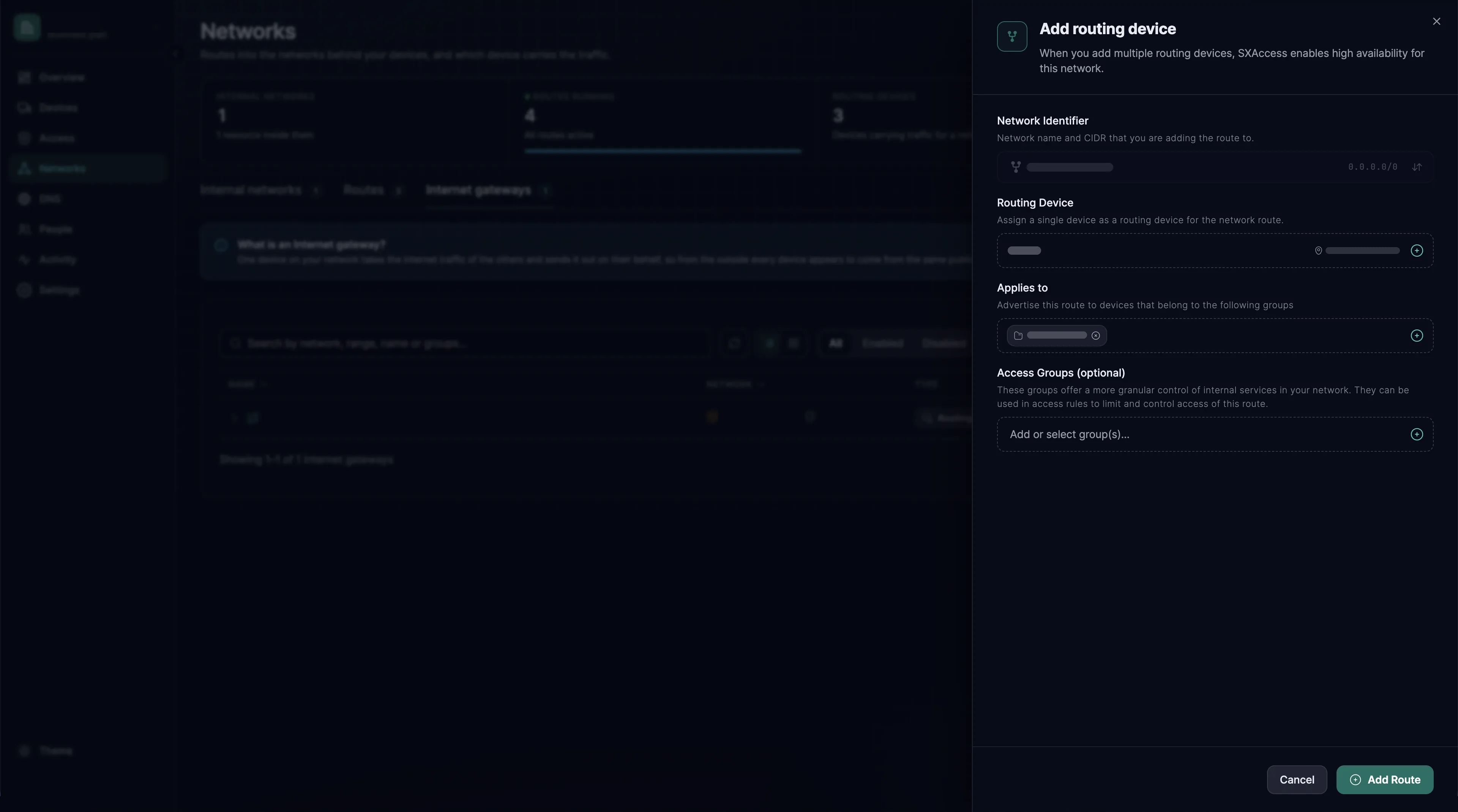
Attach the routing device
In Add Routing Device, under Routing Devices, pick
router-muc-officeand press Continue. Under Settings, keep the defaults:- Enable Routing Device - on.
- Masquerade - on. Office hosts then see traffic from the routing device's own address and need no route back.
- Metric - 9999. It only matters with a second routing device; the lower number wins.
Press Add Routing Device. The site is live: the resource has a rule that names it and a device that carries its traffic.
You see: the
Munich officerow under Internal networks shows1 resource,1 deviceandsupport. - 8
Add the other things to reach
The dashboard runs that chain for the first resource only. For each further printer, NAS or panel, open the network by its name under Networks › Internal networks and press Add Resource. Then press Add Access rule in the new resource's Access rules column, fill it in as in step 6 and press Create access rule. The routing device already serves the whole network.
You see: each new resource under Resources on the network's page, with a shield in its Access rules column that counts the active rules applying to it.
Verify
Test from the laptop outside the office, signed in as the member in support.
Expected result
The SXAccess app lists label-printer under Resources, and the printer accepts a job on port 9100. The first command below for your system checks the port: it must succeed, which PowerShell shows as TcpTestSucceeded : True.
With the CLI agent, sxaccess reach list shows label-printer with state: Selected, and sxaccess info -d lists router-muc-office with Reaches: 10.20.0.15/32.
Then check what should fail
A port no rule names must time out: the second command, on macOS or Linux. An immediate Connection refused means the packet reached the printer, so something lets that port through. A device outside support gets nothing: its sxaccess reach list prints There are no networks to show.
nc -vz -G 5 10.20.0.15 9100nc -vz -G 5 10.20.0.15 22nc -vz -w 5 10.20.0.15 9100nc -vz -w 5 10.20.0.15 22Test-NetConnection 10.20.0.15 -Port 9100Troubleshooting
Top to bottom; the first two cover most cases.
| Symptom | Likely cause | What to do |
|---|---|---|
The laptop does not list label-printer; sxaccess reach list prints There are no networks to show. | No active rule names the resource, or the laptop is not in support. A resource only reaches devices once a rule names it. | Steps 2 and 6, and group propagation for a laptop signed in before step 2 |
| The routing device answers, nothing behind it does | IP forwarding was switched off after the agent turned it on, for example by a sysctl reload. | sysctl net.ipv4.ip_forward on that host must print 1. sudo sxaccess agent restart turns it back on |
| Works in the office, not from home | The home network uses the office range, and the home network wins. | Step 1. Publishing single hosts does not avoid this |
| One host is unreachable, the rest work | That host has a local firewall, or does not answer on that port. | Test from the routing device: nc -vz <host> <port> |
| Everything stopped at once | The routing device is off, or lost its network. | Devices shows it offline. A second routing device avoids this (advanced section) |
| Traffic reaches the host but gets no reply | Masquerade was turned off without return routes. | Turn it back on, or add the return routes (advanced section) |
| Still stuck? | Take the connection apart one stage at a time. | Trace why a connection is blocked |
Advanced configuration
A second routing device
Enrol a second machine as in step 3 and add it on the network's page with Add Routing Device. Clients prefer a routing device they are connected to, and among those the lower Metric wins. Give the preferred one a number below 9999; when it stops answering, clients move to the other.
Turning Masquerade off
Off, office hosts see each device's own tunnel address, which helps when a host logs or filters client addresses. Every host, or its gateway, then needs a route for your organization's tunnel range via the routing device's LAN address. Only a Linux routing device can turn it off.
The tunnel range is a /16 inside 100.64.0.0/10, chosen for your organization (Overlay addresses). The Address row of sxaccess info on any device shows it: 100.97.12.34/16 means 100.97.0.0/16.
Publishing a range after all
When there is no alternative, add the range as one resource with a CIDR address. Pick a range nobody else uses, keep it out of 192.168.0.0/16, and remember it grants everything in it, including whatever is plugged in next year.
More sites
Each site gets its own network, resources and routing device, with a range no other site uses. Sites reaching each other covers the order, the collisions, and how machines at one site reach another.