

iOS and Android
Install the app from the App Store or Google Play, allow the VPN configuration, and sign in. There is no CLI on a phone.
Install and sign in
- 1
Install the app
SXAccess for iPhone comes from the App Store and needs iOS 17 or later. SXAccess for Android comes from Google Play and needs Android 8.0 or later. Nothing else has to be installed on the phone.
- 2
Allow the VPN configuration
After the welcome screens, the app explains that it needs to add a VPN configuration. Tap Allow VPN configuration and accept the system prompt that follows. Neither iOS nor Android lets an app carry traffic without one, and SXAccess uses it for one thing: the tunnel to your organization.
- 3
Sign in, or skip for now
Sign in opens your browser for your organization's sign-in. Skip for now takes you into the app, and you sign in when you first connect. If you belong to more than one organization, the app asks which one to join. The phone appears in Devices in the dashboard as soon as it is enrolled.
- 4
Connect
Tap Connect on Shield. Disconnect asks first (
Disconnect SXAccess?), and Stay connected backs out. With VPN On Demand on (iOS), a disconnect does not last: iOS brings the tunnel back by itself, and the confirmation says so. Turn On Demand off to stay disconnected.
What the first run looks like
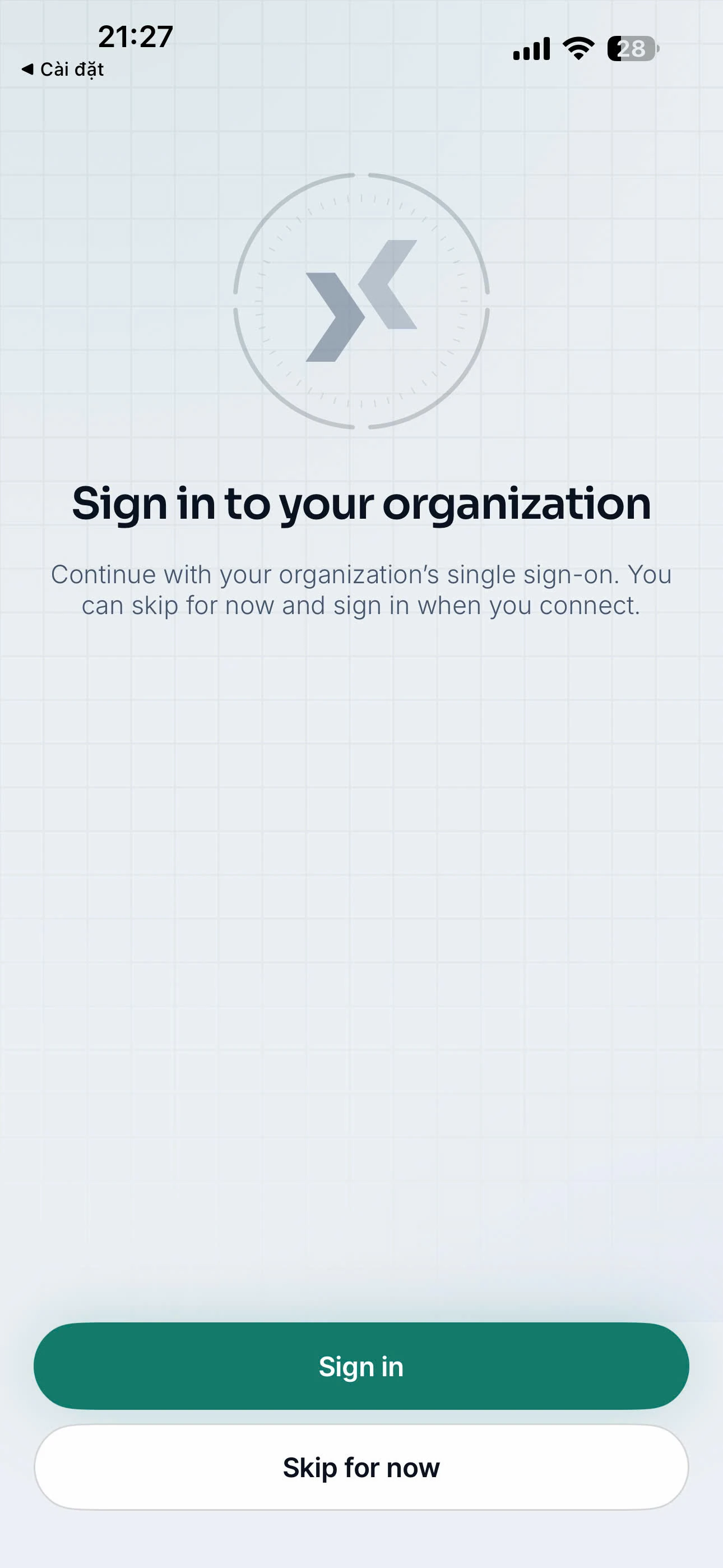
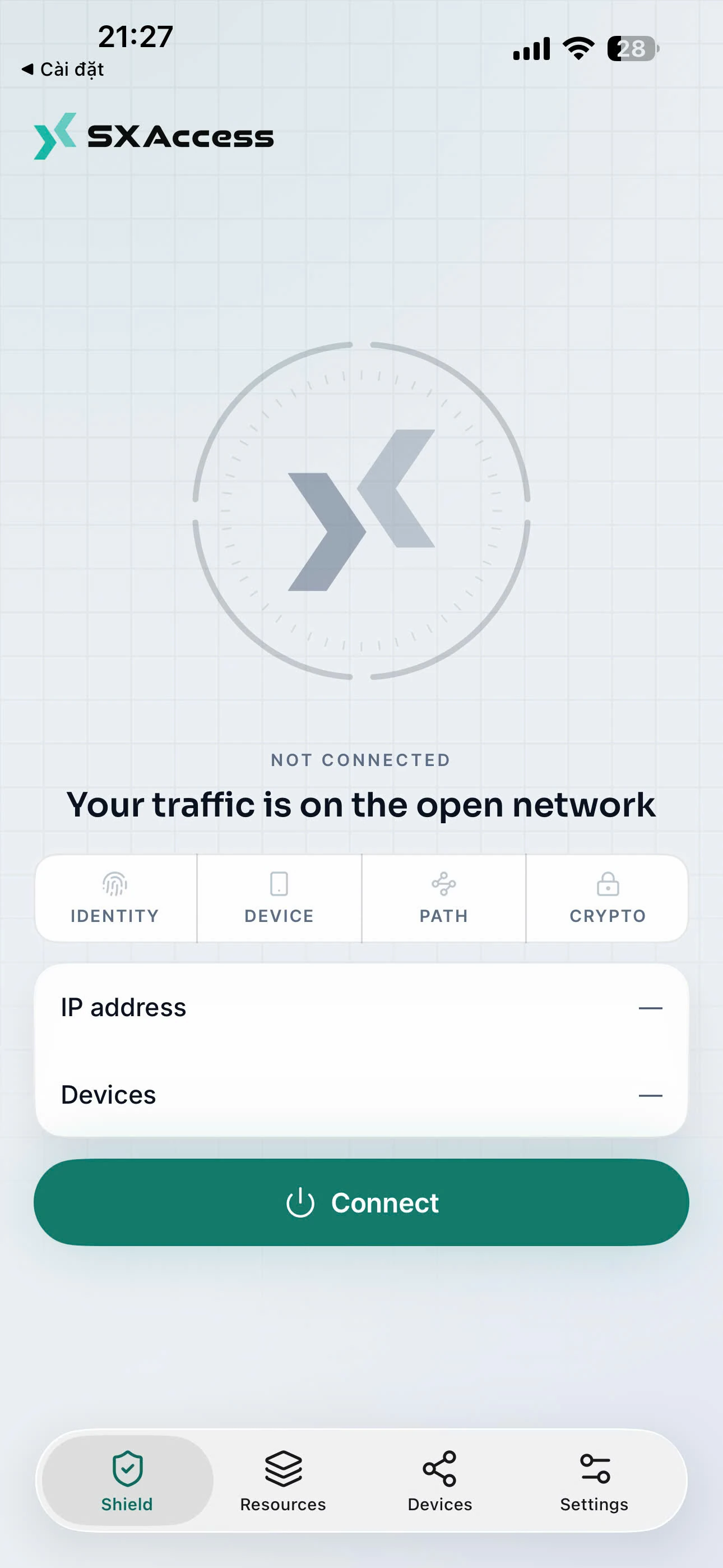
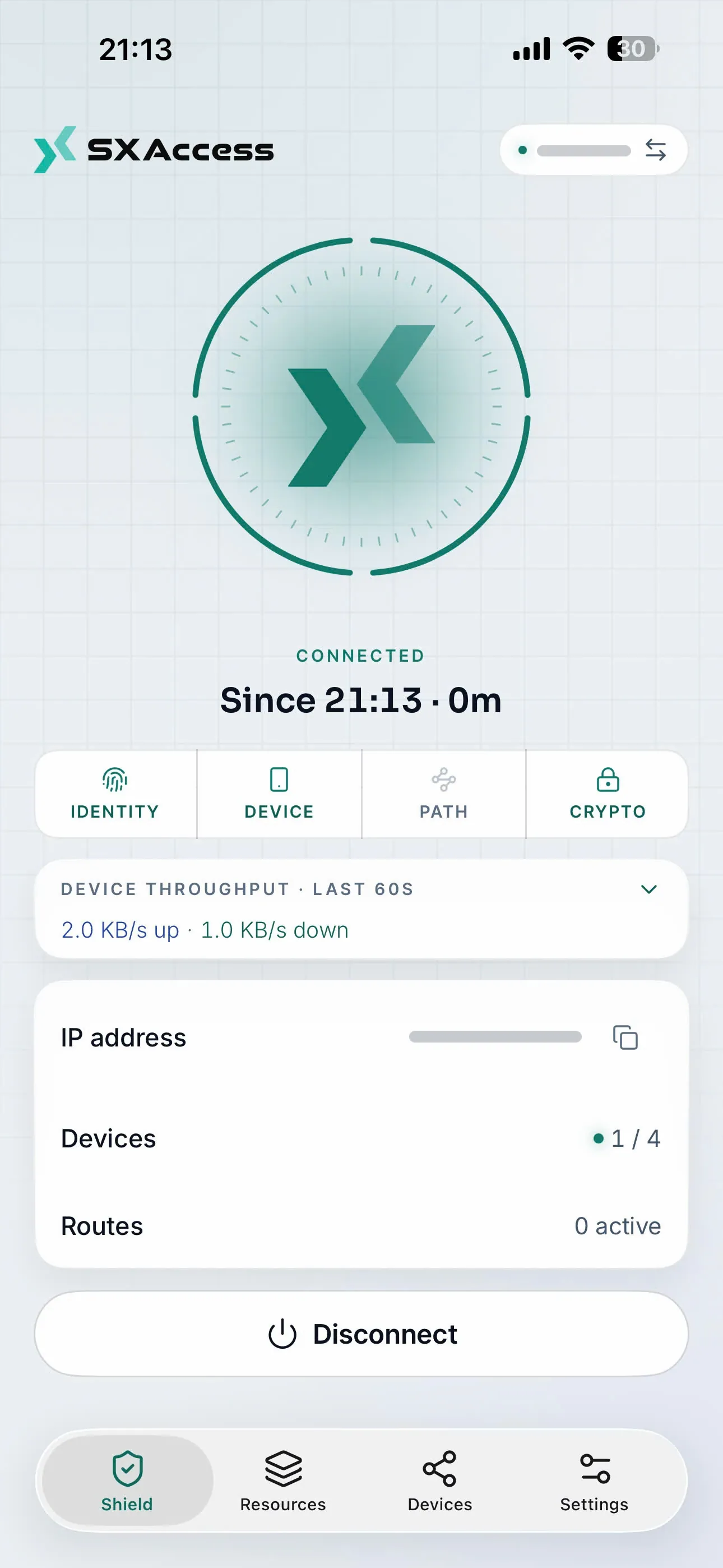
Shown on an iPhone. Once the VPN configuration is allowed, the app offers sign-in or Skip for now, and the Shield screen then says plainly whether your traffic is protected.
How a phone differs
- No CLI, and nothing to manage. The
sxaccesscommands do not exist on a phone; everything is in the app. A phone enrols by signing in; there is no enrollment-key option. - The tunnel runs outside the app. iOS runs it in the SXAccess Packet Tunnel extension and Android in a VPN service, so it keeps running when you leave the app or the system closes it. VPN On Demand (iOS) or Always-on VPN (Android) brings it back after a restart or a network change without opening the app. If that needs a new sign-in, Android shows a notification asking you to open SXAccess.
- One account per phone. A phone stays with the account it was enrolled with, and signing in with another account fails. On an iPhone, reinstalling SXAccess clears the setup so that another account can sign in.
The four tabs
| Tab | What it shows |
|---|---|
| Shield | Whether your traffic is protected, the phone's address in the tunnel and the devices online, with Connect and Disconnect. The address is labelled IP address on an iPhone and Tunnel address on Android (see Overlay addresses); only the iPhone also shows how many Routes are active. If your account belongs to more than one organization, the organization pill sits at the top. |
| Resources | The networks, domain resources and Internet gateways your organization makes reachable for you, each with a switch. On Android, domain resources need Android's Private DNS turned off (Settings → Network & internet → Private DNS); the app tells you when it is on. For Internet gateways, see Use an Internet gateway. |
| Devices | Every device this phone can see, online or idle. Tap one for its details, including whether the path to it is direct or relayed. |
| Settings | Automatic connection and the advanced switches, described below. |
Use an Internet gateway
If your organization sends internet traffic through an Internet gateway, the gateway appears as its own row on Resources, marked as an Internet gateway and switched on from the start. While it is on, the phone's IPv4 internet traffic leaves through a device of your organization, from that device's public address. IPv6 internet traffic does not work while a gateway is on, and networks published to you keep their own routes.
Switching the gateway off needs no confirmation: your internet traffic goes back to the phone's own connection. To use it again, connect first, then tap its switch and confirm. Select all never switches a gateway on.
- iPhone: the app asks
Route all traffic through …?, naming the gateway; choose Route all traffic or Cancel. Several gateways can be on at once. The confirmation also says that IPv6 internet is not supported while the gateway is in use. It warns that the VPN may stop when the phone moves between Wi-Fi and cellular; with VPN On Demand on, iOS brings it back by itself. - Android: the app asks
Use … for Internet traffic?, naming the gateway; choose Enable Internet Gateway or Cancel. Only one gateway is on at a time: switching one on turns the others off. IPv6 internet traffic is blocked while it is on. A gateway also needs Android's Private DNS turned off (Settings → Network & internet → Private DNS); until then the app says so, and the gateway cannot start.
To check, open any website that shows your public address: it should show the gateway's address, not your own. Administrators set gateways up as described in Sending internet traffic through your own gateway.
What the phone can reach
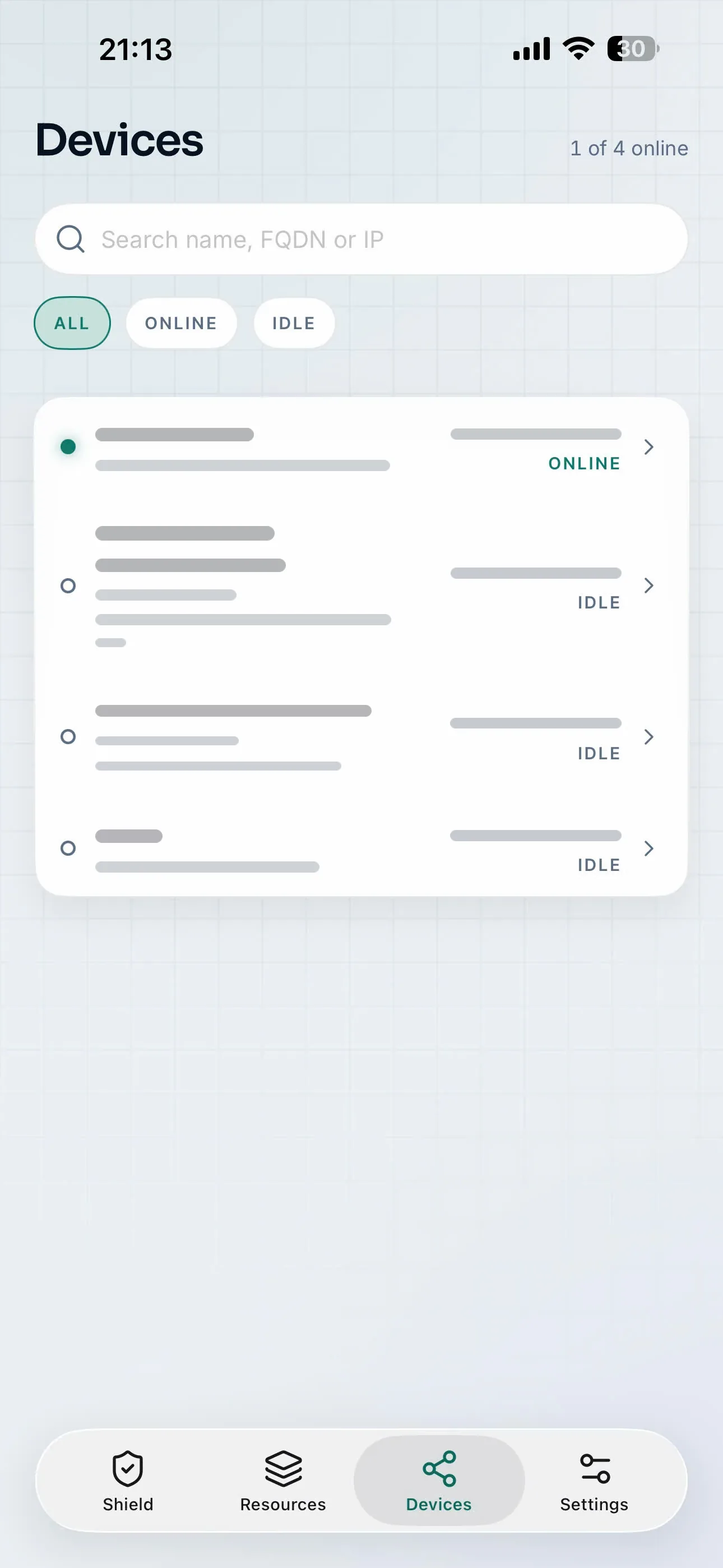
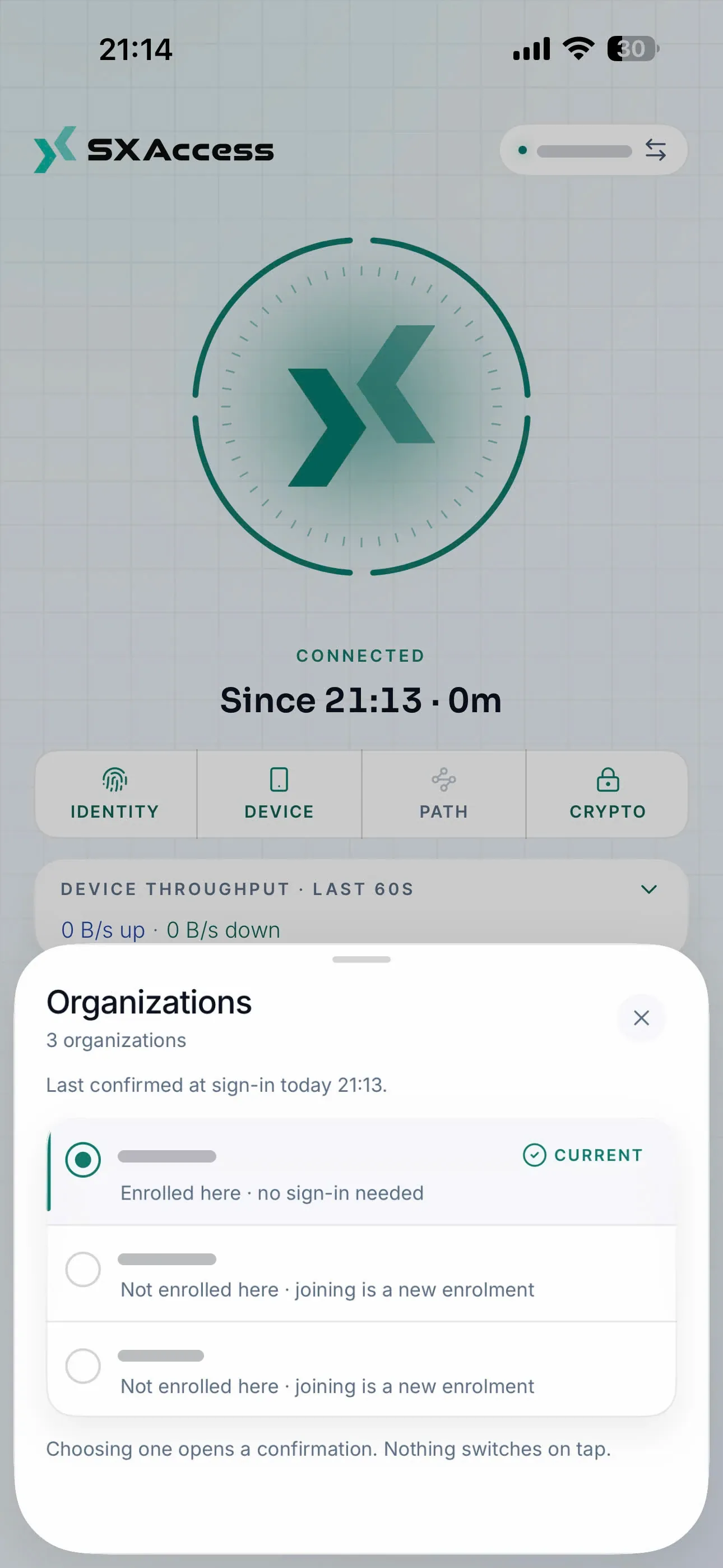
Shown on an iPhone. The device list holds only what this phone may reach. In the organization sheet, switching to an organization the phone is already enrolled in needs no new enrolment; joining a new one does, and nothing changes until you confirm.
Switching organization
The organization pill at the top of Shield appears when your account belongs to more than one organization, and it opens while the phone is connected. Tap it to see your organizations. One marked Enrolled here · no sign-in needed is a switch: the phone keeps its device identity there, and no browser opens. One marked Not enrolled here · joining is a new enrolment is a join: the phone gets a new device identity in that organization, and the browser opens if your sign-in has expired. Either way, the app asks you to confirm first. See Create and switch organizations.
When an organization asks for a second factor
If an organization requires two-factor authentication and your sign-in did not include a second factor, the app asks for one in place, under Confirm it is you. That can be a code from your authenticator app, an emailed code, or a security key. On an iPhone the security-key step can also use a passkey; on Android it takes an NFC or USB key or the phone's screen lock. If you have not set one up yet, you can do it on the same screen. Back to where I was (on an iPhone, Cancel) returns to the organization you were in. See Two-factor and passkeys.
Settings
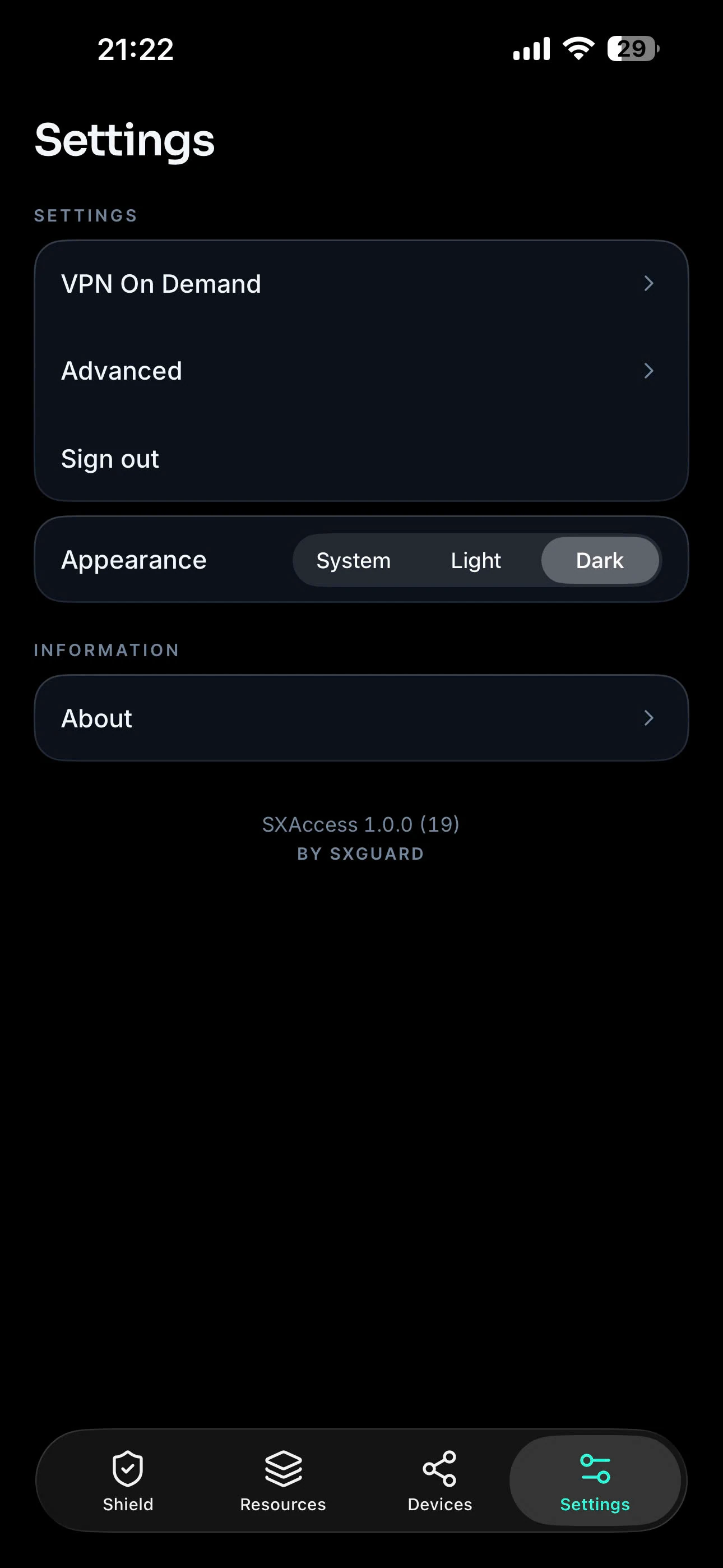
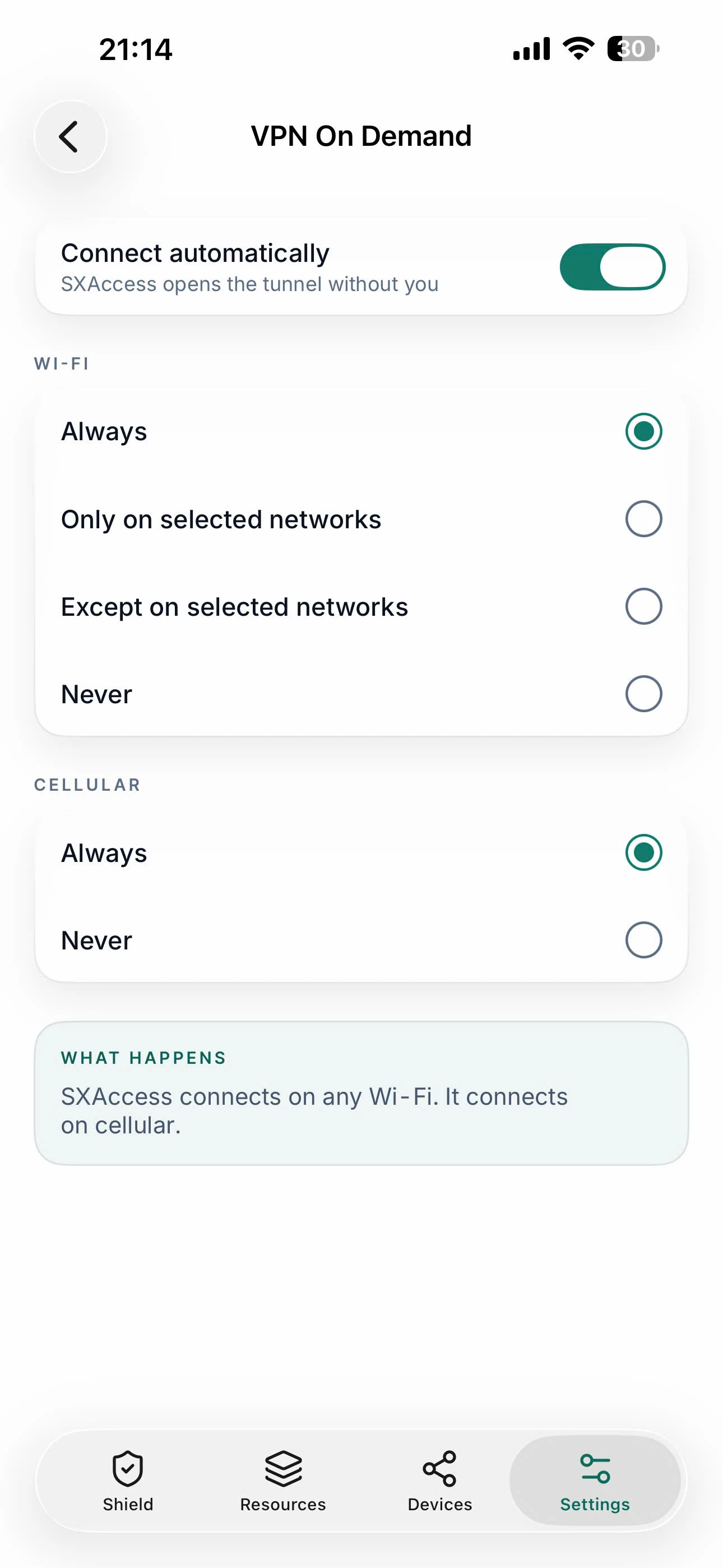
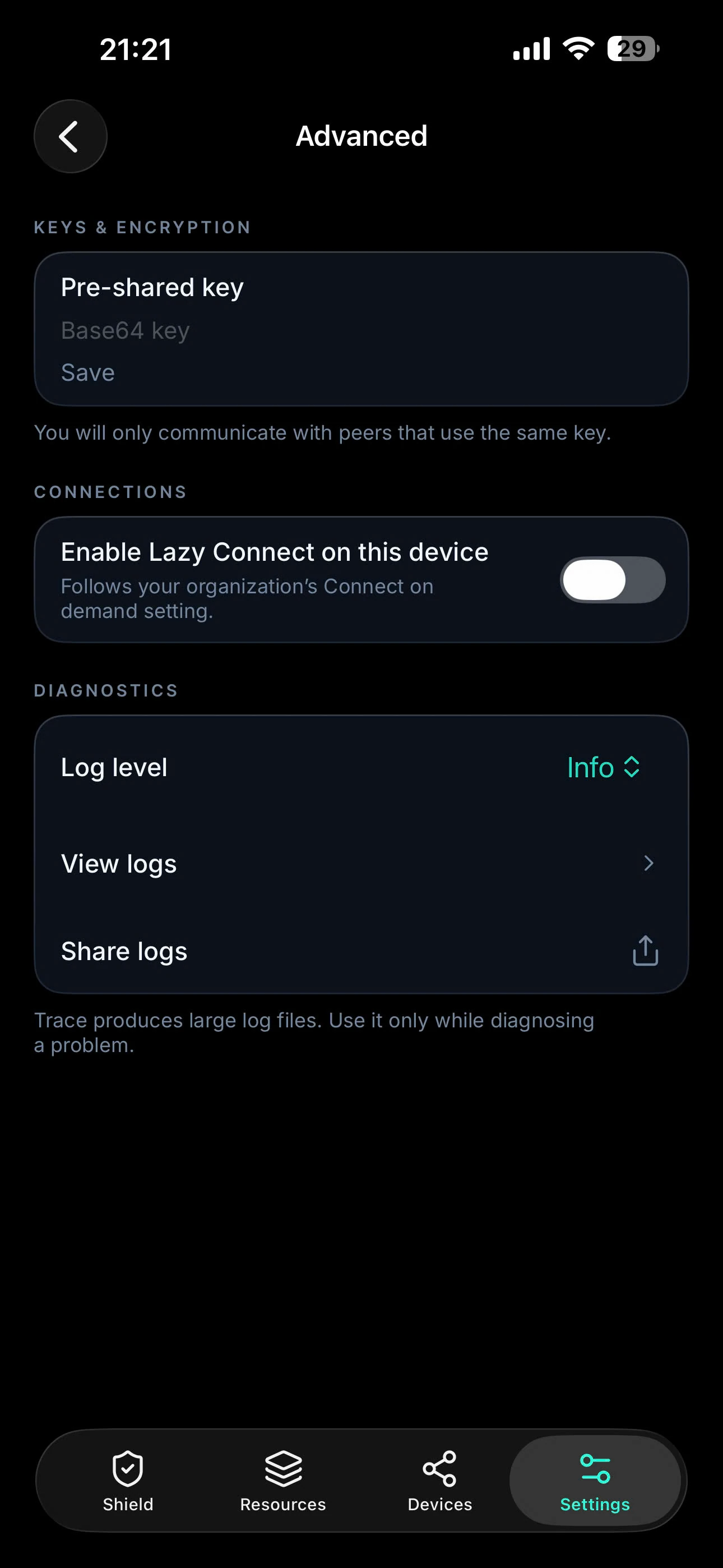
Settings on an iPhone: VPN On Demand, Advanced and the appearance. Android's Settings differ, as described below.
What is in Settings
On an iPhone:
- VPN On Demand: Connect automatically, with rules for Wi-Fi (Always, Only on selected networks, Except on selected networks or Never) and for Cellular (Always or Never). It is off until you turn it on.
- Advanced: Pre-shared key, where you set or remove one; Enable Lazy Connect on this device, which otherwise follows your organization's Connect on demand setting; Log level, View logs and Share logs.
- Appearance: System, Light or Dark.
On Android:
- Automatic connection: Android connects SXAccess automatically through its own Always-on VPN setting. Choose Open system VPN settings, tap the gear next to SXAccess and turn on Always-on VPN. Block connections without VPN adds protection, but if your session expires you may have to turn it off briefly to sign in again.
- Advanced: Pre-shared key, where you set or remove one, and Enable on this device for Connect on demand. It also holds Disable client routes, Disable server routes and Disable DNS, and Block inbound connections and Disable firewall. For the logs there are Capture logs (off until you turn it on), Verbose logging, View logs, Share logs and Clear logs. Host names, network addresses, keys and tokens are removed before a log line is written.
A device with a pre-shared key connects only to devices that use the same key, so set one only when your administrator asks you to. Most Advanced changes apply on the next connection, and the app offers to reconnect.