

Sign-in
How members get in - Google, a login name and password, or a passkey where the organization allows it - and what second factors, invitations and sessions add.
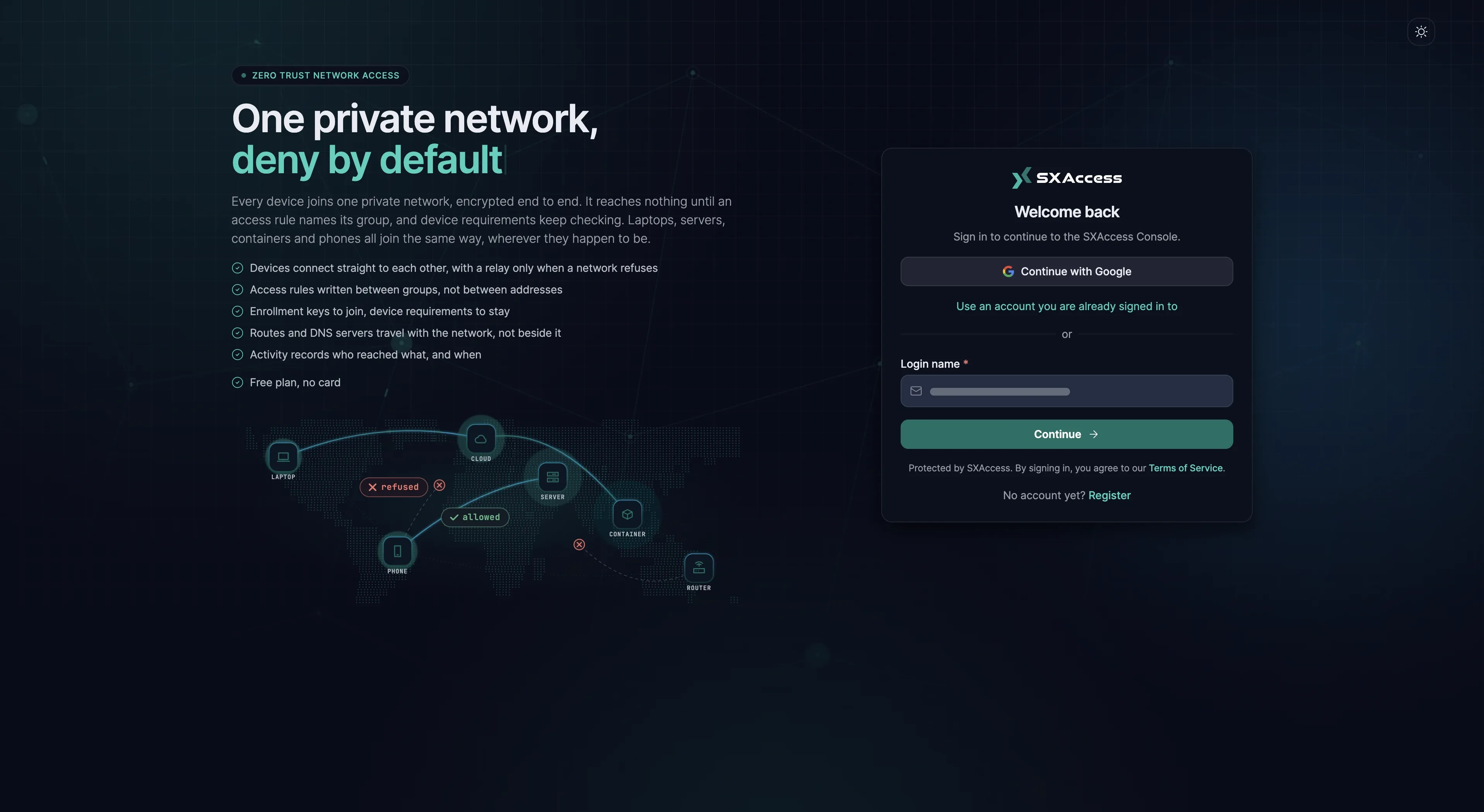
Members sign in on one page, whether in the dashboard or on a device: the apps open it in a browser, and so does sxaccess start (with --no-browser the CLI prints the link instead). SXAccess runs the identity system, so there is nothing to host or configure on your side.
A sign-in proves who someone is. What they may do is decided on every request: their role and whether they are blocked are read each time, so a change to either applies at once.
What the sign-in page offers
| On the page | What it does |
|---|---|
| Continue with Google | Signs in with a Google account. An address nobody uses yet gets a new account, without a password |
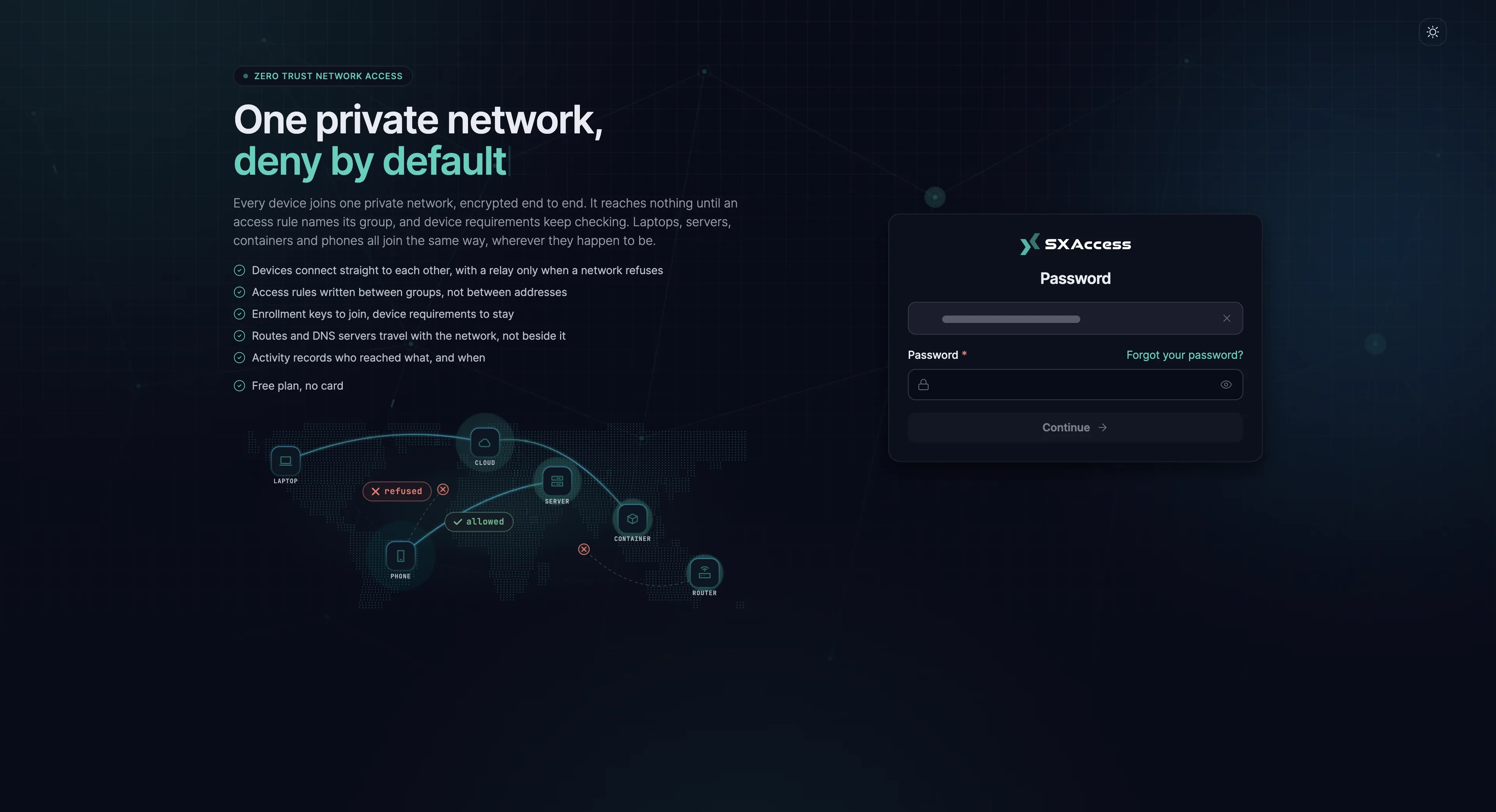
| Login name, then Continue | Your email address; the next step asks for the password |
| Forgot your password? | On the password step. Emails a one-time reset link, valid for one hour |
| Sign in with a passkey | A fingerprint, face or device PIN instead of the password, where the organization allows passkeys |
| Use an account you are already signed in to | Shown when this browser is already signed in. Opens Choose an account with the sign-ins still active here |
| No account yet? Register | Creates an account of your own |
Passkeys
A passkey replaces the password with a fingerprint, face or device PIN. It works only where the organization allows it under Settings → Authentication → Allow signing in with a passkey, which is off in a new organization, and the password keeps working beside it. Where the organization requires two-factor, a passkey replaces only the password, and the second factor is still asked for. Registering a passkey is described in Sign in with a passkey.
Second factors
Once a member has set up a second factor (an authenticator app, an emailed code or a security key), every sign-in with a password or with Google asks for it next. An organization can make one mandatory with Settings → Authentication → Require it to enter this organization, for Google sign-ins too; anyone without one is asked to set one up at their next sign-in, so nobody is locked out. What sign-in asks for sets out each case, and Two-factor and passkeys covers setting the methods up.
Invitations
Owners and admins invite people under People → Members → Invite member. An address without an SXAccess account gets an account with the address as its login name, and an email with the subject You have been invited to SXAccess. Its Accept invitation button opens Complete your invite, where the person sets a first and last name and a password, then signs in. Someone who would rather use Google completes the invite first and then connects Google, as described below.
An address that already has an account is added at once and told so by email. That person signs in as before, with their password or with Continue with Google if the account was created through Google. See Inviting someone.
Registering
No account yet? Register asks for a first and last name, an email address and a password, then the confirmation code from the email that follows. An address that is already registered is told so and offered the sign-in instead. An account that belongs to no organization yet, registered or created through Google, lands on Create your Organization after signing in; see Create an organization.
Adding Google to a password account
A Google sign-in on an address that already has an account is refused until the member connects Google from inside that account, under Profile Settings → Sign-in → Connected sign-in providers. Only a Google account on the same email address can be connected; from then on both ways work. The detour is deliberate: if the address alone decided, anyone who got a Google account for a colleague's address could take over that colleague's account. The steps are in Google sign-in and your password.
Where a person's groups come from
Groups decide what a member's devices can reach. For people they are set on the Access tab of the member's page, and devices enrolled by signing in take them from there; every device is also in the group All. Nothing is reachable until an access rule allows it: see Groups and Access rules.
Whether a change to a member's groups also moves the devices they already have depends on Enable user group propagation (People → Groups → Settings, on by default); see Group propagation.
How long a sign-in lasts
In the dashboard a sign-in lasts at most 12 hours. After 30 minutes without activity, the dashboard signs you out and the sign-in page says You were signed out after 30 minutes without activity. Sign in again to continue. Once the 12 hours are up, it says Your session has ended. Sign in again to continue. Working in any dashboard tab counts as activity. Log out in your account menu ends a sign-in at once.
On a device there is no idle sign-out; the apps and the CLI stay signed in. A device enrolled by signing in follows the organization's device session rules instead. With Settings → Security → Expire device sessions on (the default, 24 hours), the person signs in again on the device when its session runs out. Disconnect inactive devices can also end the session after a set time without a connection. Devices enrolled with an enrollment key never expire. See Organization settings.
Changes to a member do not wait for either: a new role or a block applies from their next request, and a block also expires every device they enrolled by signing in.
Access tokens
An access token authenticates a program, not a person, and never goes through the sign-in page. Two-factor, passkeys and the idle sign-out do not apply to it: it works until it expires or is deleted, or until the account it belongs to is blocked or removed. Issue tokens for automation on a service account and store them like passwords.
When sign-in does not work
- Google is refused. The address already has an account; connect Google as described above.
- The passkey does not work. The message is the same whatever the cause - passkeys not allowed, the passkey removed, the prompt cancelled. Sign in with the password.
- Asked to set up two-factor. The organization requires a second factor. Set one up and the sign-in continues.
- Second factor lost. With another method still at hand, choose Use another method at sign-in. Otherwise an owner or admin chooses Reset two-factor in the member's row menu under People → Members, after checking who they are talking to. The reset removes the authenticator app and emailed codes. It stops with an error as soon as it reaches a security key or a passkey, leaving everything it has not removed yet in place. In that case, write to
support@sxaccess.com. See When someone loses their second factor. - Signed out after 30 minutes. The dashboard's idle sign-out, not a fault. Devices stay connected.
- Session ended. The server has ended your dashboard sign-in, and the sign-in page shows
Your session has ended. Sign in again to continue.That happens when the sign-in reaches its maximum length, when you sign out in another tab or window of this browser, and when the account's password changes. Changing it on the Password tab ends every other sign-in of the account; resetting it through Forgot your password? ends them all. Sign in again. - Blocked member. Every request is refused, in the dashboard and over the API. Switch off Block user on the member's Profile tab to unblock.
- Device session expired. The device drops out of other devices' lists until the person signs in on it again. That is Expire device sessions doing its job.
- Signed in, and the device still reaches nothing. Check the member's groups, then the access rules that name them.