

Windows
An installer you download from the dashboard and run once as an administrator. Sign in, and the PC is connected. No command line, on the machine or afterwards.
Install and sign in
- 1
Download the installer
In the dashboard, choose Add device and then Windows, or download the installer directly from pkgs.sxaccess.com/windows/x64. It is an MSI package.
- 2
Run it as an administrator
Installing needs administrator rights; using SXAccess afterwards does not. The installer adds the SXAccess app and the SXAccess Tunnel service. The service runs the encrypted tunnel and changes routes and DNS for it, so the app you work with never runs as administrator. When the service starts, it creates a network adapter named SXAccess, which stays while the service runs and carries the tunnel each time you connect. The installer also adds a Windows Firewall rule, SXAccess Tunnel, so that direct connections from other devices can come in.
- 3
Let the app check that it is ready
After Get started, the app shows Getting SXAccess ready: SXAccess service and Network adapter driver should both read
Ready. If one does not, repair the installation. Open Installed apps takes you to Settings → Apps → Installed apps; choose SXAccess, then Modify → Repair, approve the administrator prompt and come back. If the app asks you to restart Windows to finish updating SXAccess, do that. Then choose Continue to sign-in. - 4
Sign in
Choose Sign in with SXAccess account; your browser opens and you finish signing in there. If you belong to more than one organization, pick one and choose Continue as, followed by its name. The PC appears in Devices in the dashboard, connects, and the app opens on Shield.
- 5
Connect and disconnect
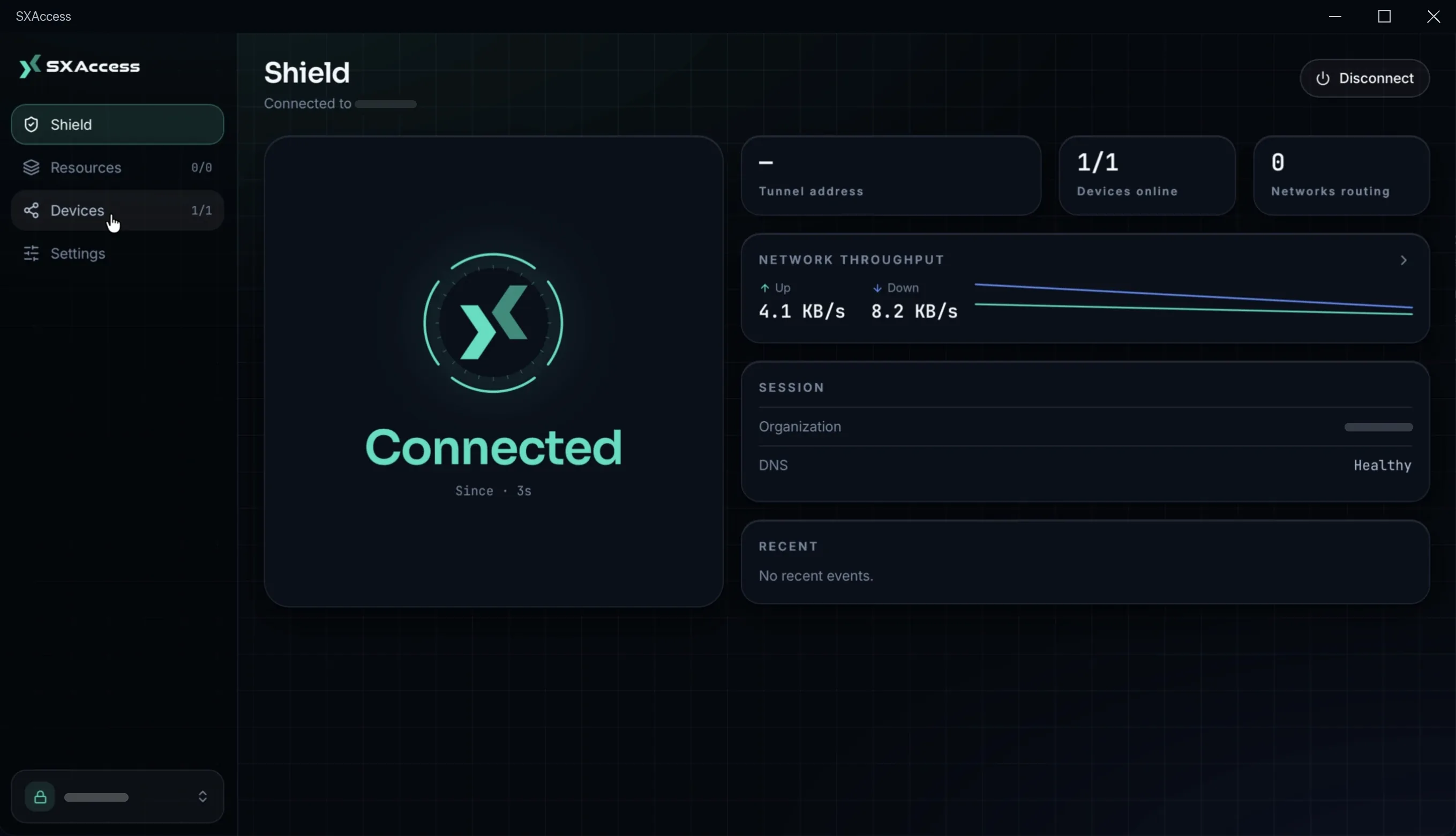
From then on, Connect on Shield brings the tunnel up, and Disconnect asks
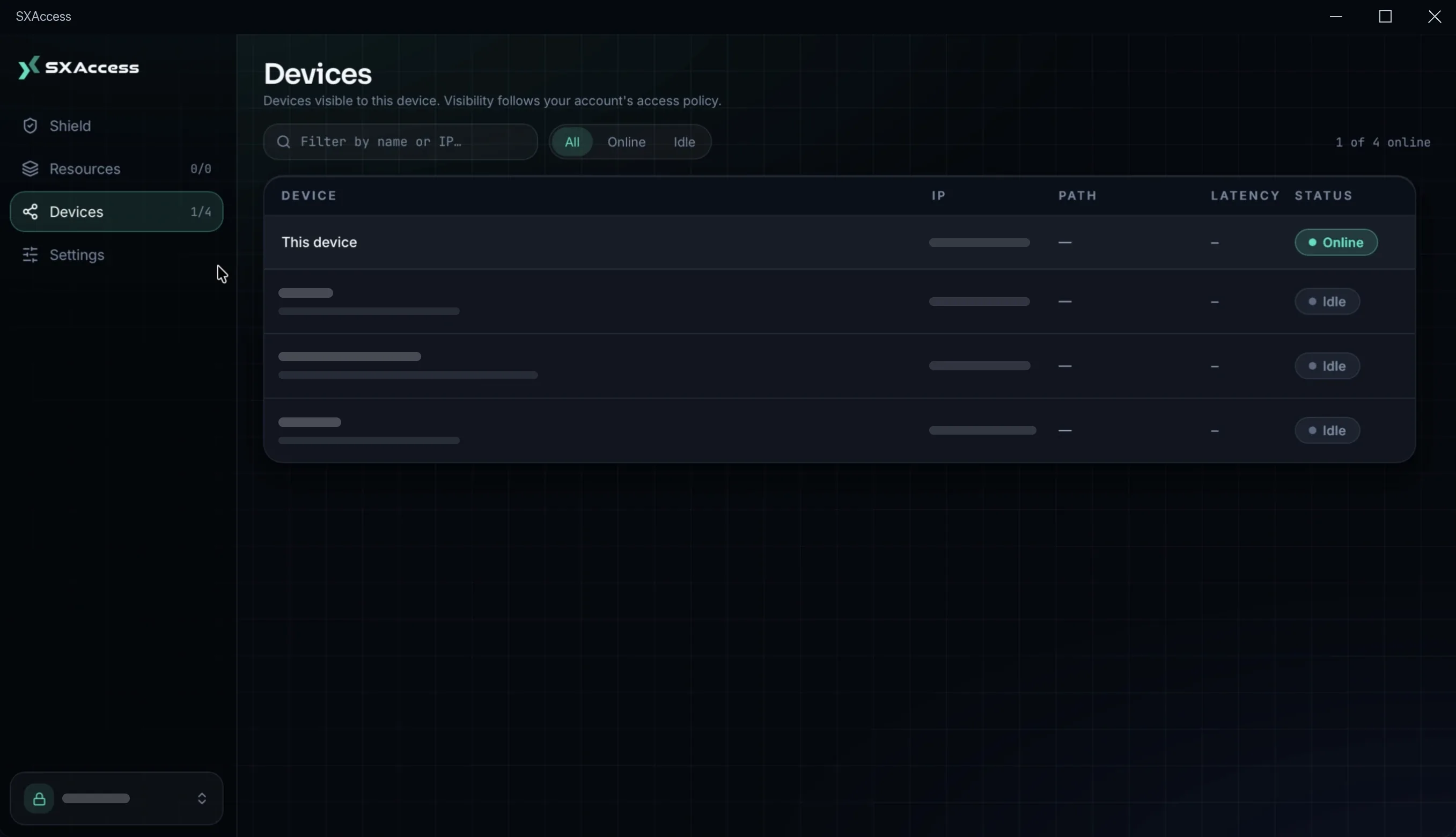
Disconnect SXAccess?before it takes it down. Devices lists every device you are allowed to reach.
One Windows user at a time
The tunnel belongs to the Windows user who started it. It stops when that user signs out of Windows, or when another Windows user becomes active on the PC. That person sees SXAccess disconnected because another Windows user is signed in. Sign in to SXAccess with your own account. on the sign-in screen. Each Windows user keeps their own sign-in and organizations on the PC. A remote session whose connection drops keeps its tunnel.
What is in the app
| Area | What it does |
|---|---|
| Shield | Whether the PC is connected, with its Tunnel address (its overlay address), Devices online, Networks routing, throughput, and the session's organization and DNS health; Connect and Disconnect. |
| Resources | The networks and services your organization makes reachable for you, each with a switch, plus filters, search, Select all and Clear all. Internet gateways are listed as well, but the Windows app does not send traffic through one yet, even when its switch shows as on (marked SAVED SELECTION). |
| Devices | Every device this PC can see, with IP, Path (Direct or Relayed and their variants, or Pending while the connection is settling on a path), Latency and Status. The page explains: Devices visible to this device. Visibility follows your organization's access rules. |
| Organization pill | At the bottom of the sidebar. It lists your organizations, tagged CURRENT, ENROLLED or NOT JOINED, and switches between them while the PC is connected. Sign out is there too: it ends your SXAccess sign-in and disconnects, but the PC stays enrolled. See Create and switch organizations. |
| Second factor | If an organization requires a second factor that your sign-in did not include, the app asks for it in place. That can be a code from your authenticator app, an emailed code, or a security key over USB, NFC or Bluetooth (Windows Hello is not offered). You can set one up on the same screen. See Two-factor and passkeys. |
| Notifications | Connected, Disconnected and Connection failed. |
| Diagnostics | In Settings: the state of the service, whether Lazy Connect is in effect, and health checks. Copy status report copies them for support. The logs themselves are in the service log, below. |
Settings
| Setting | Default | What it does |
|---|---|---|
| Theme | System | System, Light or Dark. |
| Connect on launch | off | Brings the tunnel up as soon as the app starts. |
| Launch at login | off | Starts SXAccess when you sign in to Windows. If it is turned off in Startup apps, the row says so and offers Open Startup apps. |
| Connect on demand | Follow organization setting | Follow organization setting or Enable on this device. When it is on, the PC opens a tunnel to another device only when traffic goes there. Takes effect from the next connection. |
| Notifications | on | The three notifications above. If Windows blocks notifications from SXAccess, the row says so. |
| Log level | info | info, debug or trace, for the service log. |
| Pre-shared key | not set | An extra symmetric key on the tunnel; a device that has one connects only to devices with the same key. The Windows app cannot set one: the row shows whether this PC has one, and Remove takes it off. |
Where things live
| Path | Contents |
|---|---|
%ProgramData%\SXAccess\ | The service's state: the enrolments, device keys and sign-ins of every Windows user on the PC. Only SYSTEM and Administrators can open it |
%ProgramData%\SXAccess\Logs\service.log | The service log. When the service starts and the log is over 10 MB, it moves to service.log.1, replacing the older one; while the service runs, the log keeps growing |
%APPDATA%\SXAccess\settings.json | The app's settings, per Windows user |
Removing it
Remove SXAccess through Settings → Apps → Installed apps, like any other application, then delete the device from Devices in the dashboard: that is what revokes its key.
Uninstalling keeps %ProgramData%\SXAccess, with the enrolments and device keys of every Windows user on the PC, so a reinstall comes back as the same device. For a clean slate, delete that folder after uninstalling, from a Command Prompt run as administrator:
rd /s /q "%ProgramData%\SXAccess"