

Reaching internal services from anywhere
Let your team open an internal service from anywhere, without putting it on the public internet. About 30 minutes.
What you will achieve
Your team opens an internal service from anywhere. Nobody else on the internet can reach it.
By the end, one laptop reaches one service by name, and a laptop you did not grant does not.
When to use this
Use this when the thing to reach is one service on one machine that you can install software on:
- An internal wiki or HR portal people need from home.
- A staging site that must never be public.
- A database developers open with a desktop client.
- An admin panel that today needs someone in the office.
Want a whole office or cloud network instead? Choose your setup points you at the right guide.
What you need
The rows marked Required are all you need; the others are for later.
| What | Why | |
|---|---|---|
| Required | The Owner or Admin role in the dashboard | Steps 2 and 4 need it. A Network Admin can create the groups and the rule, but not the key or a member's groups |
| Required | The service running, and its port number | The rule names the port |
| Required | A laptop to test from | Step 5 installs the SXAccess app on it. Only the laptop proves it worked |
| Required | Root or sudo on the server | The server joins by running a small agent |
| Optional | The rest of the team | Start with yourself; add them after |
| Optional | A device requirement | Only if access should depend on the laptop: Device requirements |
| Advanced | A second machine on the same network | Only if the agent cannot go on the service's host |
Before you start
Two machines, one tunnel, one rule that allows it.
The laptop runs the SXAccess app and the server runs the agent. Both connect outwards, so you open no port on your firewall. Cannot install anything on the server? See Advanced configuration.
Setup
- 1
Create the two groups
People › Groups › Create group. Type the name and press Create group. Do it twice:
engineering- who gets access.internal-wiki- what they reach. Name it after the service, not the server.
Why: rules name groups, so a rule against
engineeringstays correct when someone gets a new laptop.You see: two new groups, both empty. That is correct for now.
- 2
Create an enrollment key
Access › Enrollment keys › Create enrollment key:
- Name -
wiki-server. - Make this key reusable - off. One machine.
- Expires in -
1day. You use it in a minute. - Temporary devices and Allow Extra DNS Labels - off.
- Auto-assigned groups -
internal-wiki, so the server lands in that group as it joins.
Press Create enrollment key.
You see: Enrollment key created successfully! and the key. Copy it now with the copy icon at the right of the key: it is not shown again. Leave the sheet open for step 3.
- Name -
- 3
Install the agent on the server
In a terminal on the server; the commands are for Linux. Nobody signs in on a server, so it joins with the key.
Install SXAccess on the sheet from step 2 shows the same stages: the install script,
sxaccess start --enrollment-key <key>, thensxaccess info. The block below also keeps the key out of shell history and the process list, and names the server. Do not use the Linux tab under Add device: it starts without a key, so the server would join as your own device.Run the block in bash or zsh, as root. Paste the whole block and press Enter once. When
Enrollment key:appears, paste the key, and only the key, and press Enter. The key is not shown, and an empty line asks again. The key file is removed at the end, whether or not the join worked. If you stop the block with Ctrl-C, remove it withrm -f /run/secrets/sxaccess-key.You see:
This device is now connected, thensxaccess infostarting withConnected.This device is already connectedmeans the machine had joined before and kept its old identity, without the key's group: open it under Devices, addinternal-wikiin Assigned groups and press Save changes.curl -fsSL https://pkgs.sxaccess.com/install.sh | sh{ install -d -m 700 /run/secrets install -m 600 /dev/null /run/secrets/sxaccess-key KEY='' until [ -n "$KEY" ]; do printf 'Enrollment key: '; read -rs KEY || break; echo; done [ -n "$KEY" ] && printf '%s' "$KEY" > /run/secrets/sxaccess-key && unset KEY && sxaccess start --enrollment-key-file /run/secrets/sxaccess-key --hostname wiki-server && sxaccess info rm -f /run/secrets/sxaccess-key} - 4
Give the person the engineering group
A person's groups are set on the member, under Auto-assigned groups:
- Already a member: People › Members › the person › Access. Add
engineeringto Auto-assigned groups and press Save Changes. - Not a member yet: People › Members › Invite member. Fill in Full name and Email address, put
engineeringin Auto-assigned groups, and press Send Invitation. Someone new to SXAccess then gets an email: Accept invitation opens Complete your invite, where they set the password they need in step 5.
Why on the person: the group then applies to every device they enrol, and group propagation, on by default, moves the devices they already have.
You see:
engineeringon the member's Access tab. - Already a member: People › Members › the person › Access. Add
- 5
Install the SXAccess app on the laptop
Install and open the SXAccess app on the laptop: macOS (Mac App Store or a direct download), Windows (the installer from Add device), iOS and Android (App Store, Google Play).
A person sits at it, so it signs in and needs no key. Choose Sign in with SXAccess account (macOS, Windows); on a phone, tap Allow VPN configuration and then Sign in. The sign-in happens in the browser, with an email address or Continue with Google. Approve the VPN permission the operating system asks for.
You see: the app connected, and the laptop under Devices in the dashboard.
- 6
Check both machines are there
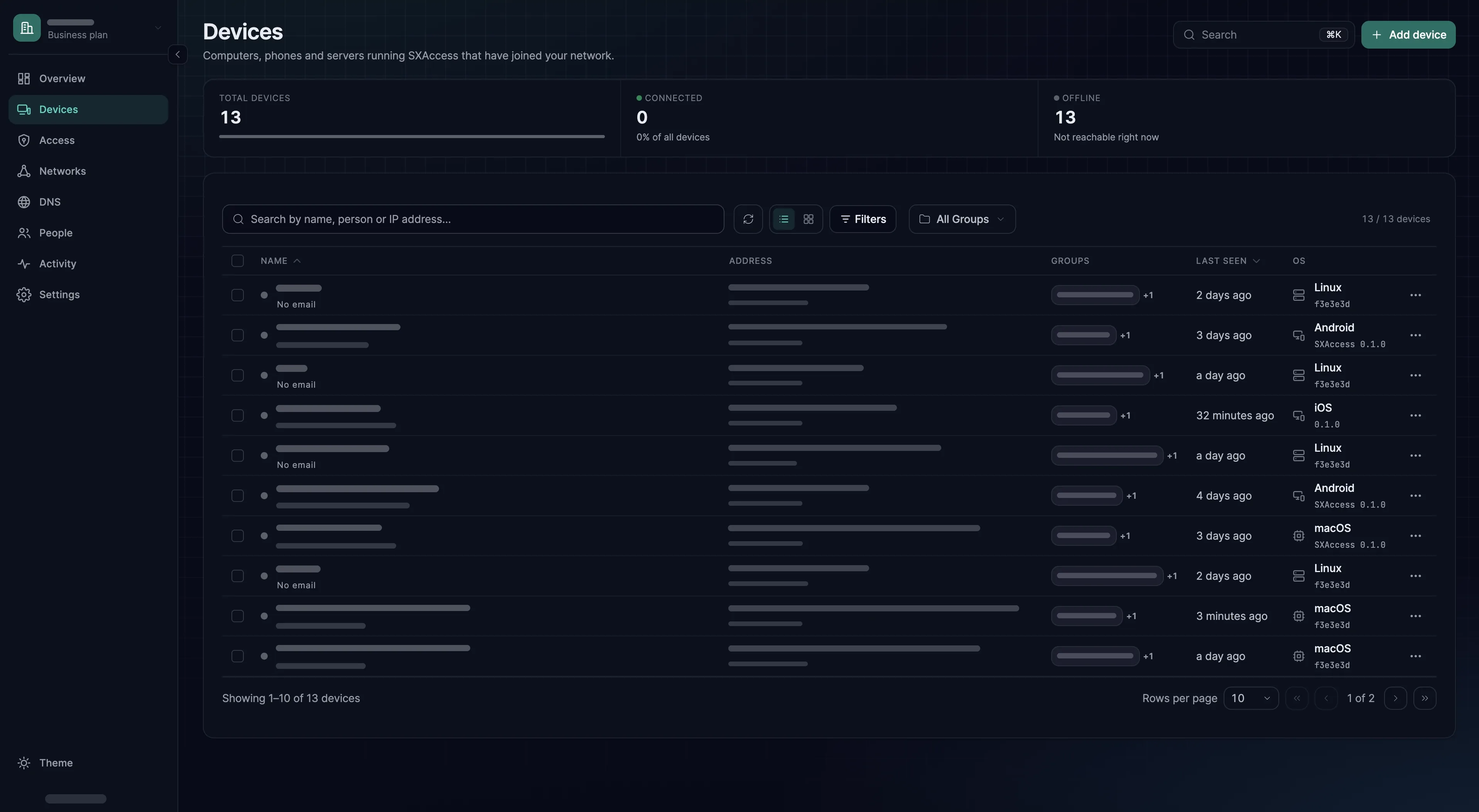
Devices. Two entries, both online (Last seen reads Just now): the laptop with
engineering,wiki-serverwithinternal-wiki. The +1 beside each group is the built-in groupAll.Why now: a missing group makes a correct-looking rule that grants nothing.
- 7
Write the access rule
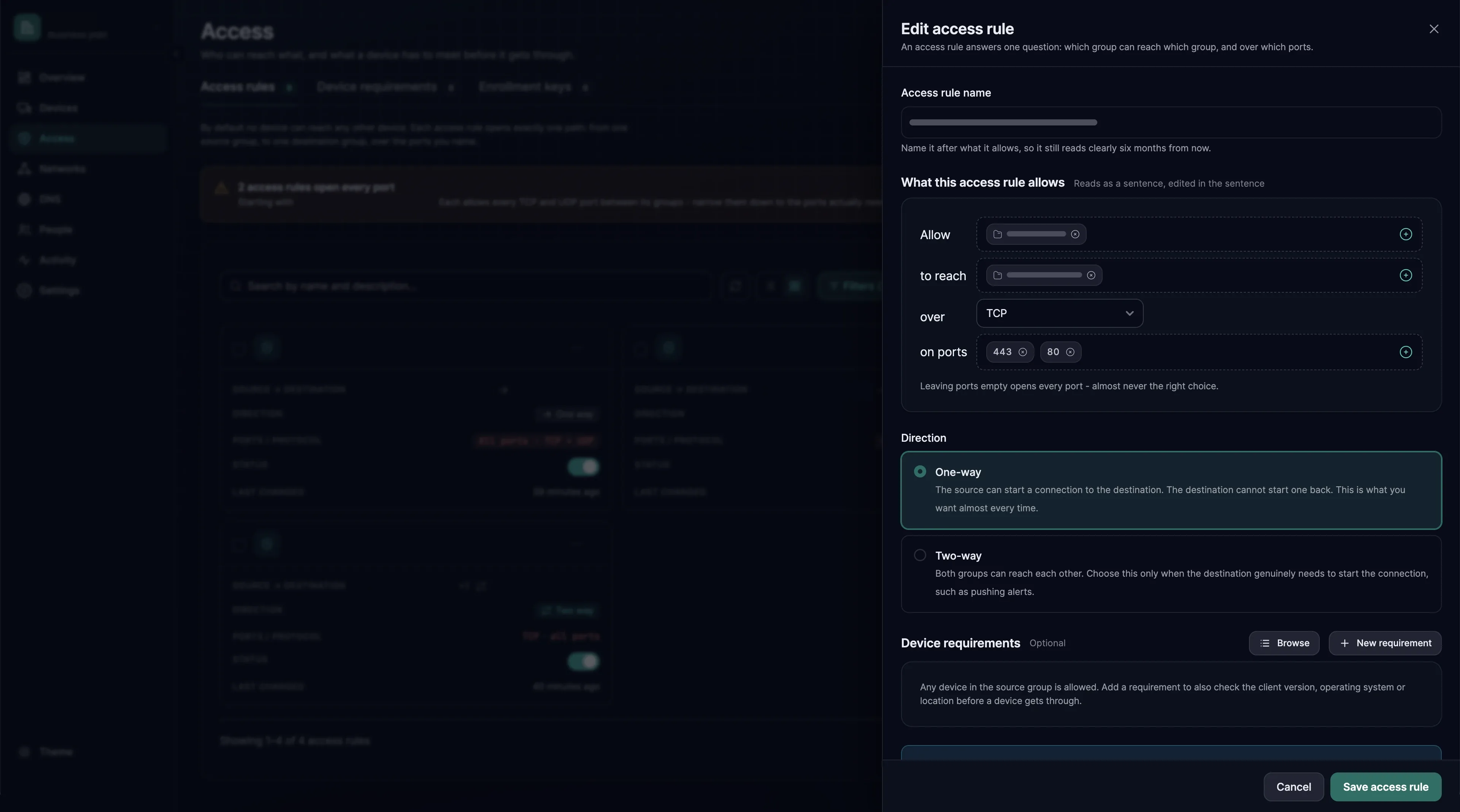
Access › Access rules › Create access rule. It reads as a sentence:
Allow
engineeringto reachinternal-wikiover TCP on ports443.- Access rule name - the intent, such as Engineering reaches the internal wiki.
- Allow and to reach - the two groups. Leave out the built-in group
All, which both fields offer: it holds every device. - over - TCP. A new rule starts at any protocol, which opens every port.
- on ports - click the field, type
443(or your service's port) and press Enter: the field shows 443 instead of All. Left empty, the rule opens every port. - Direction - leave One-way. The server has no reason to start a connection to a laptop.
Press Create access rule. Until a rule allows it, the two machines cannot reach each other.
You see: the rule in the list, switched on. It reaches both machines by itself; nothing needs restarting.
Verify
Test from the laptop. The dashboard shows what you configured; only the laptop shows what works.
Expected result
In the SXAccess app, open Devices: wiki-server is listed and Online. The app lists only the devices a rule connects it with, so the rule has arrived. Open it: FQDN is its full name, starting with wiki-server. On a laptop with the CLI agent instead, sxaccess info -d lists wiki-server with its Path.
Port 443 on that name must answer. Run the first command below for your system, with that name in place of <full-name>. It must succeed; in PowerShell, that is TcpTestSucceeded : True.
A browser at https://<full name>/ will usually warn about the certificate first, because the certificate names the service's usual host name: accept the warning for this test. For daily use, give the service a certificate for its SXAccess name, ideally under your own domain for devices.
Then check the half that should fail
This proves the rule is narrow, not merely present. Sign in on a second machine not in engineering: wiki-server is missing from its Devices screen, and the service does not answer.
No second account? On macOS or Linux, ask for a port your rule does not name (the second command). It must time out after 5 seconds, because SXAccess silently drops what no rule allows. Connection refused proves nothing: the request reached the server.
nc -vz -G 5 <full-name> 443nc -vz -G 5 <full-name> 22nc -vz -w 5 <full-name> 443nc -vz -w 5 <full-name> 22Test-NetConnection <full-name> -Port 443Troubleshooting
If it does not work, go down the table in order. The first questions need no technical knowledge, and the first four cover most cases.
| Ask | If no | Where |
|---|---|---|
| Does the SXAccess app say connected? | Nothing works until it does. Sign in again: a device enrolled by signing in has a session that expires, after 24 hours by default. | The app, then Sign-in |
| Are both machines online under Devices? | If the server is not, sxaccess info on it says why: start a stopped agent with sudo sxaccess agent start, and connect it with sxaccess start. | Devices |
| Does each machine carry the right group? | The commonest cause of a rule that looks right and grants nothing. A server that had joined before keeps its old groups: add the group under Assigned groups on its page and press Save changes. For a laptop, check the member's Auto-assigned groups, and that Enable user group propagation (People › Groups › Settings) is on. | Devices, Members |
| Is the rule on, with the right protocol and port? | A rule for 443 does not open 8080. Check the port the service really uses, that the rule says TCP, and that Access rule is active is ticked under Advanced options. | Access rules |
| Does the service answer on the server itself? | Run ss -tln there. The service's port must listen on 0.0.0.0, *, [::] or the server's SXAccess address. A service bound only to 127.0.0.1 or a LAN address refuses connections that arrive through SXAccess. No such port at all: start the service. | A terminal on the server |
| Still stuck? | Take the connection apart one stage at a time. | Trace a blocked connection |
Advanced configuration
None of this is needed for a working setup.
The machine cannot run the agent
An appliance, a managed database, a printer. Put the agent on another machine on the same network, a routing device, and publish the target as a resource of a network. See On-premises sites.
More servers for the same service
Enrol each one with a new key that has internal-wiki under Auto-assigned groups (the key from step 2 worked once), or add the group on the page of a server that has already joined. The rule names the group, so it covers them as they arrive.
A whole range instead of one machine
A range such as 10.20.0.0/24 grants everything in it, including whatever is plugged in next year. It can also collide: most home routers hand out 192.168.1.0/24, so if that is your range, a laptop at home cannot reach your range and its home network at once. Name machines individually where you can; otherwise read On-premises sites first.
From a script
sxaccess start also reads the key file's path from SX_ENROLLMENT_KEY_FILE (Environment variables). Groups, enrollment keys, members and access rules have no CLI commands: script them with the Public API.