

Access rules
Access rules decide who reaches what. They are allow-lists written between groups, narrowed by protocol and port, and optionally gated on device requirements.
An access rule names a source, a destination, a protocol and - for TCP and UDP - the ports it opens. The source is one or more groups; the destination is one or more groups or a single network resource. Access rules are allow-lists: nothing can reach anything until an access rule allows it, and traffic that no active access rule allows does not pass.
You write them in the dashboard under Access → Access rules, or over the API at https://app.sxaccess.com/api/access-rules (see Over the API).
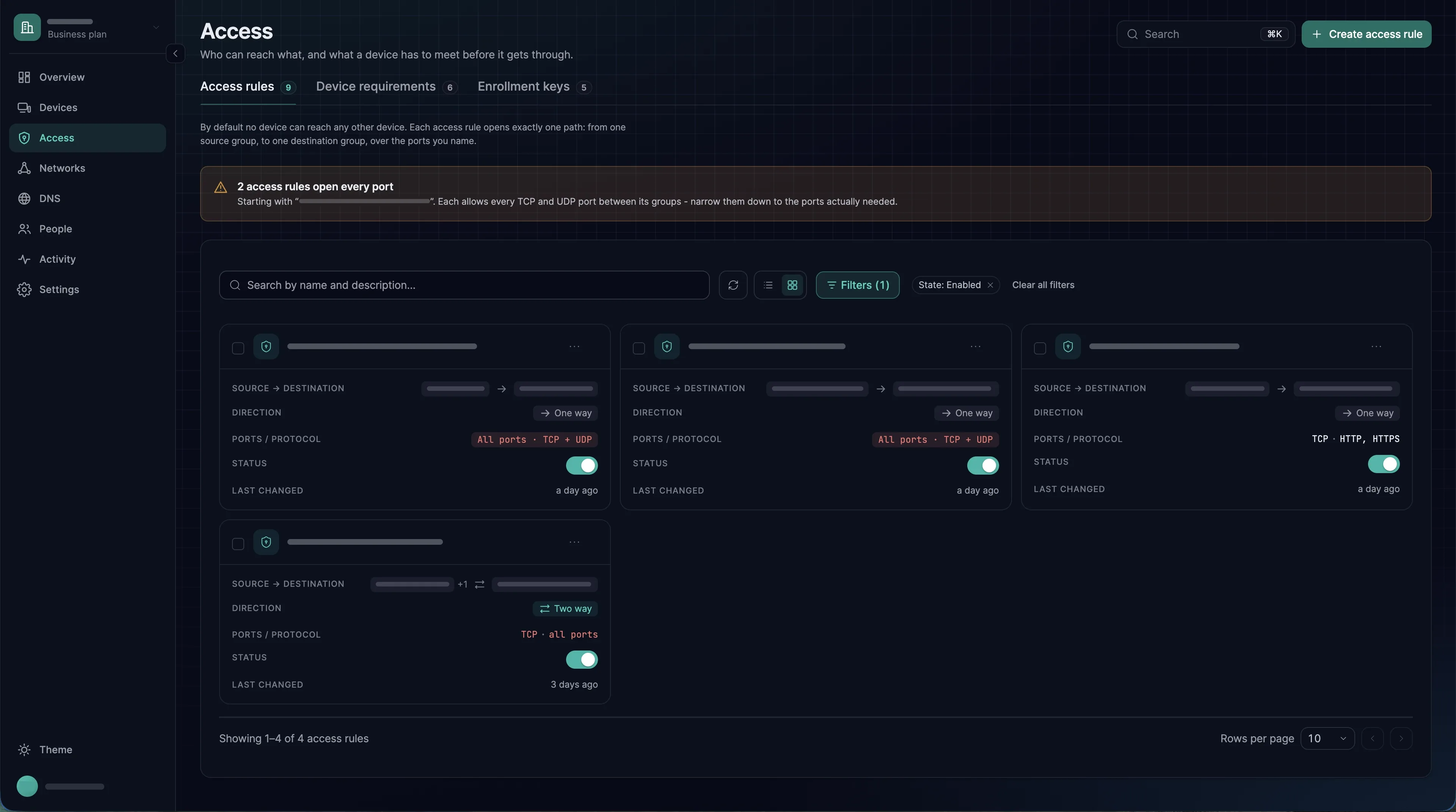
Anatomy of an access rule
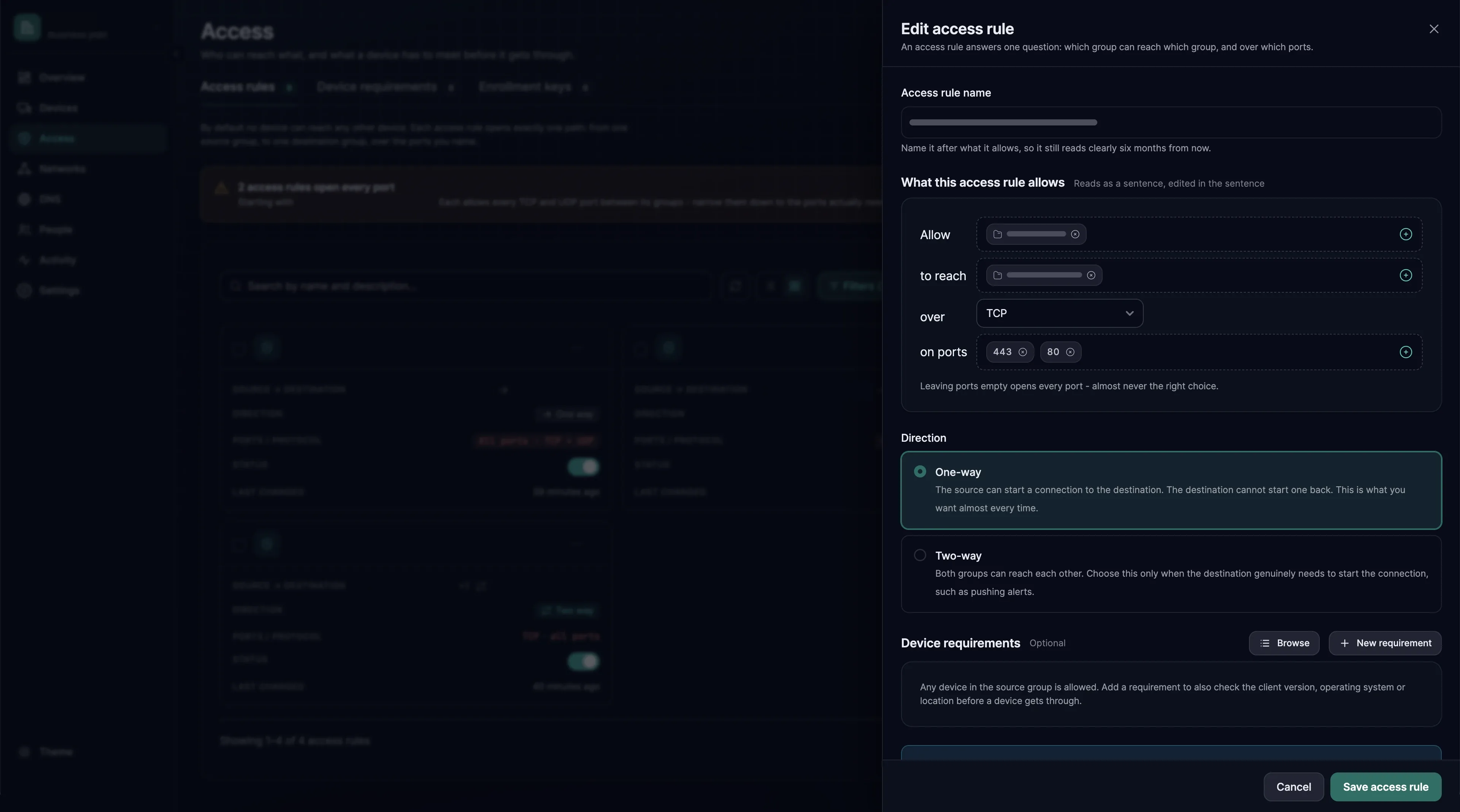
| Part | In the dashboard | Over the API |
|---|---|---|
| Name | Access rule name | name |
| Source | The groups after Allow | rules[0].sources: group IDs |
| Destination | The groups after to reach, or a single network resource when you open the editor from that resource | rules[0].destinations: group IDs, or rules[0].destinationResource |
| Protocol | any protocol, TCP, UDP or ICMP. A new access rule starts at any protocol | rules[0].protocol: all, tcp, udp or icmp |
| Ports | Shown for TCP and UDP only. Empty means every port | rules[0].ports or rules[0].port_ranges, never both in one access rule |
| Direction | One-way or Two-way | rules[0].bidirectional |
| Device requirements | Browse or New requirement | source_device_requirements: requirement IDs |
| Active | Access rule is active under Advanced options, or the Status switch in the list | enabled and rules[0].enabled; both must be true |
| Action | Not shown: the dashboard always writes an allowing rule | rules[0].action: accept, or drop, which exists only over the API |
Writing your first real access rule
- 1
Create the two groups
You will check the rule at the end from one engineer's laptop, so have one ready with SXAccess installed and signed in.
You need one group for the people,
Engineering, and one for the database servers,Production databases. Open People → Groups → Create group, type the name and choose Create group, once for each. You can also type a new name into any group field and press Enter: the group is created when you save. See Groups. - 2
Put the engineers in Engineering
For each engineer, open People → Members, select the person, and on the Access tab add
Engineeringunder Auto-assigned groups. Choose Save Changes. Devices they enrol from now on join the group, and so do the devices they already have while group propagation is on, which is the default. - 3
Put the database servers in Production databases
For each database server, open Devices, select it, add
Production databasesunder Assigned groups, and choose Save changes. For servers you enrol later, put the group in the enrollment key's Auto-assigned groups instead, so they join it as they enrol. - 4
Add one narrow access rule
Open Access → Access rules → Create access rule and enter
Engineering to production databasesas the Access rule name. Complete the sentence: allowEngineeringto reachProduction databasesover TCP. In the ports field, type5432and press Enter; the field then shows 5432 instead of All. Leave the direction at One-way, read the Preview, and choose Create access rule. - 5
Verify it
In the dashboard, open an engineer's device under Devices: its Accessible devices tab lists the database servers. On an engineer's machine running the CLI agent,
sxaccess info -dlists them too.A one-way access rule does not hide the two ends from each other: each appears in the other's device list. It is the firewall on the engineer's machine that refuses a connection the database tries to start.
sxaccess info -d - 6
Retire the quickstart rule
If you created the ICMP test rule from the quickstart, delete it now. Nothing depends on it once a real access rule is in place. While it remains, the machines in
quickstartcan ping each other, so a ping between them tells you nothing about the rules you write next.
How access rules are applied
Every access rule you write in the dashboard allows something. A device gets the sum of what the active access rules allow: rules have no priorities and do not shadow each other, so there is no order to reason about. What no active access rule allows is refused, so there is no deny rule to write.
The management service turns all of this into two things for each device: the list of devices it may talk to, and the firewall rules for them. A device that no access rule connects to yours is not in your list at all: it cannot be pinged, port-scanned or discovered over SXAccess. A device that is in the list is still filtered by the firewall rules, which is how a one-way access rule keeps the destination from starting connections.
The API has one exception: an access rule whose rules[0].action is drop refuses the traffic it matches. Use it only for traffic that a routing device forwards. There, drop rules are checked before allowing rules, so a drop rule can cut an exception out of routed access. Between two devices, a drop rule and an allowing rule that match the same traffic have no fixed order, so narrow the allowing rule instead.
Gating on device requirements
An access rule can carry device requirements that a source device must meet before the rule applies to it. In the editor, Browse attaches requirements you already have and New requirement creates one on the spot. A laptop that falls below the minimum OS version, or connects from a country you have not allowed, silently loses the access this rule grants - without any change to its groups. Destinations are not checked.
See Device requirements for the checks.
Working with the list
The Status switch in each row turns an access rule on or off without opening it. To change several at once, tick them and choose Enable, Disable or Delete. Deleting asks for confirmation, and the connections those access rules allowed stop at once.
Patterns worth copying
- Least privilege by protocol. Most access is a handful of TCP ports. Leaving any protocol because it is quicker gives every allowed machine ICMP, UDP and every port, permanently.
- One access rule per intent, not per group pair. An access rule named
Engineering reaches stagingthat covers three services is easier to audit than nine access rules named after group pairs. - Separate admin access. RDP belongs in its own access rule, gated on device requirements, so it can be tightened without touching application access.
- Disable before delete. Turning an access rule off has the same effect as deleting it and keeps the definition, which matters when you are wrong.
Over the API
The API manages the same access rules at https://app.sxaccess.com/api/access-rules, with an access token in the Authorization: Token header. An access rule keeps what it allows in a rules list; give it exactly one entry, because the dashboard shows and edits only the first. Groups and device requirements are referenced by ID, and the server answers HTTP 400 to a field it does not know. See the API reference.
curl -sS -X POST https://app.sxaccess.com/api/access-rules \ -H "Authorization: Token $SXACCESS_TOKEN" \ -H 'Content-Type: application/json' \ -d '{ "name": "Engineering to production databases", "enabled": true, "rules": [{ "name": "Postgres", "enabled": true, "action": "accept", "protocol": "tcp", "ports": ["5432"], "bidirectional": false, "sources": ["<engineering-group-id>"], "destinations": ["<database-group-id>"] }] }'