

Enrollment keys
How a machine registers when nobody is there to sign in - with an expiry, a usage limit, and the groups it lands in.
An enrollment key lets a machine enrol itself without anyone signing in. It is what you use for servers, containers, CI runners, routing devices and anything else that has no browser and no person.
Treat the key like a password: anyone who has it can add a device to your organization, in the groups the key names. A device enrolled with a key has no owner and never expires: it stays until you delete it, unless the key makes temporary devices (below).
Create one under Access → Enrollment keys → Create enrollment key.
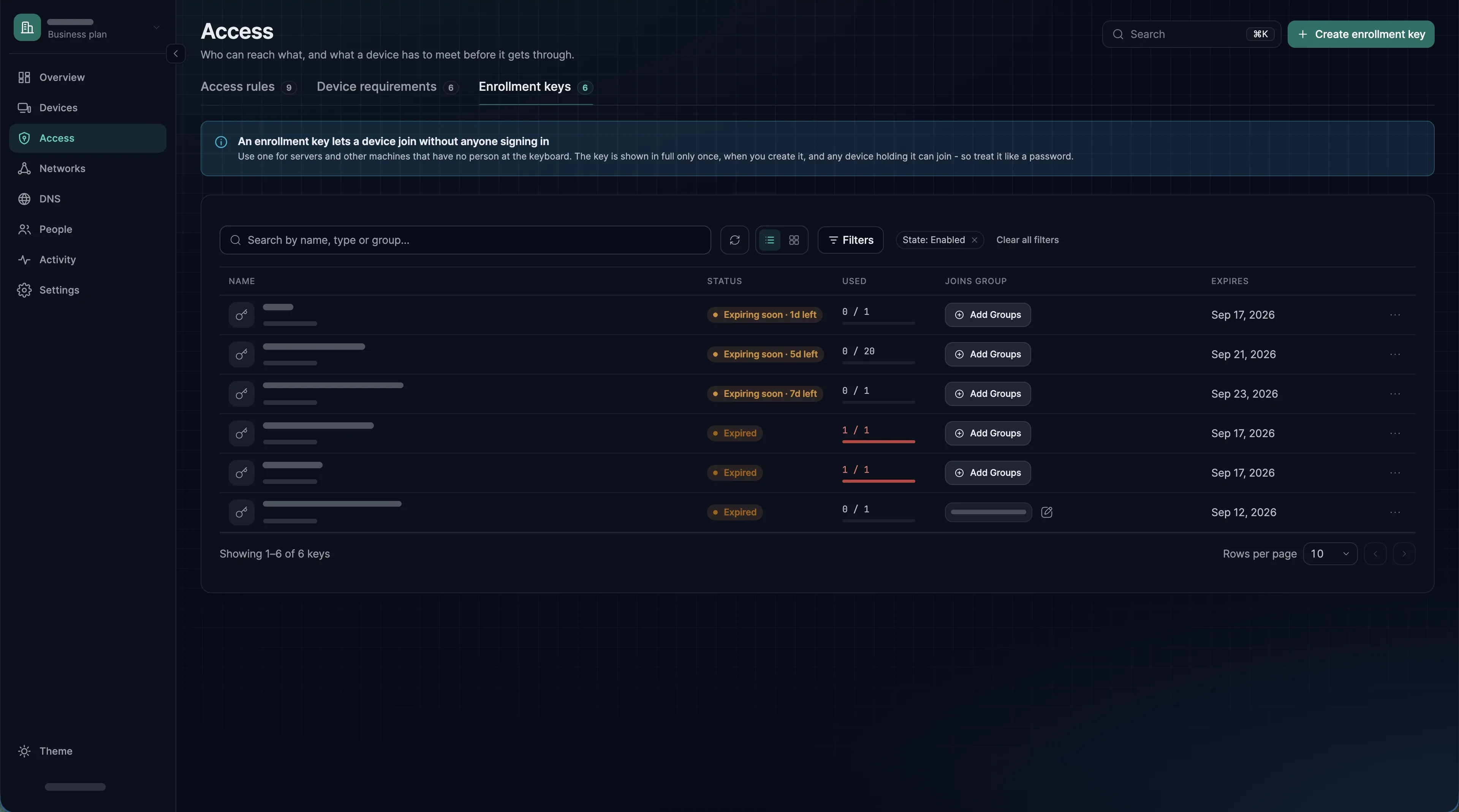
What you set when creating one
| Field | Values | Guidance |
|---|---|---|
| Name | Free text | Name it after what it enrols - ci-runners, branch-offices - not after who made it |
| Make this key reusable | Off: a one-off key. On: a reusable key | A one-off key is used up by the first machine that enrols with it |
| Expires in | Days, 7 by default. Empty means the key never expires | Shorter is better; you can always issue another |
| Usage limit | Reusable keys only. A number of devices; empty means unlimited | Counts every enrolment over the key's life, so deleting a device does not give a use back. A reusable key for a 40-node cluster should have a limit of about 40 rather than none |
| Temporary devices | On or off | Devices enrolled with this key are removed after 10 minutes offline. For autoscaled and disposable machines |
| Allow Extra DNS Labels | On or off | Lets a device enrolled with this key register extra DNS names besides its own. It asks for them as it enrols: add --extra-dns-labels, a support-level option that takes up to 32 labels, to the sxaccess start command that uses the key. A key without this setting refuses such a device. A device keeps the labels it enrolled with |
| Auto-assigned groups | Optional. One or more groups, never All | Every device enrolled with this key joins these, and this is how a machine gets its access. Left empty, its devices are only in All and reach only what access rules written for All allow |
After creation
Once a key exists, only two things about it can change:
- Its auto-assigned groups. Click the groups in the key's row to edit them. The change applies to devices that enrol afterwards; devices the key already enrolled keep their groups.
- Revoke. Revoke in the row menu stops the key from enrolling anything more. Revoking is permanent, and it does not remove the devices the key already enrolled - delete those separately if they should go too.
Everything else - name, type, expiry, usage limit and the two switches - is fixed. To change it, create a new key and revoke the old one. Delete removes a key from the list; that does not remove its devices either.
Using a key
There are three ways to hand the key to the CLI agent: as a flag, from a file, or from an environment variable. The flag is fine for a one-off on a machine you are sitting at, but the key then shows in ps output and in the shell history. Automation should use the file or the environment variable, because neither puts the secret in ps output. --enrollment-key (short -k) and --enrollment-key-file cannot be combined.
The key is only needed to enrol. Once the machine is a device it connects with its own identity, and sxaccess start on a device that is already connected prints This device is already connected and ignores the key.
sxaccess start --enrollment-key 'A6160...'sxaccess start --enrollment-key-file /run/secrets/sxaccess-keySX_ENROLLMENT_KEY='A6160...' sxaccess startOn a Mac, the SXAccess app takes a key as well: choose I have an enrollment key on its first screen, paste the key into Enrollment key on the sign-in screen, and choose Enroll with key. See the macOS app. With the Windows, iOS and Android apps, a device enrols by signing in only.
Temporary devices
A CI runner that lives for eleven minutes should not leave a device record behind. Turn on Temporary devices for its key, and devices enrolled with it are deleted automatically after 10 minutes offline, so the device list keeps reflecting what actually exists. Over the API this setting is ephemeral.
Do not use it for a long-lived server that is merely offline sometimes - it will be removed while it is switched off, and has to enrol again as a new device with a different address.
Key hygiene
- One key per purpose. Separate keys for build runners, branch offices and staging mean you can revoke one without re-enrolling everything.
- Set a usage limit that matches reality. A limit is the control that turns a leaked key into a bounded incident.
- Give keys the narrowest auto-assigned groups. The groups on the key decide what those machines can reach.
- Revoke rather than let expire once a rollout is finished.
Over the API
Keys live at https://app.sxaccess.com/api/enrollment-keys, with an access token in the Authorization: Token header. The fields follow the dashboard, with two differences: type is one-off or reusable, and expires_in is in seconds, where 0 means the key never expires. A usage_limit of 0 means unlimited. Only the response to the request that creates a key contains the key itself. To change its groups or revoke it, send PUT with auto_groups and revoked. See the API reference.
curl -sS -X POST https://app.sxaccess.com/api/enrollment-keys \ -H "Authorization: Token $SXACCESS_TOKEN" \ -H 'Content-Type: application/json' \ -d '{ "name": "ci-runners", "type": "reusable", "expires_in": 604800, "usage_limit": 40, "ephemeral": true, "auto_groups": ["<ci-runners-group-id>"] }'