

macOS
From the Mac App Store or as a download, for Macs with Apple silicon. Approve the two permissions macOS asks for, sign in, and the Mac is connected.
Install and sign in
- 1
Install the app
Get SXAccess from the Mac App Store, or download the disk image from pkgs.sxaccess.com/macos/desktop/arm64, open it and move SXAccess to Applications. Either way the Mac needs Apple silicon and macOS 14 or later. Nothing else has to be installed, and nothing runs in a terminal.
- 2
Open it and approve the two permissions macOS asks for
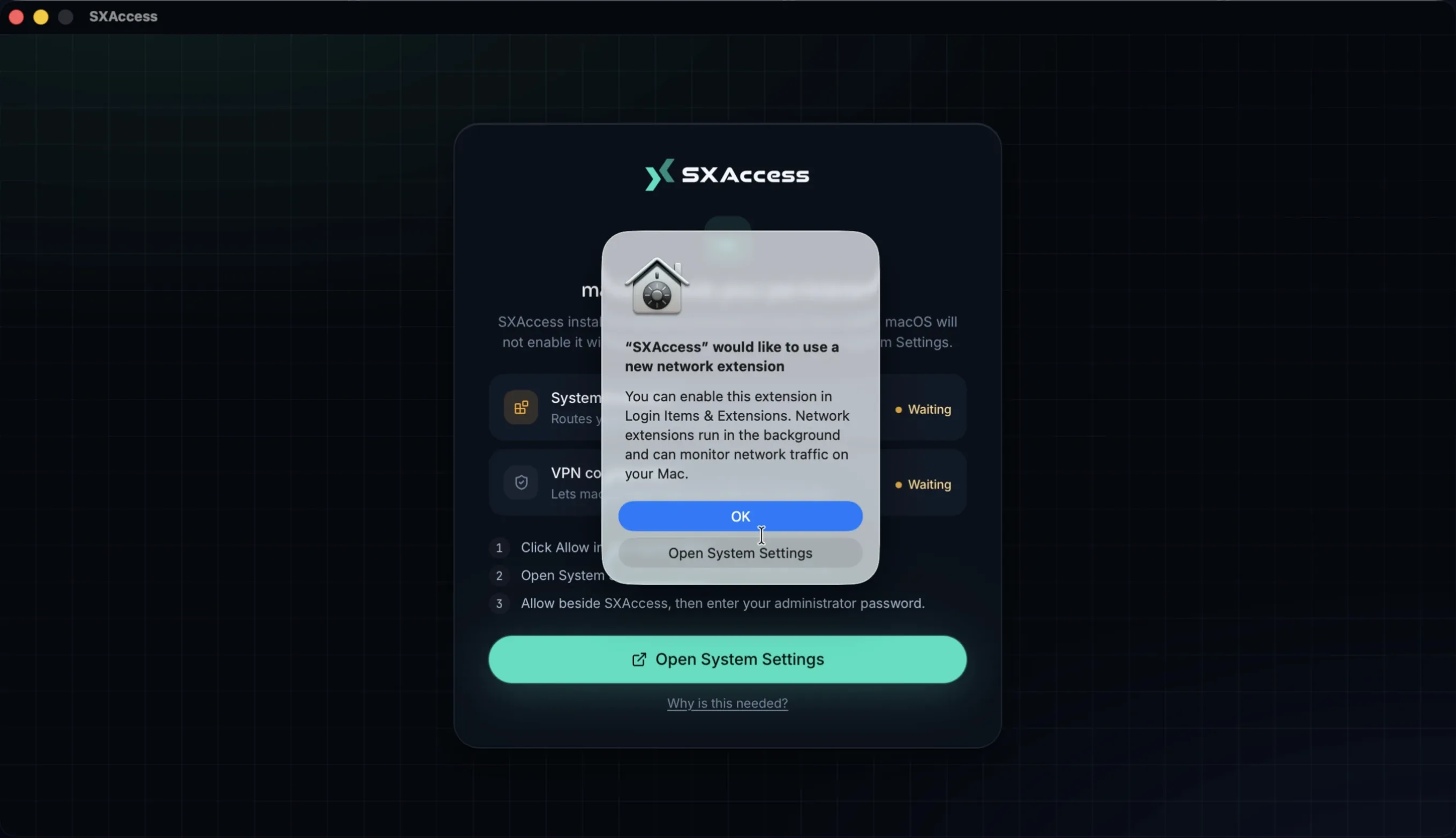
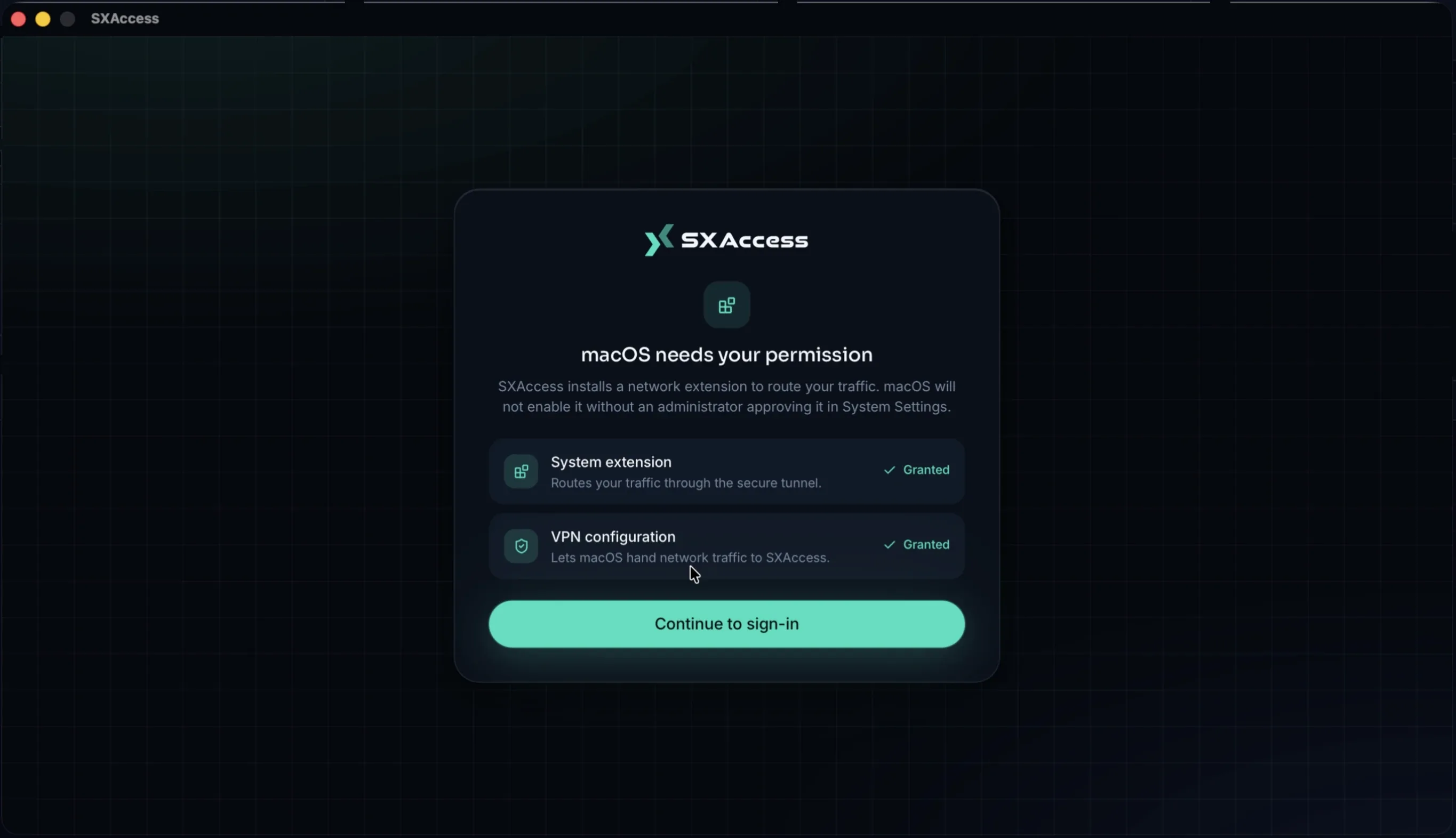
Open SXAccess and choose Get started, or I have an enrollment key if this Mac will enrol with a key. The tunnel runs in a system extension, and macOS grants neither permission silently; the app's macOS needs your permission screen marks each one
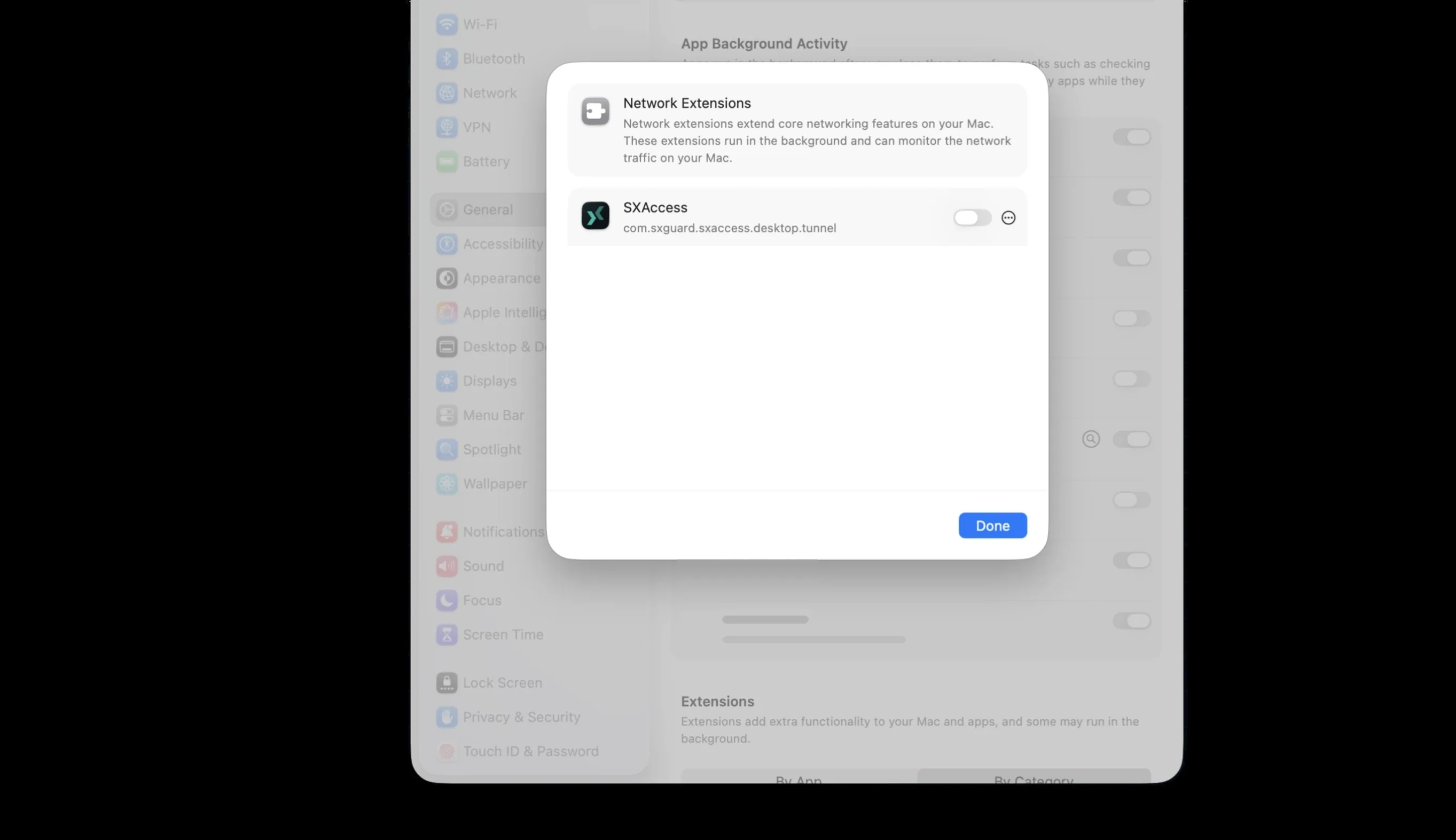
Grantedonce you have approved it.- System extension - the network extension that runs the tunnel. macOS reports that SXAccess would like to use a new network extension. Choose Open System Settings in that alert. Under General → Login Items & Extensions, open Network Extensions, switch SXAccess on and enter an administrator password.
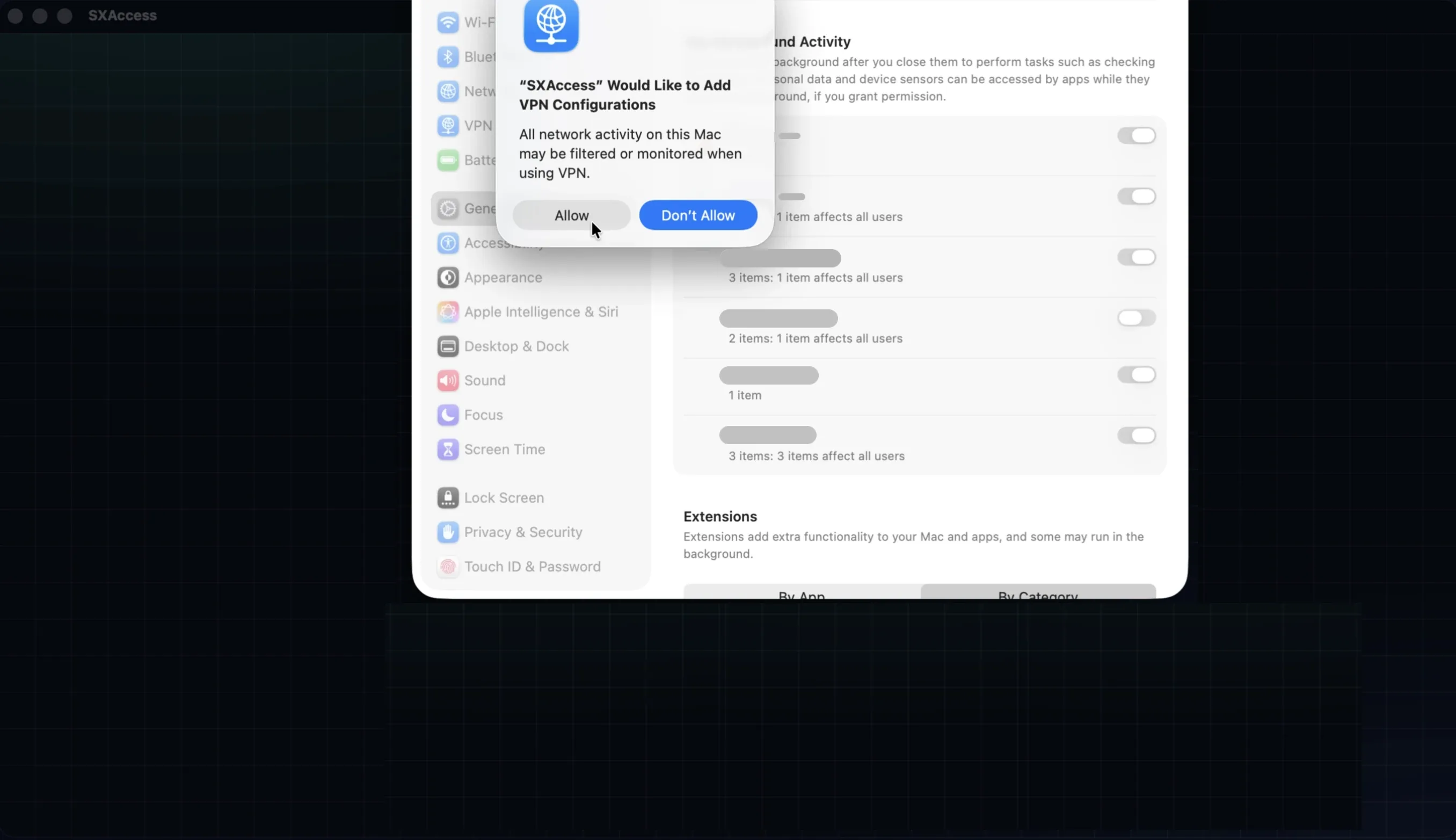
- VPN configuration - permission for macOS to hand network traffic to SXAccess. Choose Allow when macOS asks whether SXAccess may add VPN configurations.
When both read
Granted, choose Continue to sign-in. - 3
Sign in
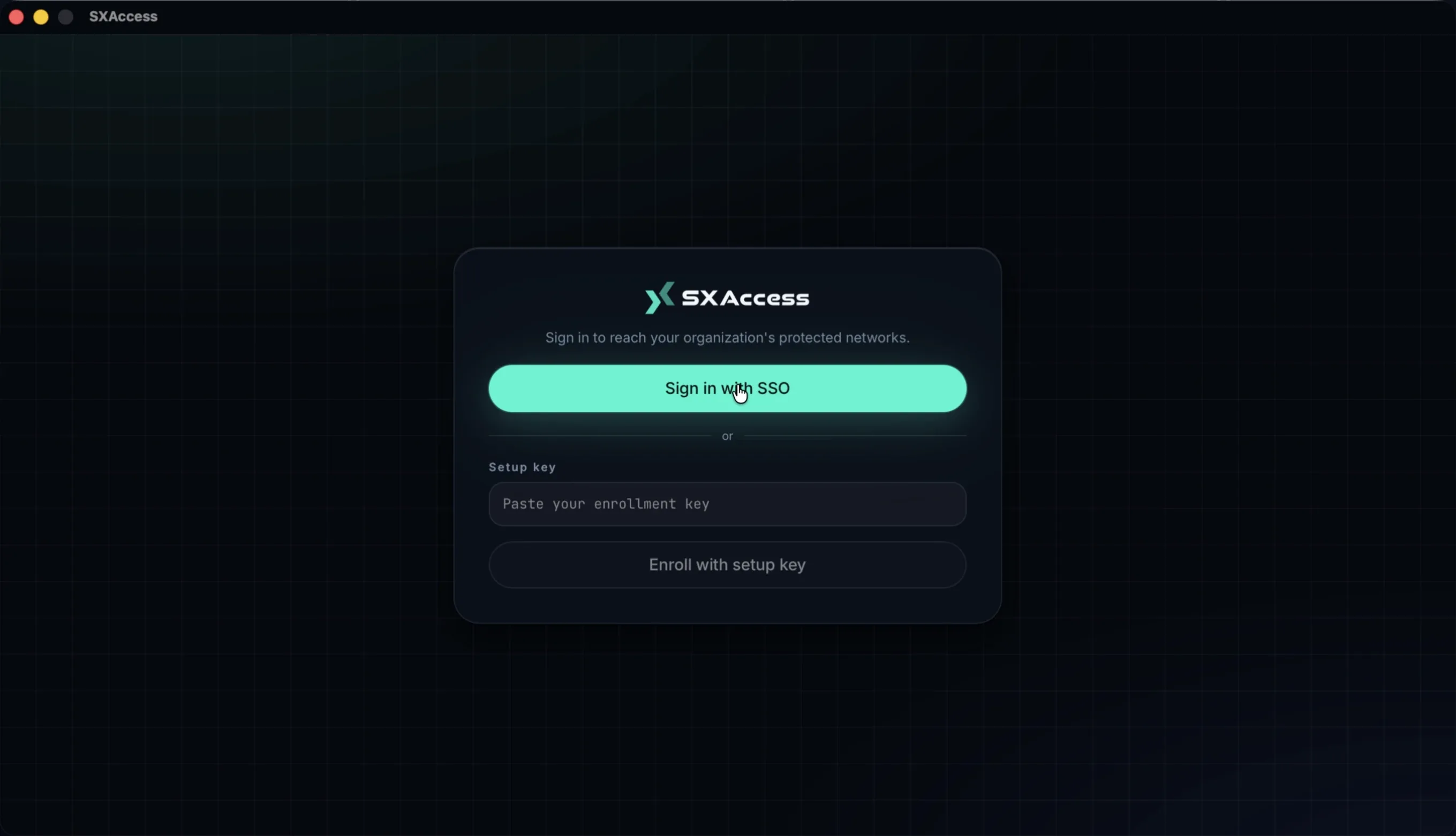
Choose Sign in with SXAccess account; your browser opens and you finish signing in there. To enrol a Mac that nobody signs in at, paste an enrollment key into Enrollment key and choose Enroll with key instead. The Mac appears in Devices in the dashboard as soon as it is enrolled.
- 4
Pick the organization, if you are in more than one
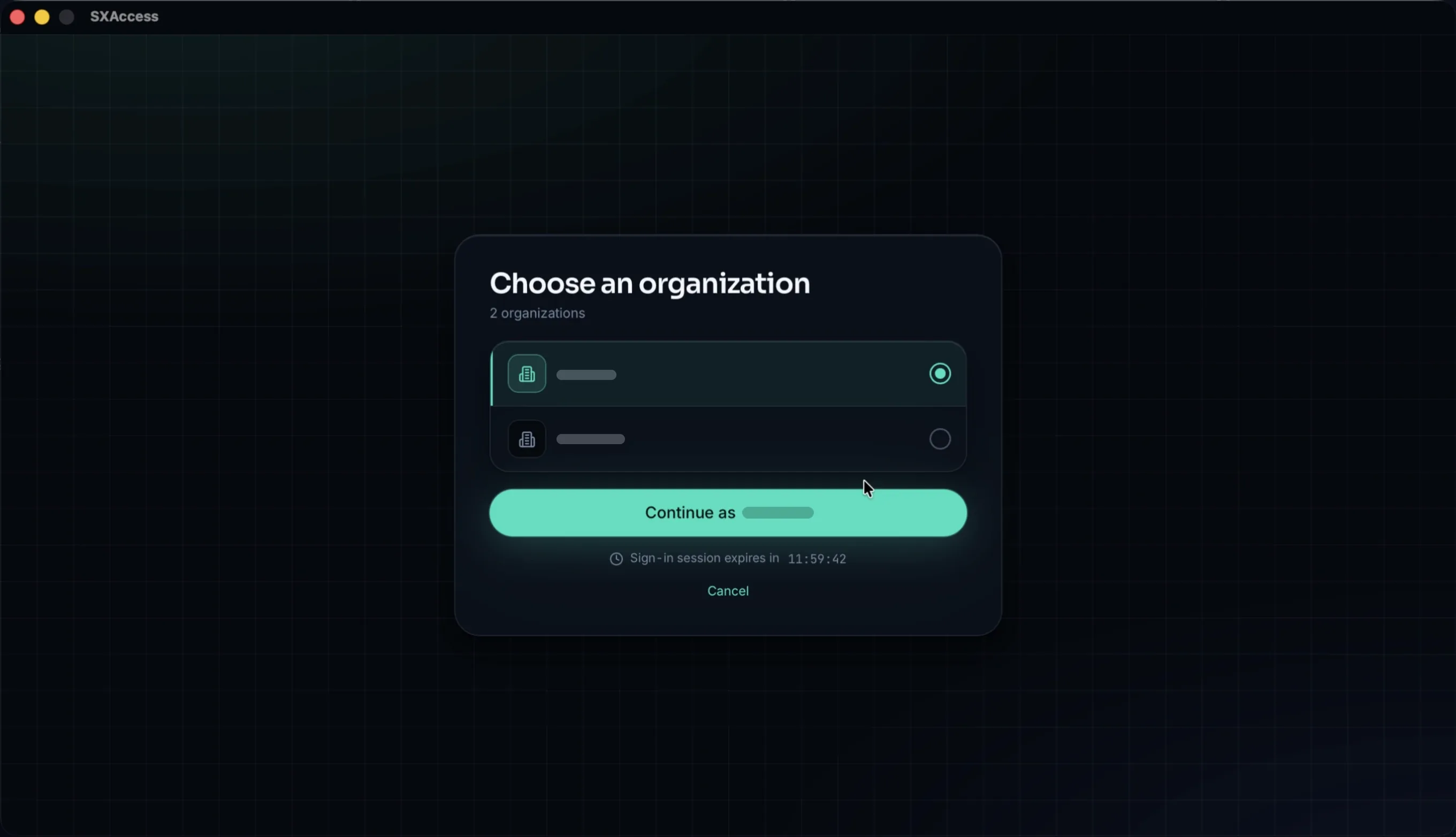
Choose an organization lists the organizations your account belongs to. Select one and choose Continue as, followed by its name. The screen counts down the time left in the sign-in session; if it runs out, sign in again.
- 5
Connect
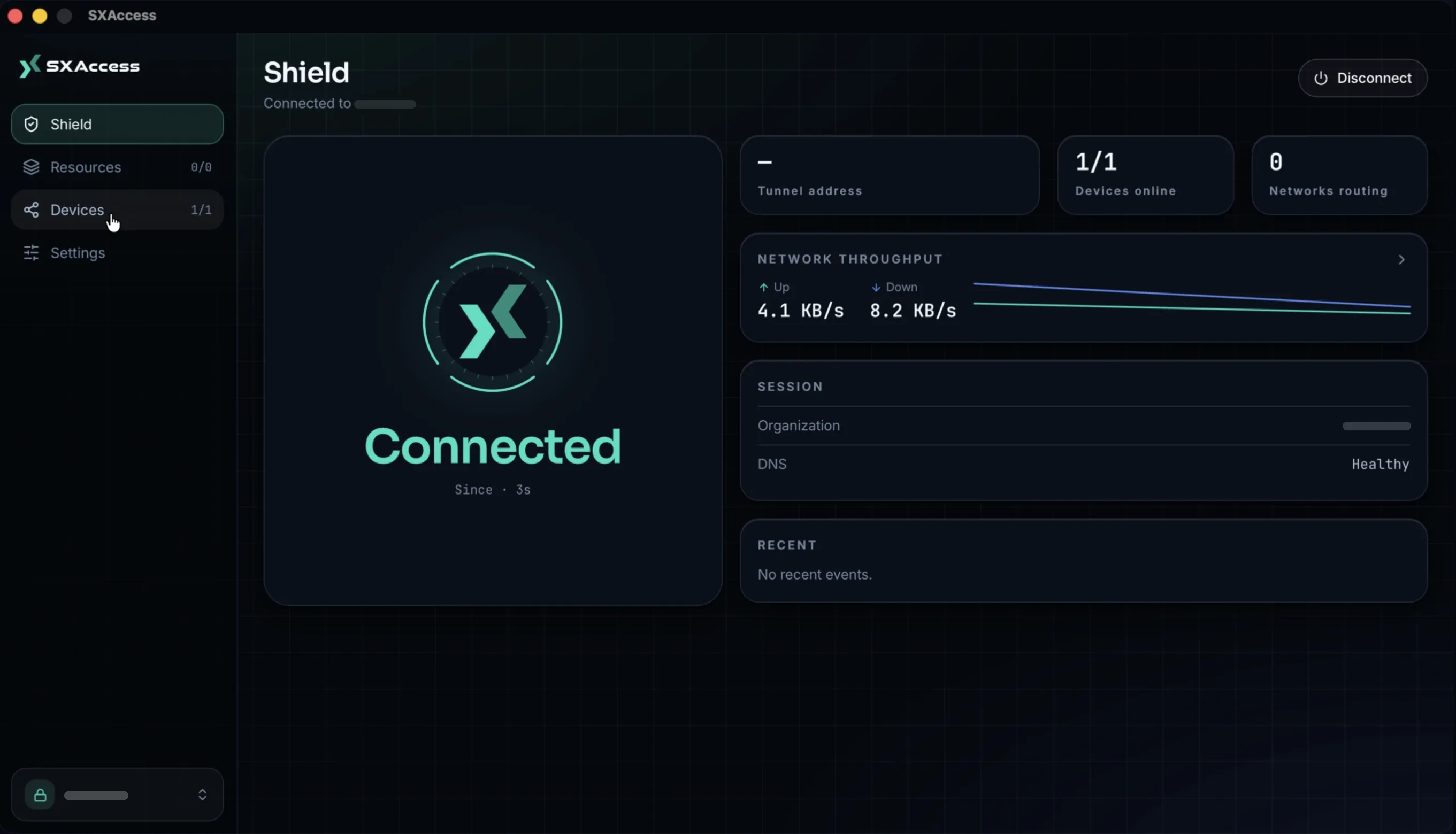
Once the Mac is enrolled it connects, and the app opens on Shield. From then on, Connect on Shield brings the tunnel up.
What is in the app
| Area | What it does |
|---|---|
| Shield | Whether the Mac is connected, with its Tunnel address (this Mac's overlay address), devices online, throughput, and the session's organization and DNS health. Disconnect asks Disconnect SXAccess? first; Stay connected backs out. |
| Resources | The networks and services your organization makes reachable for you, each with a switch, plus filters, search, Select all and Clear all. A domain resource shows its domains and the addresses they resolve to. Internet gateways are listed as well, but the macOS app does not send traffic through one yet, even when its switch shows as on (marked SAVED SELECTION). |
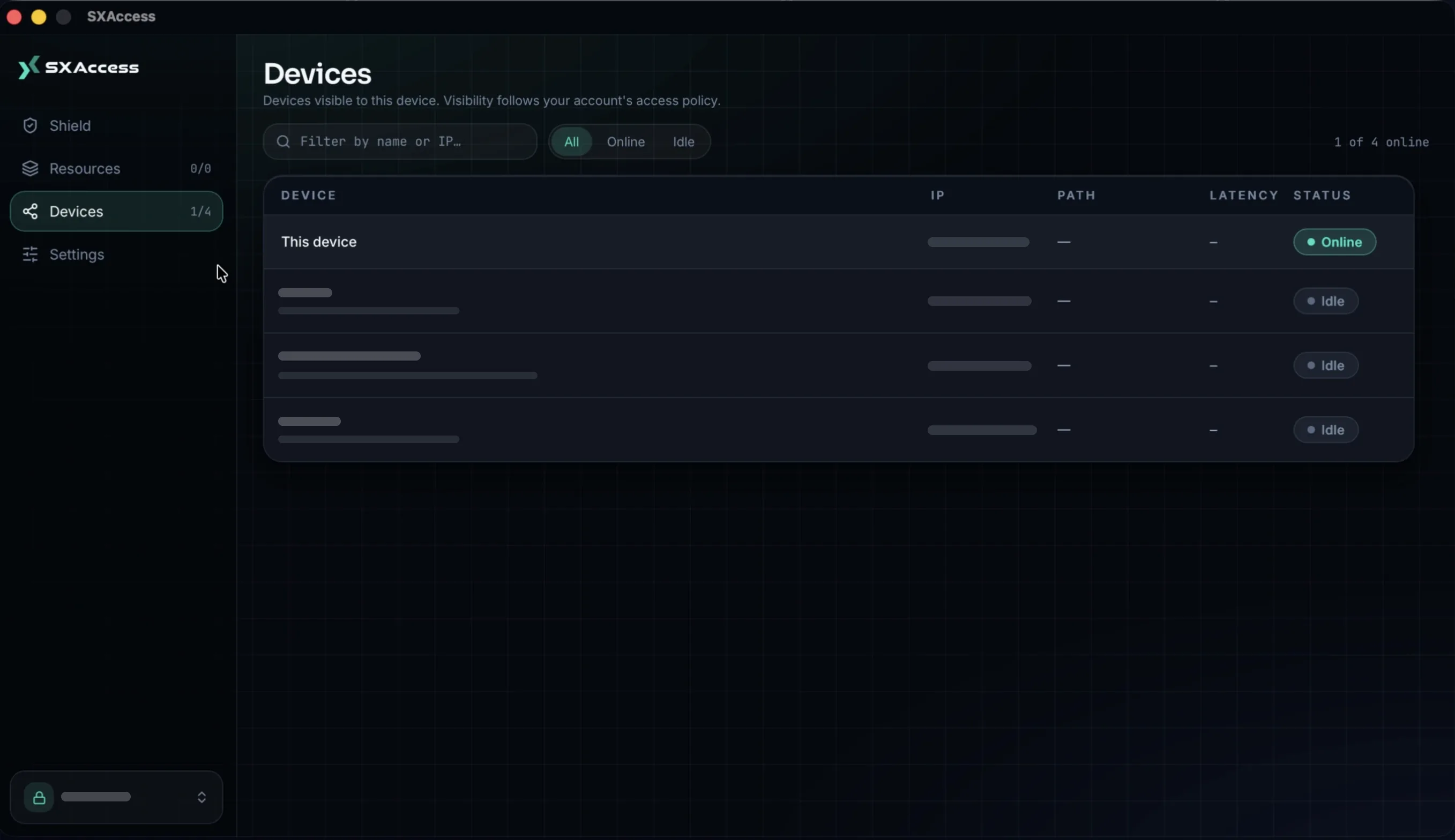
| Devices | Every device this Mac can see, under the line Devices visible to this device. Visibility follows your organization's access rules. Columns: name, IP, Path (Direct, Direct (device-discovered), Relayed or Relayed (server), and Pending while the connection is settling on a path), Latency and Status (Online, Connecting or Idle). Select a device for its details, such as its Tunnel IP. |
| Settings | The switches in the next table. Open next to Logs brings up the Diagnostics page: the state of the tunnel, whether Lazy Connect is in effect, and health checks. Copy status report copies them for support. Open logs folder, in the direct-download build only, saves the last 24 hours of logs as sxaccess-last-24h.log in ~/Library/Logs/SXAccess and opens that folder. |
| Notifications | Connected, Disconnected and Connection failed, and nothing else. Notifications in Settings turns them off. |
Settings
| Setting | Default | What it does |
|---|---|---|
| Theme | System | System, Light or Dark. |
| Connect on launch | off | Brings the tunnel up as soon as the app starts. |
| Launch at login | off | Starts SXAccess with macOS. macOS may hold it back until you approve SXAccess under System Settings → General → Login Items & Extensions; the row then says so and offers Open System Settings. |
| Connect on demand | Follow organization setting | Follow organization setting or Enable on this device. When it is on, the Mac opens a tunnel to another device only when traffic goes there. Takes effect from the next connection. |
| Notifications | on | The three notifications above. If macOS blocks notifications from SXAccess, the row says so. |
| Log level | info | info, debug or trace, for the tunnel's own log. |
| Pre-shared key | not set | An extra symmetric key on the tunnel; a device that has one connects only to devices with the same key. The macOS app cannot set one: the row shows whether this Mac has one, and Remove takes it off. |
Organizations and signing out
The pill at the bottom of the sidebar names the organization this Mac is in. Click it for Switch organization, which lists your organizations as CURRENT, ENROLLED or NOT JOINED and asks before it changes anything. Switching to one where the Mac is already enrolled keeps its identity and opens no browser. Joining a new one gives the Mac a new device identity there, and opens the browser if your sign-in has expired. Switching works only while the Mac is connected. See Create and switch organizations.
Sign out is in the same menu. It ends your SXAccess sign-in and disconnects, but the Mac stays enrolled: its organizations, device identity and VPN configuration remain, and signing in again with the same account brings back the same device. A Mac belongs to one account; signing in with another fails with This device is set up for a different account. A Mac enrolled with an enrollment key shows no menu in the pill: it has no organization list and no Sign out.
When an organization asks for a second factor
If an organization requires two-factor authentication and your sign-in did not include a second factor, the app asks for one in place. The Confirm it is you screen takes a code from your authenticator app, an emailed code, or your security key. If you have not set one up yet, you can do it on the same screen without leaving the app. Back to where I was gives up and returns to the organization you were in. See Two-factor and passkeys.
Session expiry
If your organization expires device sessions, which is on by default with a 24-hour session, a Mac that joined by signing in has to sign in again when its session runs out. Shield then shows Sign-in required and a Sign In button; the browser opens only when you press it. A Mac enrolled with an enrollment key never expires. See Organization settings.
When Shield needs something from you
| Shield shows | What to do |
|---|---|
You don't have access to this organization right now. | Ask your administrator, then choose Check access again, or pick another organization. |
Status unavailable | The app cannot tell what the tunnel is doing. Choose Check again; Copy details copies what support needs. |
| Review saved selection | Decide which saved choice of resources to keep before the Mac connects, or start with everything deselected. |
Restart this Mac to finish updating the SXAccess system extension. | Restart the Mac. |
No internet connection. | Actions that need the network stay disabled until the Mac is online again. |
Where things live
| Path | Contents |
|---|---|
/Applications/SXAccess.app | The application |
~/Library/Application Support/SXAccess/settings.json | The app's settings. The Mac App Store build keeps the same path inside its container, ~/Library/Containers/com.sxguard.sxaccess.desktop/Data |
~/Library/Logs/SXAccess | sxaccess-last-24h.log, written by Open logs folder (direct-download build only) |
| The SXAccess VPN configuration | Listed in System Settings → VPN; it is how macOS hands traffic to the tunnel |
com.sxguard.sxaccess.desktop.tunnel | The system extension that runs the tunnel, listed in System Settings under General → Login Items & Extensions → Network Extensions |
The command line
The app does not include the sxaccess command. To script SXAccess or run it without the app, use the CLI agent instead: see Install on macOS.
Removing it
The app has no uninstall command. To remove it by hand:
- Choose Quit & Disconnect in the menu-bar menu, and confirm with Quit & Disconnect when the app asks
Quit SXAccess. The tunnel goes down. - In System Settings → General → Login Items & Extensions → Network Extensions, switch SXAccess off.
- In System Settings → VPN, remove the SXAccess VPN configuration.
- Move SXAccess from Applications to the Trash.
Then delete the device from Devices in the dashboard. That is what revokes its key; removing anything on the Mac does not.