

Internet gateways
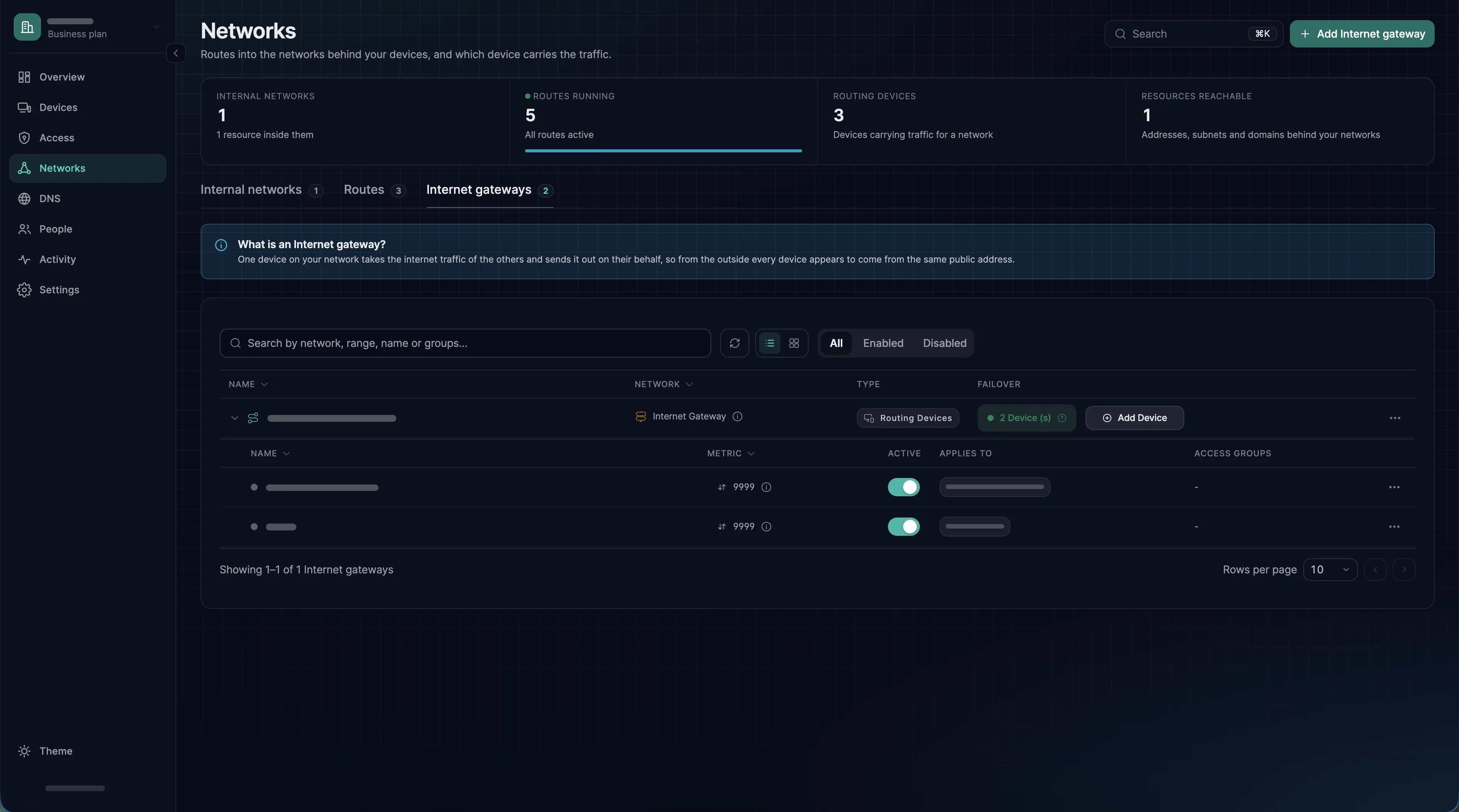
Send all internet traffic of chosen devices out through a Linux machine of your organization, with a route to 0.0.0.0/0.
For a step-by-step walkthrough, from the first group to a phone whose traffic leaves from the gateway's address, see Sending internet traffic through your own gateway.
An Internet gateway is a route to 0.0.0.0/0. The machine that carries it sends the internet traffic of other devices out on their behalf, so that traffic leaves from the gateway's public address rather than from wherever the person happens to be.
Two reasons to want this: a service that only accepts a fixed source address, and an environment where all outbound traffic has to pass one inspection point. If only two or three services need a fixed address, split tunnelling is the better tool.
What a gateway needs
- A Linux machine running the CLI agent. The dashboard offers every device as the gateway, but only the agent on Linux switches on the IP forwarding a gateway depends on. On any other system forwarding stays off, and the gateway passes nothing on. Use a VM or server with a stable public IPv4 address, sized for everyone who will use it (see Sizing and redundancy). Its firewall or security group must let traffic out to the internet.
--block-lan-accesscovers only the subnets on the gateway's own network interfaces; Where to run the gateway says how to keep it away from everything else. - Two groups. One for the devices whose internet traffic goes through the gateway, and one that holds the gateway machine. The examples on this page call them
gateway-pilotandinternet-gateway; see Groups. - The right role. Members with the Owner, Admin or Network Admin role can create, change and delete Internet gateways and write the access rule they need. Enrolling the gateway machine takes an enrollment key, which only an Owner or Admin can create; see Roles and permissions.
Where to run the gateway
--block-lan-access keeps the devices that use the gateway out of the subnets on the gateway's own network interfaces, and nothing more. Other subnets of the VPC, peered networks, networks behind a VPN and link-local addresses such as the metadata address 169.254.169.254 stay reachable through the gateway. Where the cloud gives the interface a /32 address, as Google Cloud does, the flag covers no other machine at all.
So run the gateway where it reaches nothing private: in a VPC of its own, with no peering, VPN or Direct Connect to your other networks. On your own premises, put it in a VLAN whose router blocks your other networks.
Give the VM no cloud identity: no IAM role or instance profile, no cloud service account, no managed identity. Keep no secrets in its user data. Then its metadata holds nothing worth taking.
On AWS, also require IMDSv2 with a hop limit of 1: Actions › Instance settings › Modify instance metadata options, or aws ec2 modify-instance-metadata-options --instance-id <id> --http-tokens required --http-put-response-hop-limit 1.
Setting one up
- 1
Enrol the gateway machine
Create an enrollment key under Access → Enrollment keys → Create enrollment key, with
internet-gatewayunder Auto-assigned groups, and finish with Create enrollment key. Then install the CLI agent on the Linux machine (Install on Linux) and start it as root with the key, read from a file as in the command below. Step 3 of the walkthrough has a block that does all of this in one go and keeps the key out of the shell history.--block-lan-accesscovers only the subnets on the gateway's own network interfaces; Where to run the gateway says how to keep it away from everything else.You do not have to switch on IP forwarding: the agent sets
net.ipv4.ip_forward=1itself as soon as the machine carries a route.Under Devices, open the machine and note its Public IP: the address the other devices will leave from.
sxaccess start --enrollment-key-file /run/secrets/sxaccess-key --hostname gateway-fra1 --block-lan-access - 2
Create the gateway
Networks → Internet gateways → Add Internet gateway opens a sheet with four screens:
- Route: on the Routing Device tab, pick the Linux machine, then Continue. On the Device group tab you pick one group instead, whose machines all carry the gateway (see Sizing and redundancy).
- Groups: Applies to is the group whose devices get the default route, here
gateway-pilot; neverAll. Access Groups (optional) is the group that holds the gateway machine, hereinternet-gateway. Continue stays greyed out until Applies to names a group. This screen has Cancel but no Back: to pick another machine, cancel and start again. - Name: Network Identifier starts as
Internet Gatewayand takes up to 40 characters. Devices use it as the gateway's ID insxaccess reach, so a short name without spaces, such asinternet-fra1, is easier to type. Description (optional) is a note for other admins. Then Continue. - Settings: leave Enable Route on. Metric (1 to 9999, default 9999) matters only once a second machine carries the gateway; the lower metric wins. There is no masquerade switch: a gateway always masquerades, because traffic has to leave from its own address. Add Internet Gateway creates it.
- 3
Save the access rule
A device receives the gateway only when an access rule connects it with the gateway machine. With Access Groups set, the gateway also forwards traffic only for devices that an access rule allows to reach one of its Access Groups. One rule does both: source
gateway-pilot, destinationinternet-gateway, One-way, any protocol.When you create the gateway from Networks → Internet gateways with Access Groups set, the dashboard opens that rule, filled in, as soon as you choose Add Internet Gateway. The sheet is titled Edit access rule, but the rule does not exist until you choose Save access rule.
Keep any protocol: the gateway forwards only what the rule allows, so a narrower rule cuts off the rest of those devices' internet traffic. The rule also lets them reach the gateway machine itself on every port. Anything listening on the machine, SSH included, becomes reachable from those devices; keep such services to a minimum.
No rule opens when you start from a device (see below), when Access Groups is empty, or once you close the sheet. Then write it under Access → Access rules → Create access rule and finish with Create access rule. Without Access Groups, a rule must still connect the devices with the gateway machine. The gateway then forwards everything they send, to the internet and to anything else it can reach.
Starting from a device
The same sheet also opens from the machine itself:
- In Devices, the device's row menu: Set Up Internet Gateway, or Add Internet Gateway once the device already carries a gateway.
- On the device's page, the Routes tab: Make this an Internet gateway, which reads Add Internet gateway once the device already carries one.
The sheet then has three screens, Groups, Name and Settings, because the machine is already chosen. Network Identifier starts as Internet Gateway followed by the device's name in brackets. With a device name of 22 characters or more, that is over 40 characters, and Continue stays greyed out until you shorten it. No access rule opens afterwards: write it under Access → Access rules → Create access rule.
Check where traffic leaves
Check on one device in the Applies to group, from a network other than the gateway's. A device that shares the gateway's internet connection already has the same public address, and the test proves nothing.
- The address: any website that shows your public address should now show the gateway machine's Public IP, as its page under Devices lists it.
- With the CLI agent:
sxaccess reach listlists the gateway under its Network Identifier withnetwork: 0.0.0.0/0andstate: Selected. Insxaccess info -d, the gateway machine's entry readsReaches: 0.0.0.0/0, and itsTransferredcounters grow while you browse. - On a phone: the gateway's row on Resources is switched on; see Use an Internet gateway.
- In the dashboard: under Devices, a signpost icon sits next to the gateway machine's name. Point at it and a note starting
This device is an internet gateway.appears. Owners and Admins see the icon, on machines chosen as Routing Device. - The other half: a device outside the Applies to group keeps its own public address, and its
sxaccess reach listshows no0.0.0.0/0.
sxaccess reach listsxaccess info -dWhich devices use it
- The CLI agent (Linux and macOS) uses a gateway as soon as it arrives. To take one device out, remove the gateway by its Network Identifier, with the first command below. The second brings it back, and
-akeeps the other networks selected: without it,sxaccess reach addreplaces the selection (see What devices do with a route). Quote an ID that contains spaces, such as the default"Internet Gateway". - iOS and Android list the gateway on Resources, switched on from the start. Switching it on again asks for confirmation, and Select all never switches a gateway on. iOS allows several gateways at once and Android one, and Android needs Private DNS off; see Use an Internet gateway.
- The macOS and Windows apps list the gateway on Resources but do not route through it yet, even if its switch shows as on. Their internet traffic keeps leaving through the local connection. If those devices need a fixed address for a few services, use split tunnelling.
On every client, only IPv4 internet traffic goes through a gateway. IPv6 internet traffic does not work on a device while it uses one.
sxaccess reach remove internet-fra1sxaccess reach add -a internet-fra1Sizing and redundancy
Unlike a routing device that carries occasional administrative traffic, a gateway carries everything. Watch the host's network throughput and CPU: a small VM with a 100 Mbit uplink will saturate with ten people on video calls.
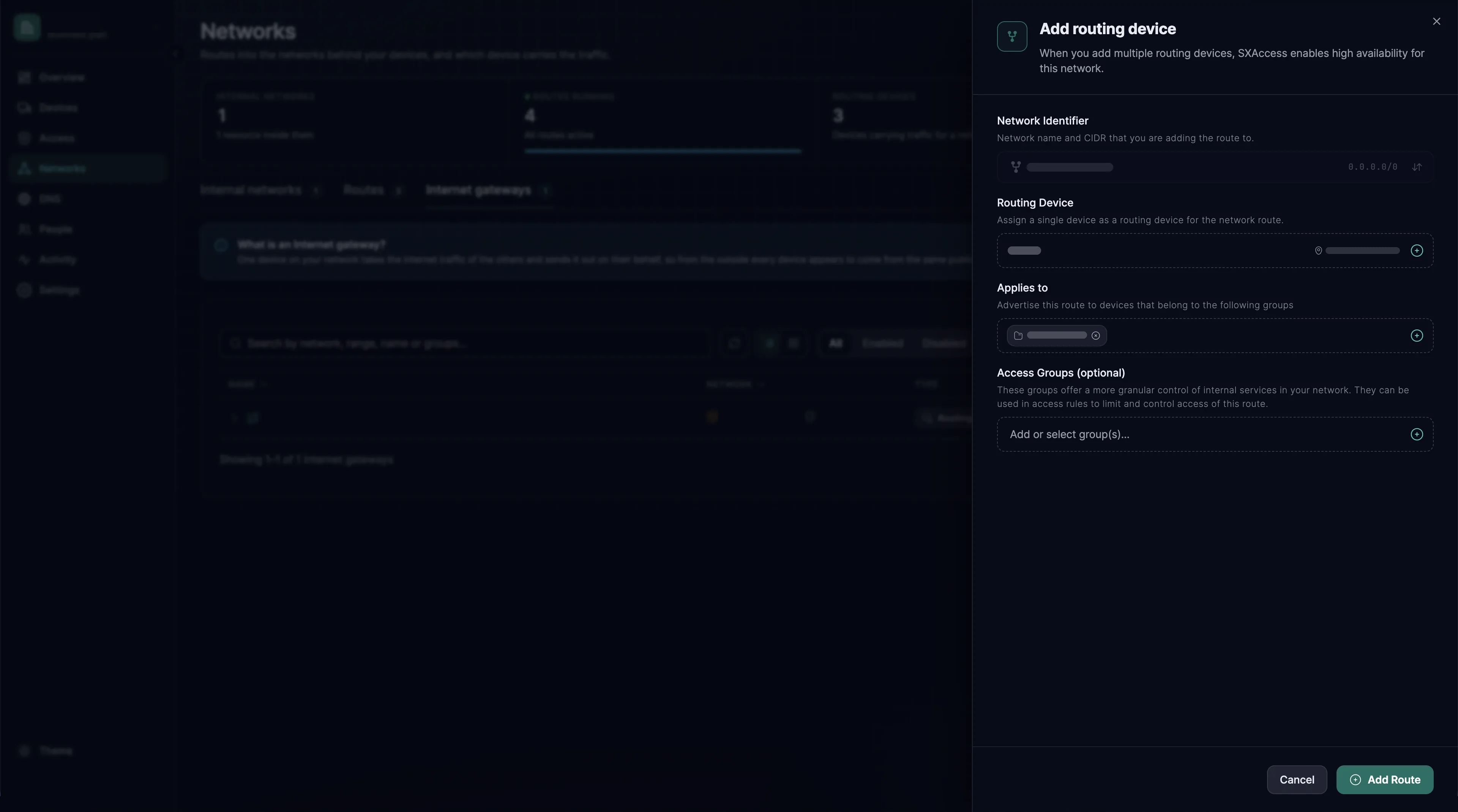
For redundancy, enrol a second Linux machine the same way, with its own key that assigns internet-gateway, and with --block-lan-access. Then choose Add Device in the gateway's Failover column. The Add routing device sheet asks for the Routing Device and, for this machine alone, Applies to and Access Groups (optional). Choose the same groups as on the first machine: if they differ, a failover changes which devices get the gateway and what it lets through. Add Route saves it.
The new machine always starts at metric 9999, the same as the first by default, so neither is preferred. To prefer one, click the gateway's row to expand it and choose Edit in that machine's row menu. In the Update internet-fra1 sheet, set Metric on the Settings tab, then choose Save Changes. For example, give gateway-fra1 metric 100 and gateway-fra2 metric 200: the lower one wins.
Devices move to the other machine when the preferred one stops answering. Connections that were open break, because a new exit address is not a seamless handoff. Redundancy describes how each device chooses.
A Device group chosen on the Route screen works too: every machine in the group carries the gateway, with one shared metric. The Failover column then shows Go to Devices instead of Add Device, because you add a machine by putting it in that group.
Turn it off or remove it
In Networks → Internet gateways, click the gateway's row to expand it. Each machine that carries the gateway has its own row, with Metric, Active, Applies to and Access Groups.
- Pause it for everyone: turn Active off on every machine's row. Devices drop the default route and send their internet traffic out locally again; turn Active back on to resume.
- Change who uses it: choose Edit in each machine's row menu, change Applies to on the Route tab, then choose Save Changes. Change the access rule's source to match. Applies to cannot be left empty; to stop everyone, use Active.
- Take one machine out: Delete in that machine's row menu. The confirmation,
Delete 'internet-fra1'?, names the gateway, but only this machine's entry goes. - Delete the whole gateway: Delete in the row menu at the end of the gateway's own row. The dashboard calls it a network here and asks
Delete network 'internet-fra1'?; the entries of all its machines go with it.
Deleting the gateway leaves the access rule and the two groups in place. Delete the rule under Access → Access rules if nothing else needs it; a group can be deleted once nothing uses it any more (see Groups). On the machine itself, the agent never switches IP forwarding back off. Reset it, or reboot the machine, if it should stop forwarding.
sudo sysctl -w net.ipv4.ip_forward=0When it does not work
Check from top to bottom, on the device that does not behave as expected.
| What you see | What to check |
|---|---|
sxaccess reach list shows no 0.0.0.0/0 | That the device is in an Applies to group, that an access rule connects that group with the gateway machine's group, and that Active is on for at least one machine. A device started with --disable-client-routes uses no routes at all. |
| The gateway is listed, but nothing loads | That the gateway machine is online under Devices, and that the access rule's destination is the Access Group, still with any protocol. The machine itself must reach the internet: its firewall or security group must allow outbound traffic. On the machine, sysctl net.ipv4.ip_forward should print net.ipv4.ip_forward = 1. |
| The public address does not change | Test from a network other than the gateway's. The macOS and Windows apps do not route through a gateway yet, even if its switch shows as on. On a phone, the gateway may be switched off on Resources; with the CLI agent, it may have been taken out with sxaccess reach remove. |
| An Android phone does not use the gateway | Private DNS is on. Turn it off under Settings → Network & internet → Private DNS; until then the gateway cannot start. |
| Sites that only have IPv6 do not load | Only IPv4 goes through a gateway, and on every client IPv6 internet traffic does not work while the device uses one. Switch the gateway off on that device to reach such a site. |
Devices reach the gateway's LAN, its VPC or 169.254.169.254 | A subnet on the gateway machine's own network interfaces: the machine was started without --block-lan-access. Run sxaccess stop && sxaccess start --block-lan-access on it. Run it as one line: a connection that goes through SXAccess, such as an SSH session to this machine, drops until start has finished. It does not work in a session opened with sxaccess shell: stopping the agent closes that session and ends the command, so use the console or an OpenSSH session. Devices that use the gateway lose their internet connection for a few seconds. --block-lan-access covers only the subnets on the gateway's own network interfaces; Where to run the gateway says how to keep it away from everything else. |
| Everything is slow | A gateway carries all the internet traffic of its devices; see Sizing and redundancy. |
Split tunnelling instead
If what you actually need is a fixed source address for two or three services, do not create a default route. Publish only those destinations as host or domain resources of an internal network whose routing device is the gateway machine. Devices then send that traffic through it and everything else out of their local connection. That means lower latency and less bandwidth, an outage of the machine affects only those services, and it works with the macOS and Windows apps too.
Default route vs. targeted resources
| Default route | Targeted resources | |
|---|---|---|
| What is redirected | All of the device's internet traffic | Only the named hosts or domains |
| Latency cost | On everything | Only on the redirected services |
| Gateway bandwidth | Scales with every device's total usage | Scales with the specific services |
| Fixed source address | Yes | Yes, for those services |
| Works with | The CLI agent, iOS and Android | Every app and the CLI agent |
| Good for | Full egress inspection | Allow-listing a handful of partner APIs |