

Groups
Access rules are never written against individual machines. Groups are the unit of access, and getting them right is most of the work.
A group is a named set of devices, and it can hold network resources too. Access rules reference groups on both sides - sources and destinations - so adding a machine to a group is what grants it reach, and removing it is what takes reach away. Nothing in an access rule ever names a single device.
That indirection is what keeps the system manageable. A new engineer's laptop joins Engineering and immediately has exactly the access every other engineer has, without anyone editing a rule.
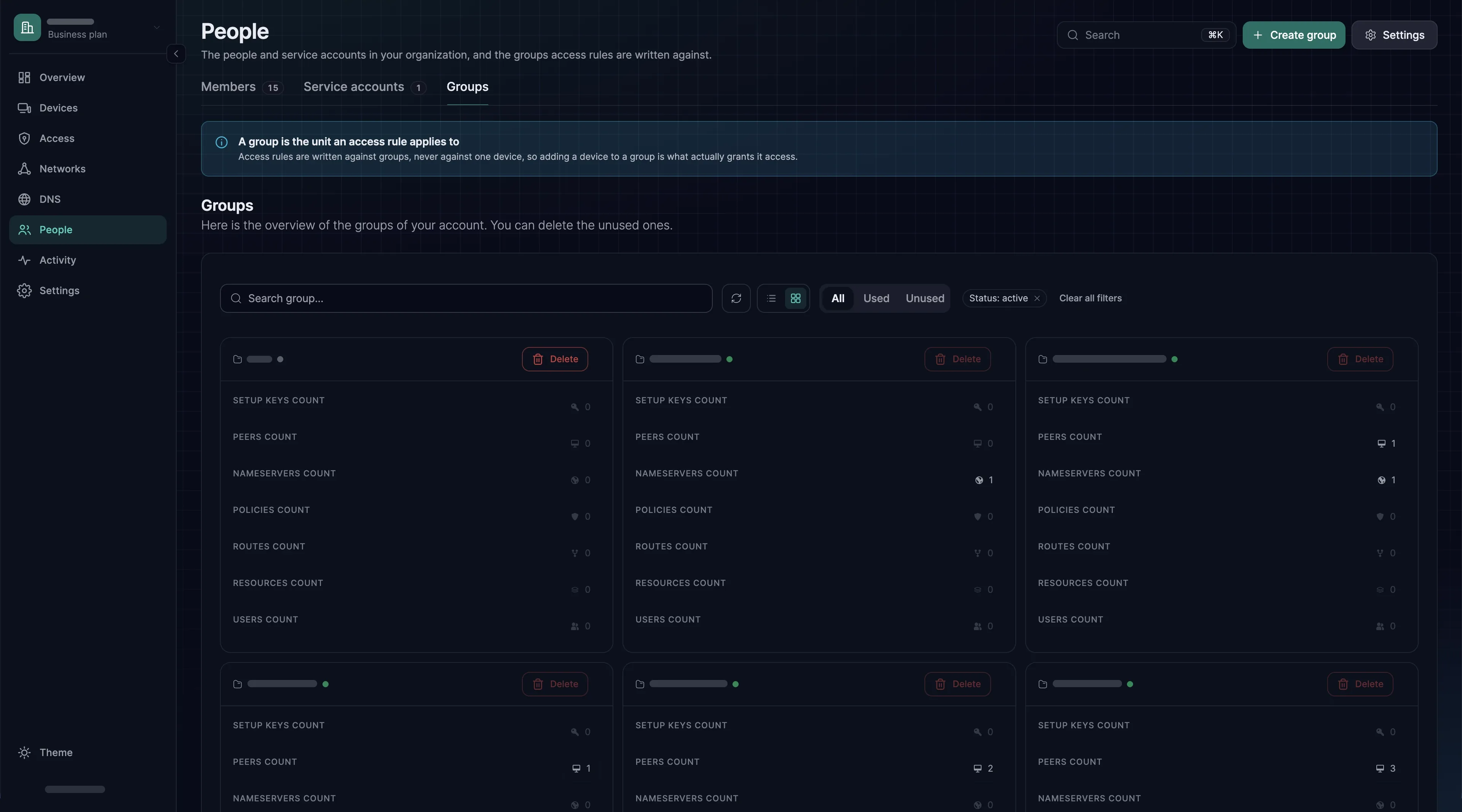
Creating a group
Open People → Groups and choose Create group. Or type a new name into any group picker - on a device, an access rule, an enrollment key or a member - and press Enter; the group is created when you save. Group names are unique: SXAccess refuses to create a second group with a name that already exists.
A group holds devices and, if you add them, network resources. A resource joins a group through its Destination Groups field, so that an access rule can name the group as its destination. See Networks and resources.
Three ways a device joins a group
| Mechanism | When it applies | Where to configure |
|---|---|---|
| By hand | Whenever you add or remove the device yourself | The device's page, under Assigned groups. For several devices at once, tick them under Devices and choose Assign Groups. In any group picker you can also click a chosen group's device count |
| Enrollment key auto-groups | When a device enrols with that key. Changing them later affects only devices enrolled afterwards | The key's Auto-assigned groups. See Enrollment keys |
| Member auto-groups | When the member enrols a device by signing in. With group propagation on, a change also moves the devices they already have | People → Members → the member → Access → Auto-assigned groups |
Group propagation
Group propagation decides whether a change to a member's auto-assigned groups also reaches the devices they already have. It is on by default. The switch is Enable user group propagation, under People → Groups → Settings; after changing it, choose Save group settings.
While it is on, a change to a member's auto-assigned groups applies at once to every device that member enrolled by signing in. Added groups gain those devices and removed groups lose them, and the devices get their new access without signing in again.
While it is off, the change affects only devices the member enrols afterwards; the devices they already have keep their groups. Turning it back on adds each member's devices to that member's current auto-assigned groups and removes nothing. Devices enrolled with a key have no owner, so propagation never moves them.
Designing a group scheme
Two dimensions cover almost every estate, and mixing them is what produces a mess:
- Who -
Engineering,Support,Contractors. Groups of people's machines, set as members' auto-assigned groups. - What -
Production databases,Build servers,Office printers. Groups of servers and resources, assigned through the key that enrolled them or through a resource's Destination Groups.
Write access rules from a who group to a what group. A group that contains both a contractor's laptop and a production database is a sign the scheme has drifted.
The All group
Every device belongs to All from the moment it enrols, and cannot leave it. All cannot be renamed, edited or deleted, and it cannot be an auto-assigned group of a member or an enrollment key, which is why those group pickers do not offer it.
It is the group for an access rule that genuinely applies to every device, and a reason to pause: a rule that names All covers every device you will ever enrol, including ones that do not exist yet. Nothing can reach anything until an access rule allows it, so All grants nothing by itself. If you used it for a first test, as the quickstart does, replace that rule with narrower groups before you add real machines: create the replacement, check it with sxaccess info -d on a client, then delete the test rule.