

Add members to your network
Invite people, choose the groups their devices land in, and block or remove them when they leave.
A member is a person who can sign in to your organization. Two things on their record matter: the role decides what they may do in the dashboard and the API, and the auto-assigned groups decide what the devices they enrol can reach.
A device a member enrols by signing in belongs to them. It joins their groups, its session ends the moment they are blocked, and it is deleted when they are removed from the organization.
Inviting someone
- 1
Open the invitation
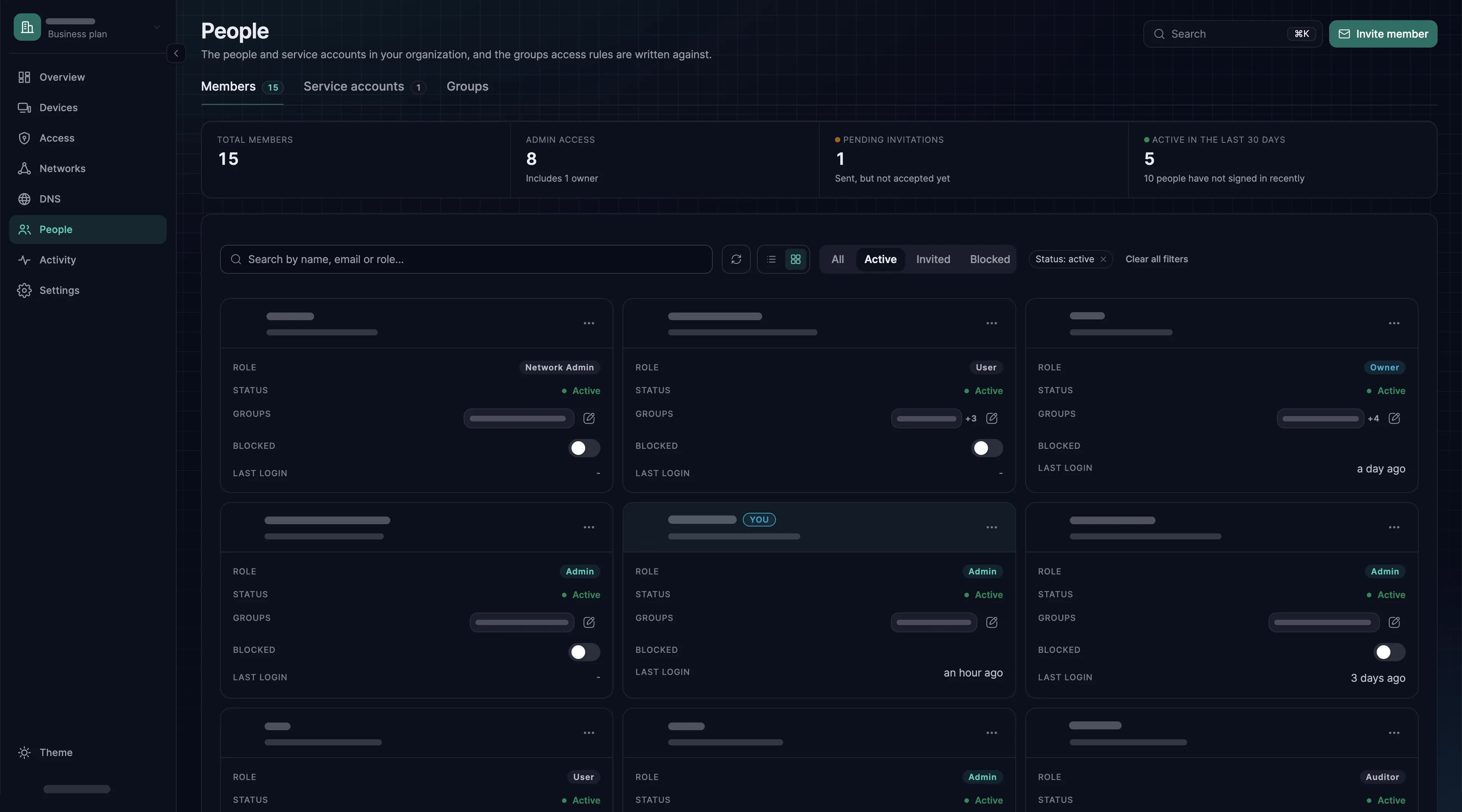
In the dashboard, go to People → Members and choose Invite member. Fill in Full name and Email address.
- 2
Choose the role
Role starts at User, the ordinary member role with no administrative rights, and that is almost always the right choice. The other roles are described in Roles and permissions, and there is rarely a reason to hand out many of them. Owner is not offered here; ownership is handed over on the member's page.
- 3
Set auto-assigned groups
Auto-assigned groups are the groups every device this person enrols will join. They, not the role, decide what the person's devices can reach.
Allis not offered, because every device is in it already. - 4
Send it
Choose Send Invitation. An address that already has an SXAccess account is added at once, without an email: that person signs in as they already do, with their password or with Continue with Google, and can go straight to the last step.
- 5
They accept the invitation
Everyone else receives an email whose Accept invitation button opens Complete your invite, where they set their name and a password. Until then the member list shows them as Pending, and Resend Invite in the row menu sends the email again.
- 6
Connect the first device
Once they are in, they install SXAccess and sign in from it. The device appears under Devices as soon as it enrols, already in their auto-assigned groups. See Which client do I need?
Where members come from
An invitation is how a person joins your organization. Anyone can create an SXAccess account on their own, by registering or with Continue with Google, but that gives them an account, and an organization of their own if they create one, not a place in yours. See Sign-in and Organizations.
What keeps invitations manageable is auto-groups. Set them when you invite, so the person's devices land in the right groups without anyone touching an access rule afterwards.
The member's page
Select a member to open their page. Profile shows their details and status and holds Block user and Remove from this organization. Access holds Auto-assigned groups and Member role, which owners and admins change there before choosing Save Changes.
A new role applies from the member's next request: roles are read on every request, not kept in a session. You cannot change your own role. Only the owner can give someone the Owner role, and doing so hands ownership over: after confirming Transfer Ownership? the new owner holds the role and the previous owner becomes an Admin. Only the new owner can transfer it back.
Password, Sign-in and Two-factor appear only on your own page; nobody else can see or change how you sign in. Under Sign-in, a member can connect Google to their account, after which Continue with Google works alongside their password. Second factors and passkeys are described in Two-factor and passkeys. If someone loses their second factor, an owner or admin can choose Reset two-factor in the member list's row menu, which removes their authenticator app and emailed codes. Owners, admins and network admins can create access tokens for themselves under Tokens; see Service accounts and tokens.
Blocking and removing someone
Nothing on a member's record waits for their next sign-in. While group propagation is on, as it is by default, a change to their auto-assigned groups reaches the devices they already have at once.
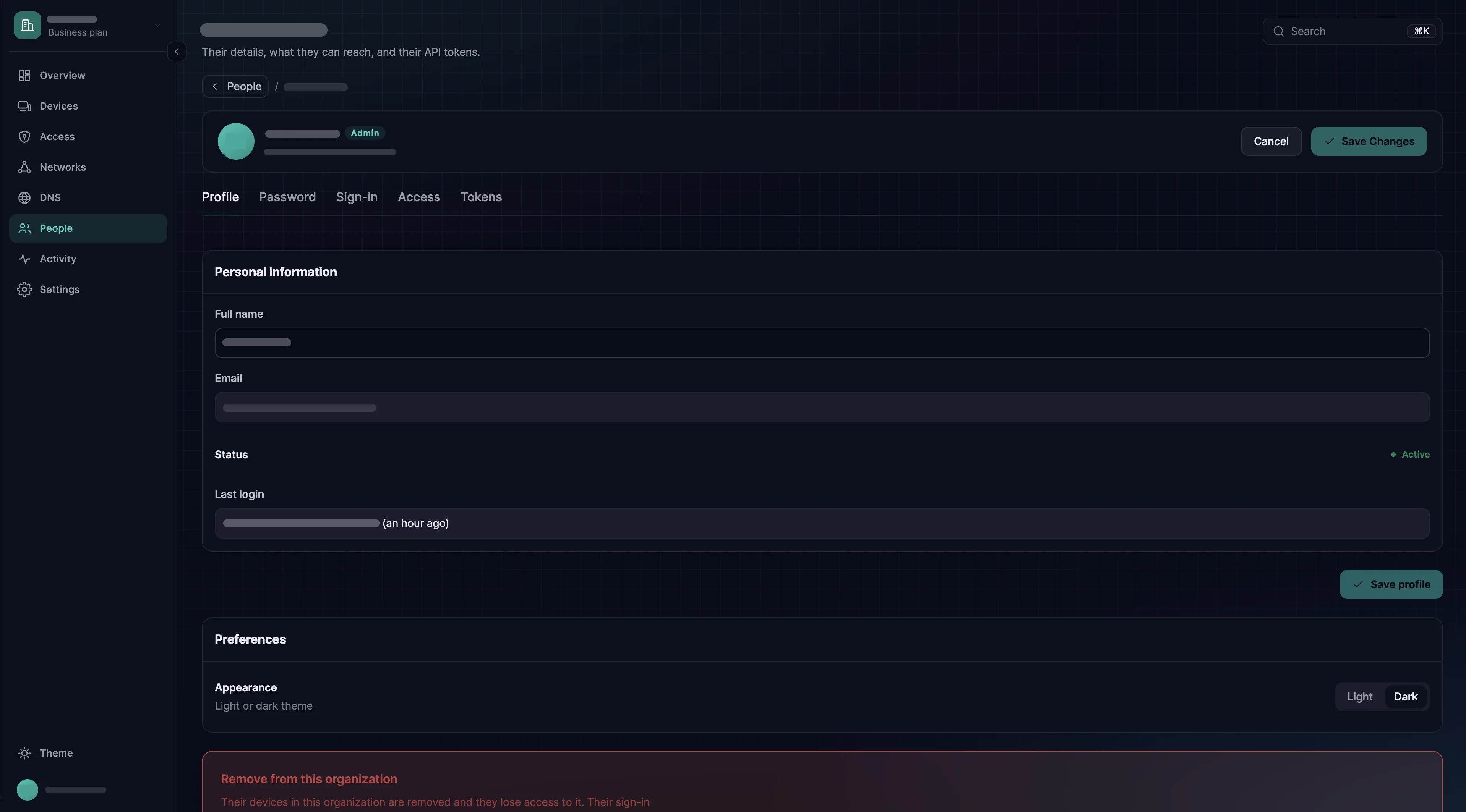
Block a member to stop them now and keep the record: use the Blocked toggle in the member list, or Block user on their Profile. From then on every dashboard and API request they make is refused, including requests with their access tokens, and every device they enrolled by signing in is expired and disconnected. Devices enrolled with an enrollment key have no owner and are not affected. Unblocking gives back the dashboard and the API, but not the device sessions: each device has to sign in again.
Remove from this organization on their Profile, or Remove from organization in the row menu, ends the membership. It deletes every device they enrolled by signing in and all of their access tokens. Their sign-in account is not deleted: other organizations they belong to keep working, and you can invite them again.
The owner cannot be blocked or removed until ownership has been transferred, and nobody can block or remove themselves. The full order for someone who leaves is on Offboarding.
Member actions at a glance
| Action | Effect | Reversible |
|---|---|---|
| Change auto-groups | Their existing devices move at once while group propagation is on | Yes |
| Change role | Applies from their next request. Only the owner can grant Owner, which makes the previous owner an Admin | Yes |
| Block | Dashboard and API refused at once; devices enrolled by signing in are expired and disconnected. Key-enrolled devices are unaffected | Yes, but each device has to sign in again |
| Remove from this organization | Membership ends; every device they enrolled by signing in and all their access tokens are deleted. Their sign-in account stays | No; invite them again |