

DNS
Devices reach each other by name. DNS servers extend that to the internal domains behind your networks, and the agent's local resolver ties both together on each device.
Every device gets a DNS name under the organization's internal domain, derived from its hostname. The agent runs a local resolver that answers for those names, so ssh build-server works on any machine in the network without anyone maintaining a hosts file.
What that does not cover is the names that live behind your networks - your Active Directory domain, an internal zone, a cloud provider's private DNS. DNS servers are for those.
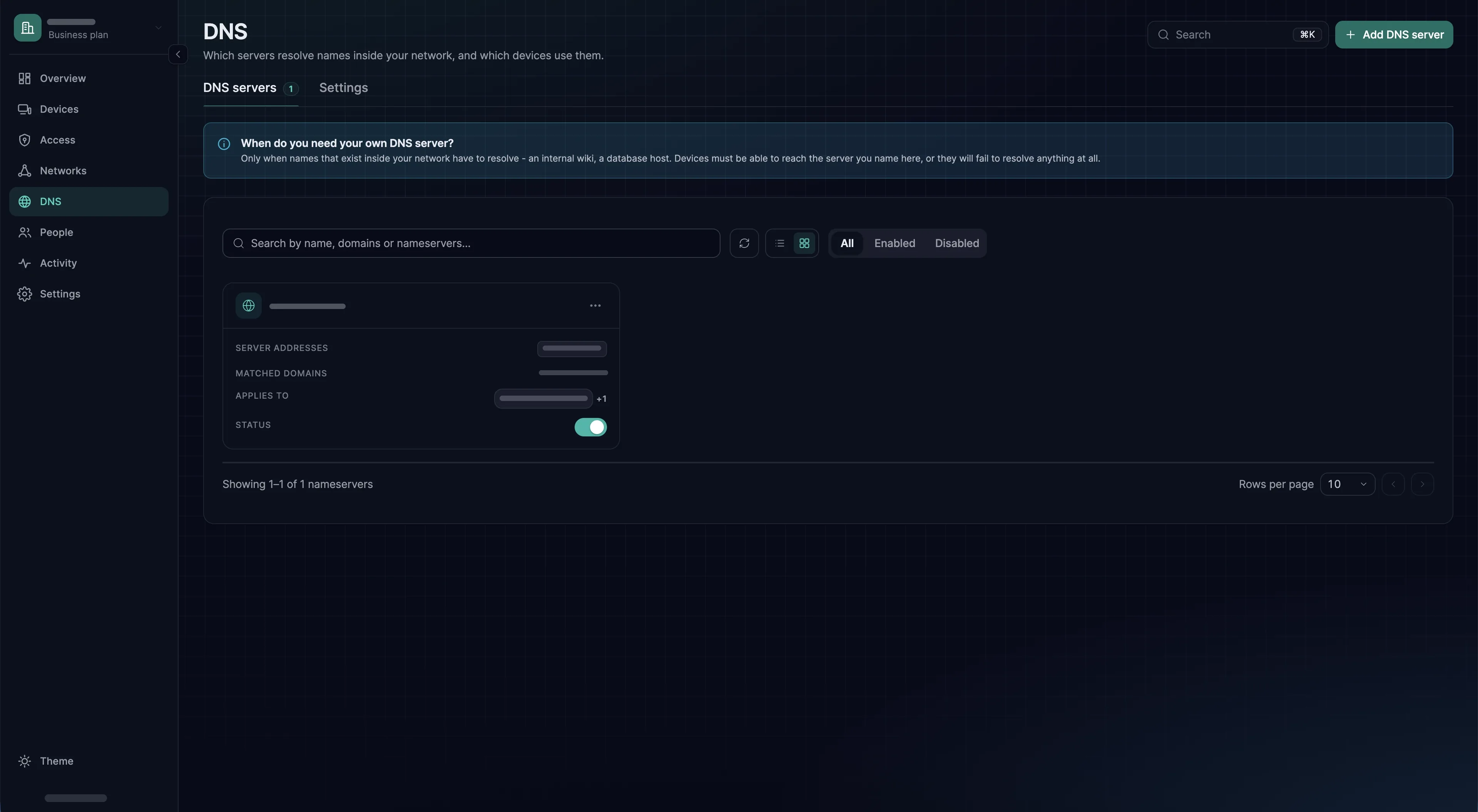
DNS servers
A DNS server entry says: ask these servers, for these domains, on the devices in these groups. Create one under DNS → DNS servers → Add DNS server. That button first opens Choose a DNS server, with a card for each of several well-known public resolvers and one for Custom DNS. A public resolver's card fills in its addresses for you; for the resolvers inside your network, choose Custom DNS.
The form that follows has three steps, which you move through with Continue:
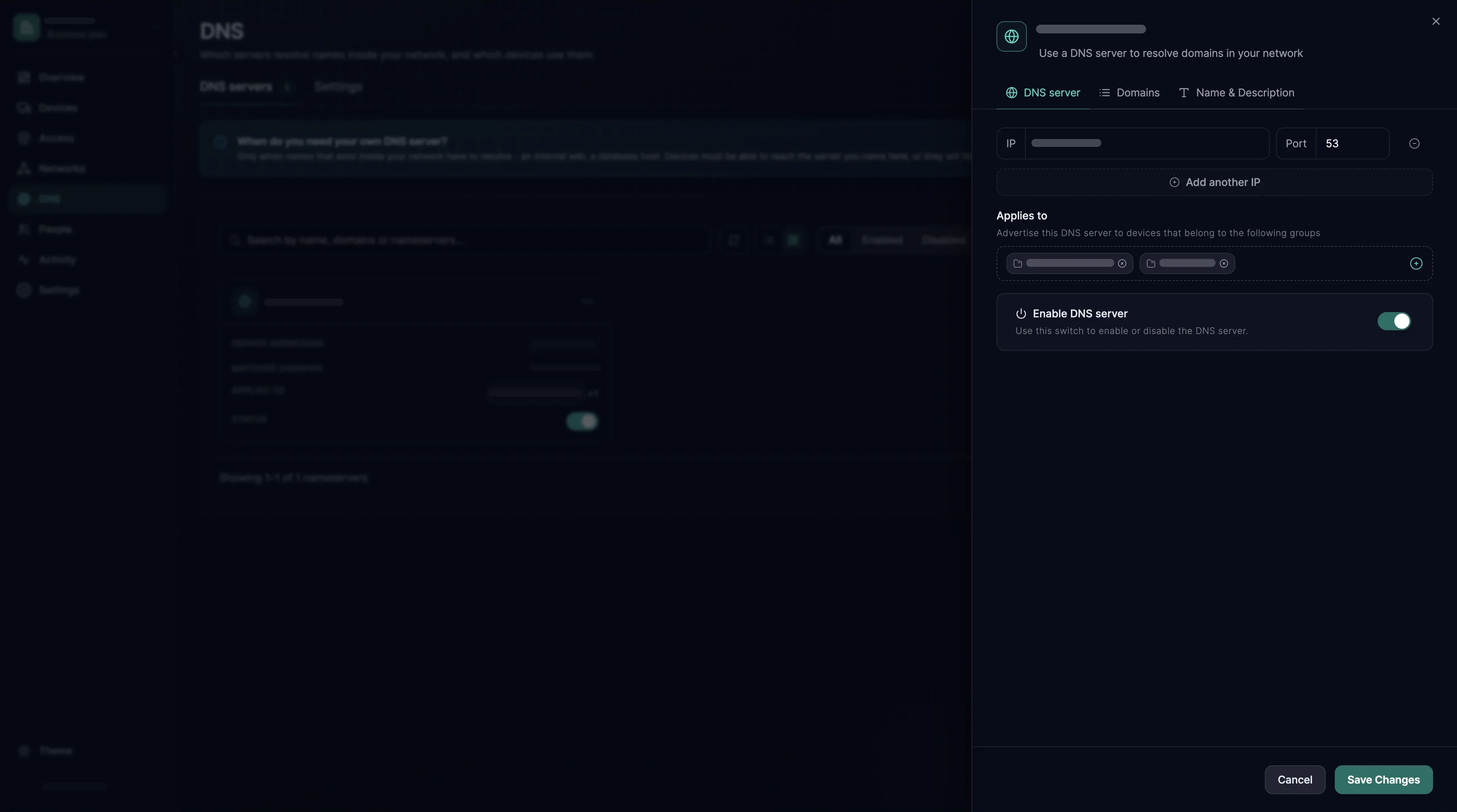
- DNS server: the IP and Port of up to three servers (Add another IP), the port almost always 53. Applies to names the groups whose devices use this DNS server; it needs at least one group. Enable DNS server switches the entry off without deleting it.
- Domains: the Match Domains these servers answer for, such as
corp.example.com, added with Add Domain. With no match domain, the DNS server is primary: it answers every query from those devices, public names included. Mark match domains as search domains adds them to the device's search list, sofileserverfindsfileserver.corp.example.com; it is only available when there are match domains. - Name: a DNS Name of at most 40 characters and an optional description. Add DNS server saves the entry.
To change an entry later, open it from the list: the same three parts appear as the tabs DNS server, Domains and Name & Description, and Save Changes saves them. In the API the same object lives under /api/dns/servers, where the search-domain switch is search_domains_enabled.
Resolving an internal zone
- 1
Make the DNS servers reachable
Devices reach the DNS servers through SXAccess. Publish each server's address as a
hostresource of the site's internal network, then choose Add Access rule in that resource's Access rules column. As the source, pick the groups whose devices will use these servers, the same groups you choose under Applies to below. Set the protocol to UDP, type53in the ports field, press Enter and choose Create access rule. Add a second rule for TCP 53 if answers can be large: the agent asks again over TCP when a UDP answer is cut short. - 2
Start a Custom DNS entry
Open DNS → DNS servers → Add DNS server and choose Custom DNS.
- 3
Enter the servers and who uses them
On the DNS server step, type the first resolver's address under IP and keep port 53; Add another IP adds a second. Under Applies to, pick the groups whose devices should use these servers, leave Enable DNS server on, and choose Continue.
- 4
Keep a match domain on it
On Domains, choose Add Domain, type the zone, such as
corp.example.com, and choose Continue. With a match domain, only queries for that zone go to these servers, and public names keep using the device's own resolvers. - 5
Name it and save
On Name, enter a DNS Name such as
Corp DNSand choose Add DNS server. - 6
Verify
From a device in one of the Applies to groups, resolve a name in the zone with the block for its system below. On Linux, the first command prints its address, and the
SERVERline of the second shows which resolver answered. On macOS,digskips the per-domain DNS settings the agent makes there, so usedscacheutil, which prints the address asip_address.sxaccess info -dlists each DNS server the device uses, the domains it answers for, and whether it is reachable.
dig +short fileserver.corp.example.comdig fileserver.corp.example.com | grep SERVERsxaccess info -ddscacheutil -q host -a name fileserver.corp.example.comsxaccess info -dResolution on the routing device
Resolve wildcard domains, under organization menu → Organization settings, is on by default. It makes a device send its lookups for a domain resource, or a Domains route, to the routing device, which resolves them from inside the network, where the answer is correct. That is what makes a wildcard like *.internal.example.com work. With it off, each device resolves the names itself every minute, which works for plain names but never for a wildcard. In the API the setting is routing_device_dns_resolution_enabled.
Your own domain for devices
Device names live under the organization's internal domain. To use your own, set Internal domain under organization menu → Organization settings (dns_domain in the API) to something like corp.example.com, and build-server becomes build-server.corp.example.com. Pick a domain you control and do not use in public DNS - a name that resolves both inside and outside SXAccess is a debugging problem you do not need.
Leaving DNS alone
Some devices must keep the DNS they have. There are two ways:
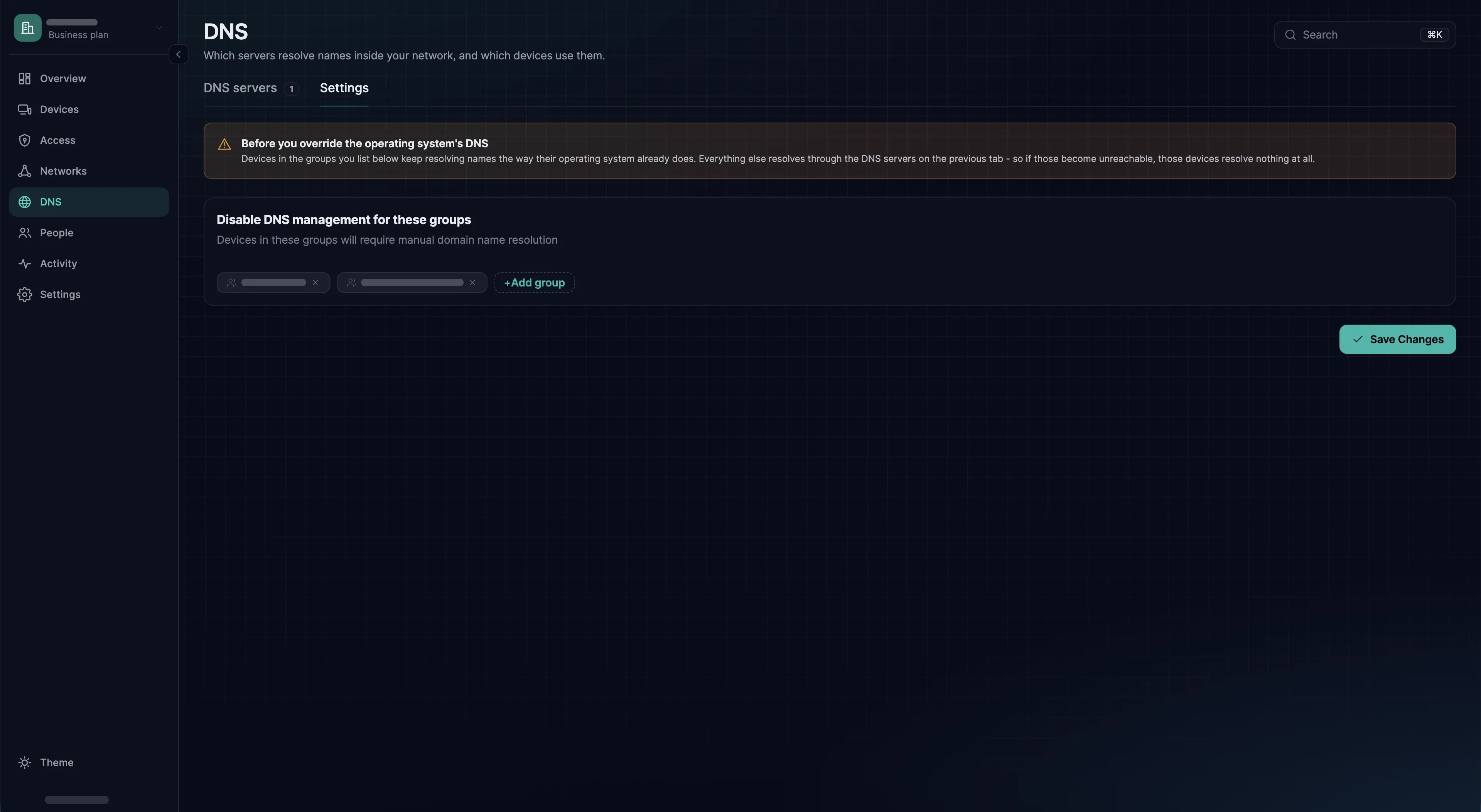
- DNS → Settings → Disable DNS management for these groups: choose Add group, pick the groups, and choose Save Changes. Devices in those groups get no DNS configuration from SXAccess at all - no DNS servers, not even device names. They resolve the way their operating system already does.
--disable-dnsleaves the DNS settings of one device untouched. On a connected device, set it withsxaccess stop && sxaccess start --disable-dns. Run it as one line: a connection that goes through SXAccess, such as an SSH session to this machine, drops untilstarthas finished. It does not work in a session opened withsxaccess shell: stopping the agent closes that session and ends the command, so use the console or an OpenSSH session.
The local resolver
The agent points the machine's DNS configuration at a resolver of its own. That resolver answers for device names, sends the domains of your DNS servers to those servers, and passes everything else to the resolvers the machine already had. On Linux the agent works through whatever the host uses - systemd-resolved, NetworkManager, resolvconf or a plain /etc/resolv.conf; on macOS, through the system's DNS settings.
The resolver needs an address to listen on. The agent takes the first of these that is free:
- Port 53 on the device's overlay address (not on macOS), on
127.0.0.1or on127.0.0.153, in that order. - On Linux, when port 53 is taken on all of them, another port on the overlay address. A small kernel program redirects the queries sent to port 53 there, so to the host this still looks like port 53.
- Port 5053 on one of those addresses.
Only the last case can cause trouble. systemd-resolved and macOS can send queries to a port other than 53. NetworkManager, resolvconf and a plain /etc/resolv.conf cannot: they only name an address, so they always ask port 53. On a host that uses one of those, the agent logs a warning with a link to this section, and the device stops acting as the primary resolver: primary DNS servers no longer apply on it. Free port 53 - usually by stopping or reconfiguring another local DNS service - and reconnect with sxaccess stop && sxaccess start. Run it as one line: a connection that goes through SXAccess, such as an SSH session to this machine, drops until start has finished. It does not work in a session opened with sxaccess shell: stopping the agent closes that session and ends the command, so use the console or an OpenSSH session.
--dns-resolver-address fixes the address and port instead. It is a support-level option of sxaccess start: use it when support asks you to, and choose port 53 so that the warning above cannot apply. Because sxaccess start changes no setting while the device is connected, both blocks below run sxaccess stop first, on the same line as start. Run it as one line: a connection that goes through SXAccess, such as an SSH session to this machine, drops until start has finished. It does not work in a session opened with sxaccess shell: stopping the agent closes that session and ends the command, so use the console or an OpenSSH session.
sxaccess stop && sxaccess start --dns-resolver-address 127.0.0.153:53sxaccess stop && sxaccess start --dns-resolver-address ""When names do not resolve
- Is the device in an Applies to group? A DNS server only reaches the groups listed there, and only while Enable DNS server is on.
- Is DNS management off for it? A group under Disable DNS management for these groups, or
--disable-dnson the device, switches all of this off. - Are the DNS servers reachable?
sxaccess info -dshows each one as reachable or not. The device needs a route to them and an access rule that allows UDP 53. - Did the agent get port 53? If it logged the warning described under The local resolver, it did not.
- Does something else own the resolver? On Linux,
resolvectl statusshows which server handles which domain. A VPN client or a container runtime may have rewrittenresolv.conf. - Is the name complete? A short name is completed with the device's search domains before the query is sent, so
fileserveronly becomesfileserver.corp.example.comwhen that zone is one of them. Resolve the full name to rule this out.