

Devices
Every machine that has enrolled, what its page shows, and what you can change about it.
A device is created when a machine enrols, either by someone signing in on it or with an enrollment key. It holds the machine's public key, its overlay address, its groups and the record of when it was last connected. Every device also belongs to the built-in group All, which it can never leave.
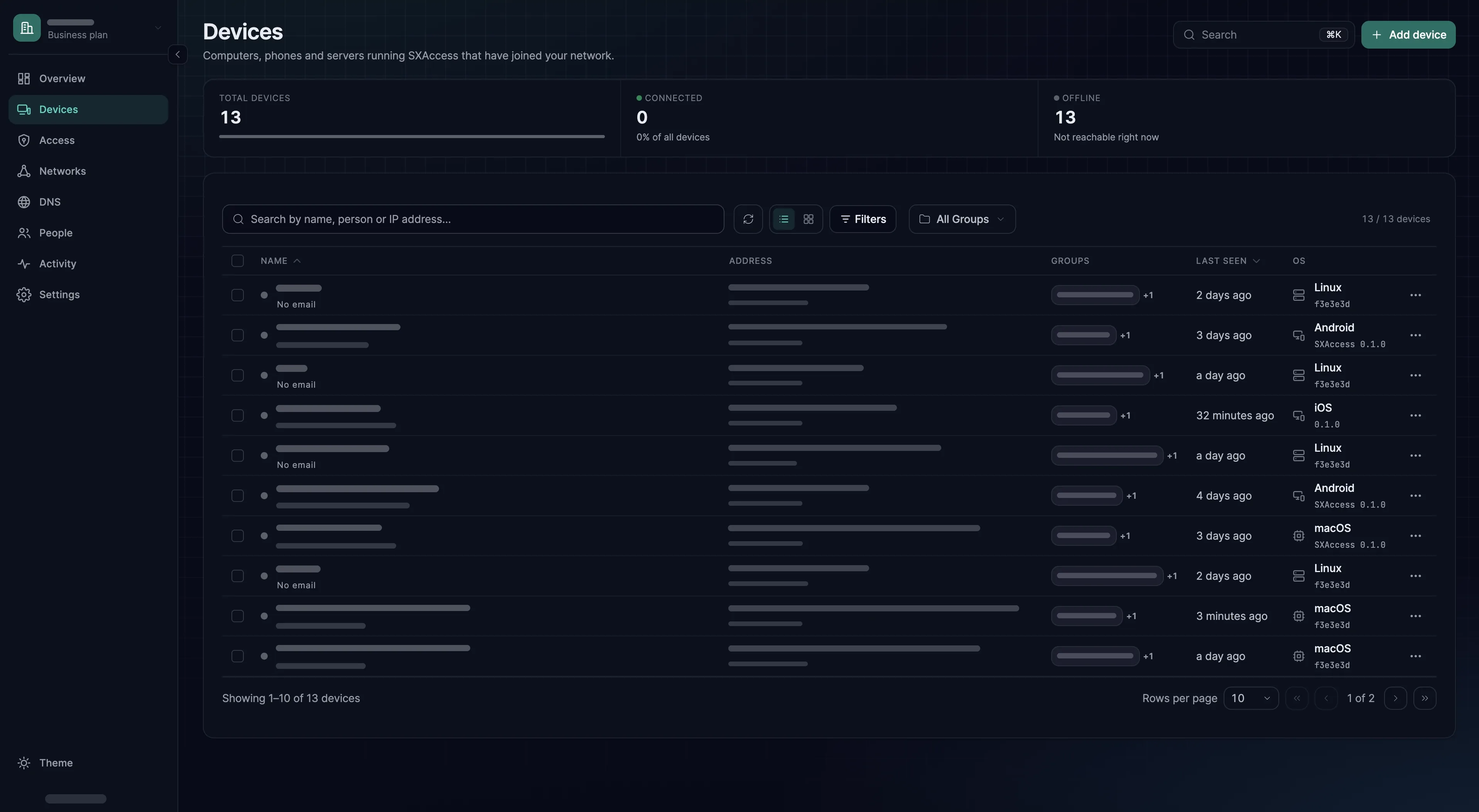
The dashboard lists devices under Devices. Select one to open its page. A machine that joins more than one organization is a separate device in each, with its own address and groups; see Create and switch organizations.
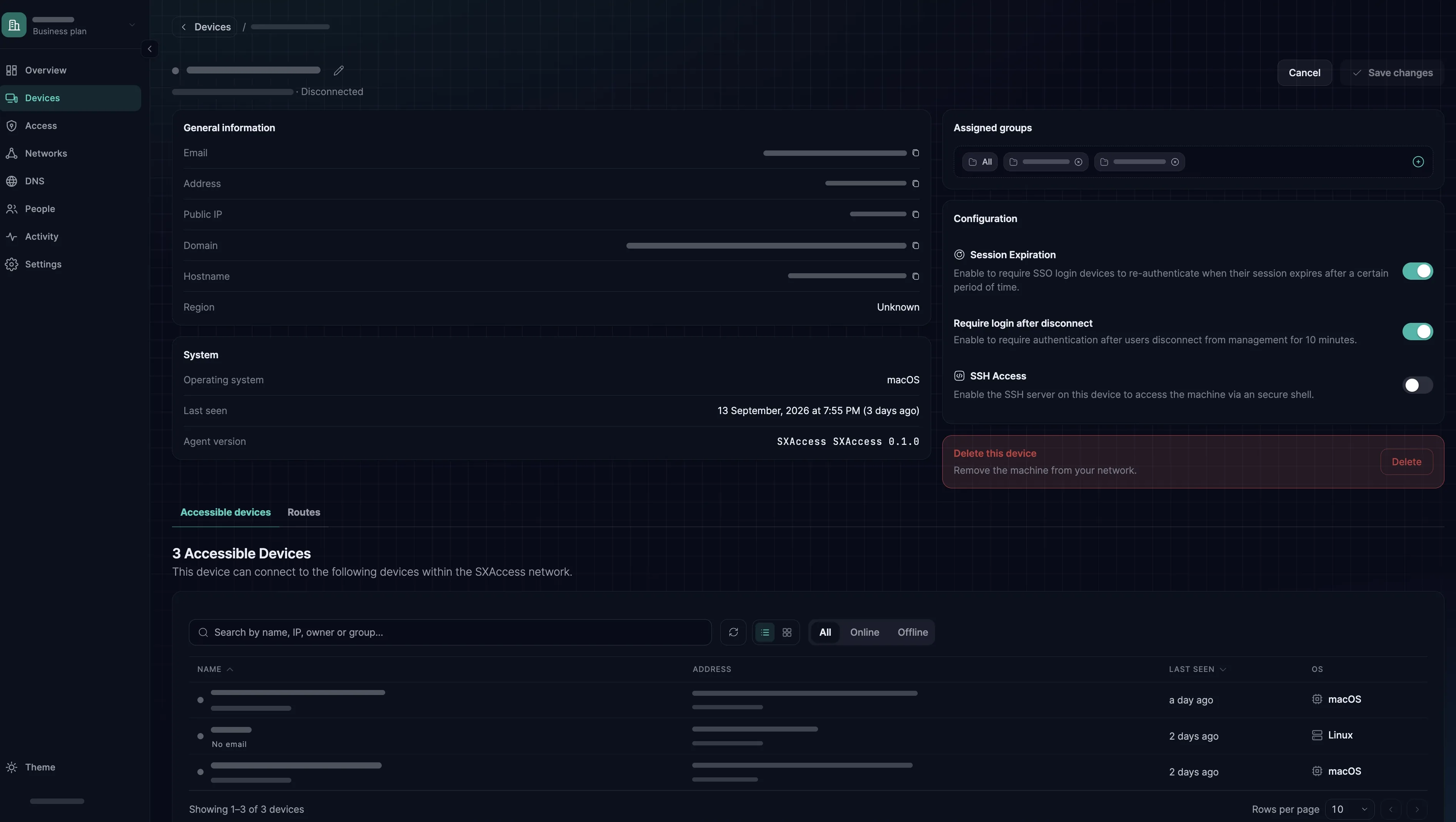
What a device's page shows
| Field | Meaning |
|---|---|
| Name | Defaults to the machine's hostname. Rename it with the pencil next to the name. The new name also becomes the device's DNS label, and if another device already uses that label, SXAccess adds the last two numbers of this device's address, as in build-12-34 |
| The member who enrolled the device by signing in. A device enrolled with a key has no owner | |
| Address | The overlay address assigned at enrolment. It stays the same for as long as the device exists. The macOS, Windows and Android apps show it as Tunnel address, the iOS app as IP address. See Overlay addresses |
| Domain | The device's full DNS name inside your organization, plus any extra DNS labels its enrollment key allowed |
| Public IP, Region | Where the device last connected from. The Country & Region check of a device requirement uses this location |
| Operating system, Agent version | Reported by the device. Agent version is what the SXAccess Client Version check compares |
| Last seen | When the device was last connected to the SXAccess service, or Just now while it is connected |
| Assigned groups | The groups that drive every access decision for this device. Change them here and choose Save changes. All is listed too but cannot be removed, because every device is always in it. A device in no other group is matched only by access rules written against All |
| SSH Access | Turns on the device's built-in SSH server. See SSH access |
Accessible devices and routes
Below the details, a device's page has two tabs:
- Accessible devices lists every device that an access rule connects to this one, in either direction, including the routing devices that serve network resources it may reach. It answers "what can this machine talk to?" without reading every rule.
- Routes lists the routes this device serves as a routing device. Add Route publishes a network range through it, and Make this an Internet gateway sends other devices' Internet traffic through it. To reach a private network, Networks and resources is usually the better tool; Route private networks and Internet gateways explain when a route fits.
Changing many devices at once
Tick devices in the list and a bar appears at the bottom of the page. The selection covers the devices on the page of the list you are looking at.
- Assign Groups adds the groups you pick to every selected device. Turn on Overwrite Existing Groups to replace their groups instead.
Allis never touched. - Delete All deletes every selected device, after a confirmation.
Deleting a device
Delete on a device's page removes the device and cuts the machine off at once. To come back, the machine has to enrol again: with an enrollment key that is still valid (a one-off key is already used up) or by someone signing in on it. It returns as a new device, with a new address picked at random and only the groups its key or its member assigns.
There is no switch that blocks a single device. To make a device sign in again, delete it, or block the member who enrolled it: Block user on the member's Profile tab expires every device they enrolled by signing in, immediately. Unblocking does not bring those devices back; each one has to sign in again. Remove from this organization goes further and deletes them. See Offboarding.
Session expiry
Only devices enrolled by signing in can expire. A device enrolled with an enrollment key has no owner and no session: it never expires, and it stays until you delete it (or, if its key makes temporary devices, until it has been offline for 10 minutes).
The rules for the whole organization are under Settings → Security:
- Expire device sessions, on by default, with Session length, 24 hours by default. A device has to sign in again once that much time has passed since its last sign-in.
- Disconnect inactive devices, off by default and available only while session expiry is on. A device has to sign in again after it has been disconnected from the SXAccess service for the time you set, from 1 minute to 180 days.
Each device's page has two matching switches under Configuration. Session Expiration decides whether this device's session can expire at all: turning it off signs nobody out, it means the device never has to sign in again. Require login after disconnect applies the inactivity rule to this device and can only be on while Session Expiration is. Both start on for a device enrolled by signing in. In the device list, the row menu offers the first one as Enable Session Expiration or Disable Session Expiration.
For a device enrolled with a key, neither applies. On its page, Session Expiration is greyed out and Require login after disconnect is not shown. In the device list, the row menu greys the item out as well and explains why: Expiration is disabled for all devices added with an enrollment key.
An expired device shows Login expired on its page and stays disconnected until someone signs in on it again.
What members see
Owners, admins, network admins and auditors see every device. Members with the User role see what Hide other people's devices from regular members under Settings → Security allows. It is on by default.
- While it is on, they get no device list at all: Devices disappears from their menu, and the page shows how to add a device instead.
- While it is off, they see the devices they enrolled themselves, plus every device that an access rule connects to one of theirs.
See Roles and permissions for what each role can change.
From the machine itself
Not everything is a dashboard action. On a device running the CLI agent, sxaccess info -d lists the devices this machine has been given, each with its state and whether its path is P2P or Relayed. That is usually faster than reasoning about access rules from the other end. --json prints the same for a script.
The device list is also available over the API at https://app.sxaccess.com/api/devices, with an access token in the Authorization: Token header.
sxaccess info -dsxaccess info --json | jq '.devices.items[] | {dnsName, address, state, path}'curl -sS https://app.sxaccess.com/api/devices -H "Authorization: Token $SXACCESS_TOKEN"