

Organization settings
The switches that apply to the whole organization and where each one lives: device sessions and inactivity, who sees the device list, Connect on demand, two-factor and passkeys, and the internal domain.
The switches that apply to the whole organization live in two places. Settings in the sidebar has two tabs: Security, for device sessions and what members can see, and Authentication, for two-factor and passkeys. Organization settings, in the organization menu at the top of the sidebar, holds the internal domain and wildcard resolution. Group propagation sits with the groups, under People → Groups.
Members with the Owner or Admin role can change these settings; Network Admin and Auditor can only look at them. Members with the User role do not see them.
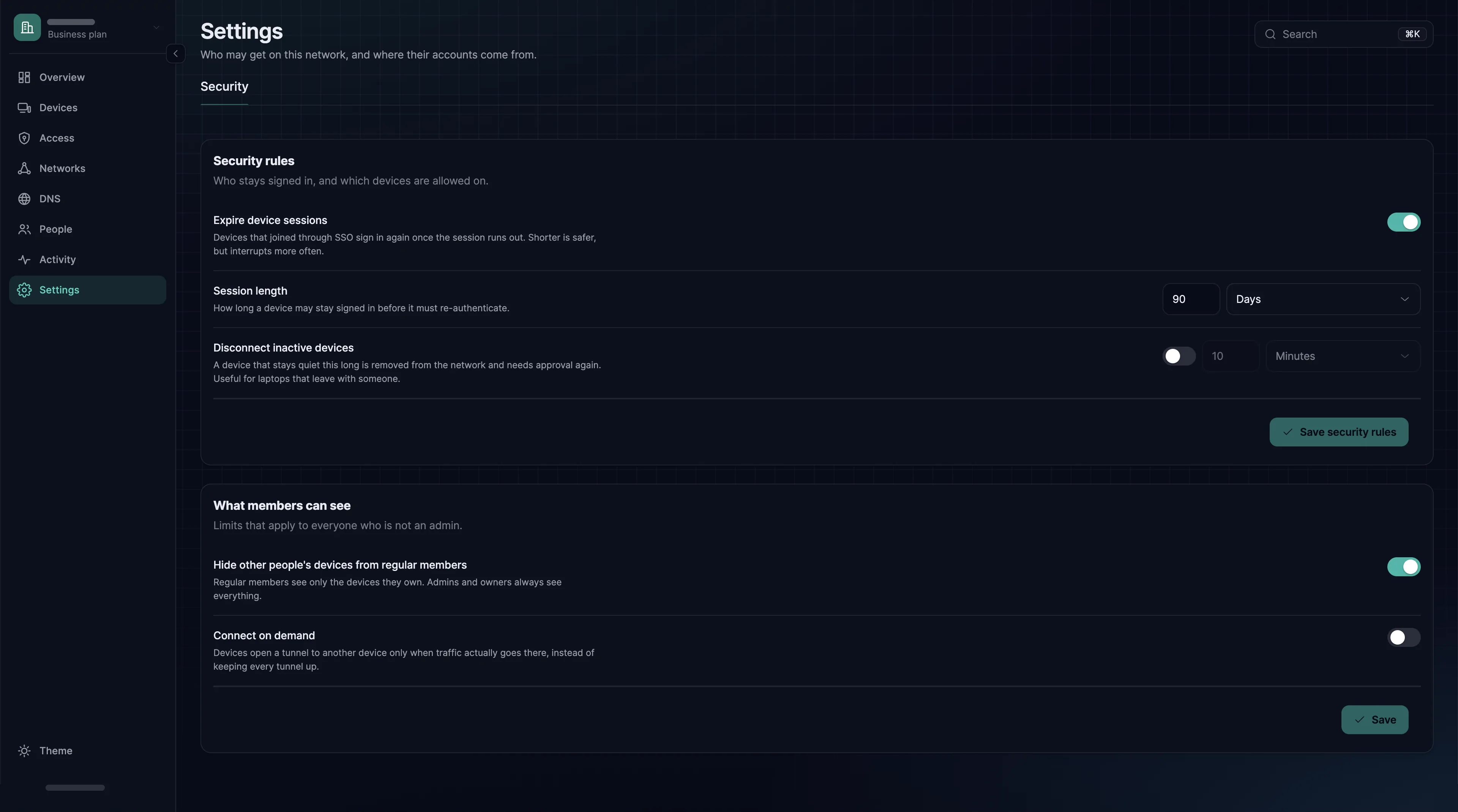
Settings → Security: security rules
These rows are on the Security rules card. Change what you need and choose Save security rules; devices pick up the new rules at their next check-in.
| Setting | Default | What it does |
|---|---|---|
| Expire device sessions | on | A device enrolled by signing in must sign in again when its session runs out. Devices enrolled with an enrollment key are never affected |
| Session length | 24 hours | How long such a device stays signed in before the person has to sign in on it again. 1 hour to 180 days, set in hours or days |
| Disconnect inactive devices | off, 10 minutes | Ends the session of a device enrolled by signing in once it has been disconnected from the service for this long; the clock starts when the device loses its connection. Available only while Expire device sessions is on. 1 minute to 180 days. The device and its groups stay; the person signs in on it again to reconnect |
Settings → Security: what members can see
These rows are on the What members can see card, which has its own Save button.
| Setting | Default | What it does |
|---|---|---|
| Hide other people's devices from regular members | on | While on, members with the User role get no device list at all: Devices disappears from their sidebar, and the page offers to add a device instead. While off, they see their own devices and the devices their own devices can reach. Members with the Owner, Admin, Network Admin or Auditor role always see every device. It changes what the dashboard and the API show, not what any device can reach |
| Connect on demand | off | Experimental. Devices open a tunnel to another device only when traffic actually goes there, instead of keeping every tunnel up |
Exceptions for one device
A device's own page can switch the two session rules off for that device alone. Under Devices → the device → Configuration, Session Expiration turns expiry off or on for it, and Require login after disconnect does the same for the inactivity rule; it needs Session Expiration on. Both exist only for devices enrolled by signing in and start out on, so the organization's settings decide until you change them.
Switching Session Expiration off means the device never expires; it does not sign the device out. To make someone sign in again on a device now, block the member or delete the device.
Settings → Authentication
The Two-factor authentication and Passwordless sign-in cards each have their own Save changes button. Neither switch applies to access tokens, which authenticate a program and never go through sign-in. What the two rules mean for members is described in What the organization requires, and the sign-in page itself in Sign-in.
| Setting | Default | What it does |
|---|---|---|
| Require it to enter this organization | off | Nobody works in the organization without a second factor, including members who sign in with Google. Anyone without one is asked to set one up at their next sign-in, or when they switch to this organization, so nobody is locked out |
| Allow signing in with a passkey | off | Members can register a passkey on their profile, under Sign-in, and use it instead of a password, which keeps working. While it is on, the sign-in page offers a passkey to every address, so someone outside the organization can learn that an address holds one, though not sign in without the device |
| Sync groups from the provider, on the Sign-in rules card | - | Nothing to switch on. Its button, Set up on People → Groups, opens the group list, and there is no group sync to set up there. You cannot connect an identity provider of your own, so groups are kept in SXAccess; see Groups |
Group propagation
Group propagation is not under Settings. Its switch, Enable user group propagation, is under People → Groups → Settings, is on by default and is saved with Save group settings. It decides whether a change to a member's groups also moves the devices they already have; see Group propagation.
Organization settings: Details
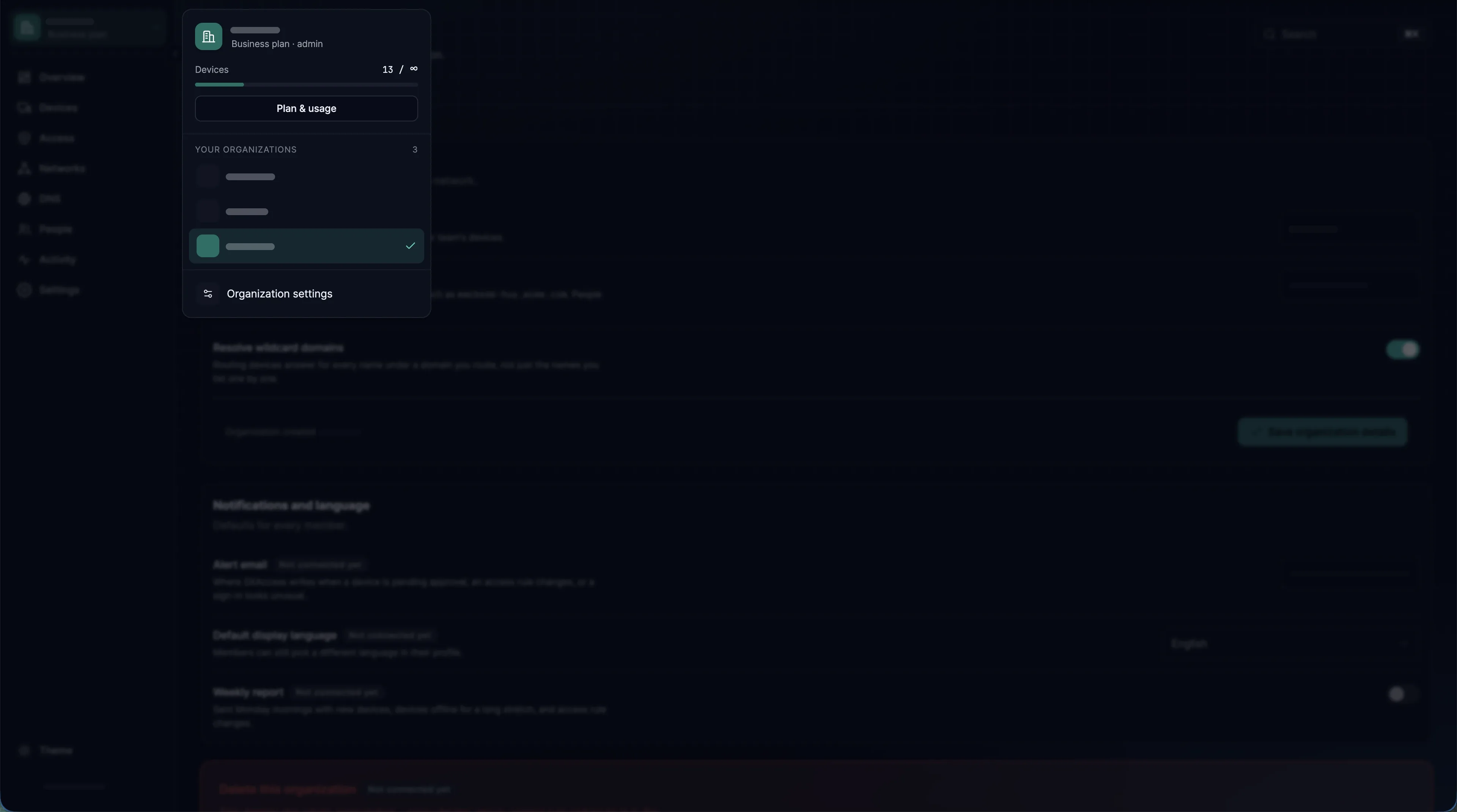
Open the organization menu at the top of the sidebar and choose Organization settings. The other rows on the Details tab are marked Not connected yet and change nothing for now.
| Setting | What it does |
|---|---|
| Internal domain | The domain device names live under, so people type a name instead of an address. Set your own, for example corp.example.com, without wildcards, and choose Save organization details. Devices use a new domain from their next check-in |
| Resolve wildcard domains | On by default, and saved as soon as you switch it. Routing devices answer for every name under a domain you route, not only the names you list one by one. A wildcard domain such as *.example.com works only while it is on; a plain domain name works either way |
A reasonable baseline
For a production organization:
- Expire device sessions on, with a session length between a day and a week, so devices sign in again regularly under the current two-factor rule.
- Require it to enter this organization on, so every member holds a second factor.
- Group propagation on, so a change to a member's groups reaches the devices they already have.
- Your own internal domain, set before people start scripting against device names.
Changing settings over the API
Read the organization with GET https://app.sxaccess.com/api/organizations. It returns a list with one entry, your organization, including its id and its settings. Write with PUT https://app.sxaccess.com/api/organizations/{organizationId} and a body of {"settings": {...}} that carries the complete settings object you read, with only the fields you mean to change edited. Durations are in seconds. The example below saves the organization to org.json, sets a session length of 7 days (604800 seconds) and sends the complete settings object back. See Public API.
curl -sS https://app.sxaccess.com/api/organizations \ -H "Authorization: Token $SXACCESS_TOKEN" > org.jsonORG_ID=$(jq -r '.[0].id' org.json)jq '{settings: (.[0].settings | .device_login_expiration = 604800)}' org.json > body.jsoncurl -sS -X PUT https://app.sxaccess.com/api/organizations/$ORG_ID \ -H "Authorization: Token $SXACCESS_TOKEN" \ -H "Content-Type: application/json" \ --data @body.json