

AWS EC2 and cloud VPCs
Reach a private VPC without a bastion, a VPN gateway or a public address, and survive the instance being replaced.
What you will achieve
Your team reaches databases and services inside a private VPC, from their laptops, with nothing exposed to the internet.
No bastion host to keep patched, no public address, and no inbound rule on the routing instance. By the end, a laptop in engineering opens an RDS database by name, even after the routing instance is replaced.
When to use this
Use this when what you need is inside a cloud network:
- An RDS database developers open with a desktop client.
- Private services with no public endpoint, reached today through a bastion.
- An internal dashboard on an instance with no public address.
- A VPC that people currently reach over a client VPN you pay for by the hour.
What you need
The rows marked Required are enough to reach one database.
| What | Why | |
|---|---|---|
| Required | The Owner or Admin role in the dashboard | Steps 1 and 2 need it |
| Required | The AWS CLI (AWS CloudShell has it). Permission in AWS to create a secret, an IAM role, a security group, a launch template and an Auto Scaling group. Also permission to pass the role to EC2 (iam:PassRole), to store a new value in the secret (secretsmanager:PutSecretValue), to change the database's security group, to terminate an instance and to start a Session Manager session | Steps 3 to 6, then Verify and Troubleshooting |
| Required | Private subnets whose route table sends outbound traffic to a NAT gateway | The agent only connects out. Nothing connects in |
| Required | The database's endpoint and port, such as an RDS writer endpoint on 5432 | It becomes a resource |
| Required | A laptop with the SXAccess app or the CLI agent, signed in | To test from. See Which client do I need? |
| Optional | SSM Parameter Store instead of Secrets Manager | Works the same; change the command that reads the key, and the role's permissions |
| Advanced | Private subnets in a second availability zone | Redundancy |
Before you start
One instance speaks for the VPC.
The agent on the instance only connects out, and the tunnel is built from the inside. So the instance needs no public address and no inbound rule; only the database has to let the instance in.
Setup
- 1
Give the tester the engineering group
The rule in step 8 lets the group
engineeringin. Put the member who will test in it: People › Members › the member › Access. In Auto-assigned groups, typeengineering, press Enter, then press Save Changes; the group is created when you save.With group propagation on, the default, this also moves a laptop the member has already signed in on: see Group propagation.
You see:
engineeringon the member's Access tab. - 2
Create the enrollment key
Access › Enrollment keys › Create enrollment key. Afterwards only its groups can change, so set it up for the Auto Scaling group now:
- Name -
vpc-routers. - Make this key reusable - on, for every instance the group launches.
- Expires in - how long the launch template should work, such as
365days; empty means never. - Usage limit - the enrolments you expect over the key's life, such as
50. Each new instance counts, and so does each one that enrols again after a long outage. - Temporary devices - on, so terminated instances leave Devices after 10 minutes offline. Step 5 brings back a removed instance that still runs.
- Allow Extra DNS Labels - off.
- Auto-assigned groups - type
vpc-routersand press Enter. Step 9 attaches this group.
Press Create enrollment key and copy the key now: it is not shown again.
- Name -
- 3
Store the key as a plaintext secret
The block needs the AWS CLI; put your region in place of
eu-central-1. Run the block in bash or zsh (macOS, Linux, WSL or AWS CloudShell). Paste the whole block and press Enter once. WhenEnrollment key:appears, paste the key, and only the key, and press Enter. The key is not shown, and an empty line asks again.The block stores the key as plain text; a secret made of key/value pairs would hand the instance JSON instead of a key.
You see: the secret's ARN, for step 4.
{ KEY='' until [ -n "$KEY" ]; do printf 'Enrollment key: '; read -rs KEY || break; echo; done [ -n "$KEY" ] && aws secretsmanager create-secret --region eu-central-1 \ --name sxaccess/enrollment-key --secret-string "$KEY" --query ARN --output text unset KEY} - 4
Create the instance role
Create an IAM role for EC2 with the permissions below, with the ARN from step 3 in
Resource. The instance can then read this one secret and no other.Also attach
AmazonSSMManagedInstanceCore, which AWS provides. It gives you a shell on the instance through Session Manager, with no public address; troubleshooting uses it.{ "Version": "2012-10-17", "Statement": [ { "Effect": "Allow", "Action": "secretsmanager:GetSecretValue", "Resource": "arn:aws:secretsmanager:eu-central-1:111122223333:secret:sxaccess/enrollment-key-AbCdEf" } ]} - 5
Launch the routing instance from an Auto Scaling group
Create a launch template, then an Auto Scaling group that uses it:
- Launch template - Amazon Linux 2023, which has the AWS CLI, on a small instance type. Choose the role from step 4 as IAM instance profile, no public IP address and a new security group without inbound rules, and paste the script below as user data.
- Auto Scaling group - the VPC's private subnets; desired, minimum and maximum capacity 1. It replaces an instance that fails its health check or is terminated.
The script installs the agent and a systemd timer that runs an enrol script now, a minute after each boot and every 5 minutes. The enrol script does nothing while the instance is connected. If SXAccess removed the instance after more than 10 minutes offline, it enrols it again: EC2 would still call that instance healthy and never replace it.
The timer also connects the instance again within 5 minutes of a manual
sxaccess stop. For maintenance, stop the timer first withsudo systemctl disable --now sxaccess-enrol.timer, and turn it back on afterwards withsudo systemctl enable --now sxaccess-enrol.timer.You see: within a few minutes, a device such as
vpc-router-ip-10-0-1-23under Devices, invpc-routers.#!/bin/sh# EC2 user data. Runs once, at first boot.set -eucurl -fsSL https://pkgs.sxaccess.com/install.sh | sh# The enrol script. Use your region.cat > /usr/local/sbin/sxaccess-enrol <<'EOF'#!/bin/shset -eusxaccess info | grep -qx Connected && exit 0KEY=$(aws secretsmanager get-secret-value --region eu-central-1 \ --secret-id sxaccess/enrollment-key --query SecretString --output text)SX_ENROLLMENT_KEY="$KEY" sxaccess start --hostname "vpc-router-$(hostname -s)"EOFchmod 700 /usr/local/sbin/sxaccess-enrol# Run it now, 1 minute after every boot, and every 5 minutes.cat > /etc/systemd/system/sxaccess-enrol.service <<'EOF'[Service]Type=oneshotExecStart=/usr/local/sbin/sxaccess-enrolEOFcat > /etc/systemd/system/sxaccess-enrol.timer <<'EOF'[Timer]OnBootSec=1minOnUnitActiveSec=5min[Install]WantedBy=timers.targetEOFsystemctl daemon-reloadsystemctl enable --now sxaccess-enrol.timersystemctl start sxaccess-enrol.service - 6
Let the routing instance into the database
With Masquerade on (step 9), the database sees the routing instance's own address. On the database's security group, add an inbound rule for TCP 5432 from the instance's security group of step 5. It covers every replacement too, and it is the only inbound rule this setup needs.
- 7
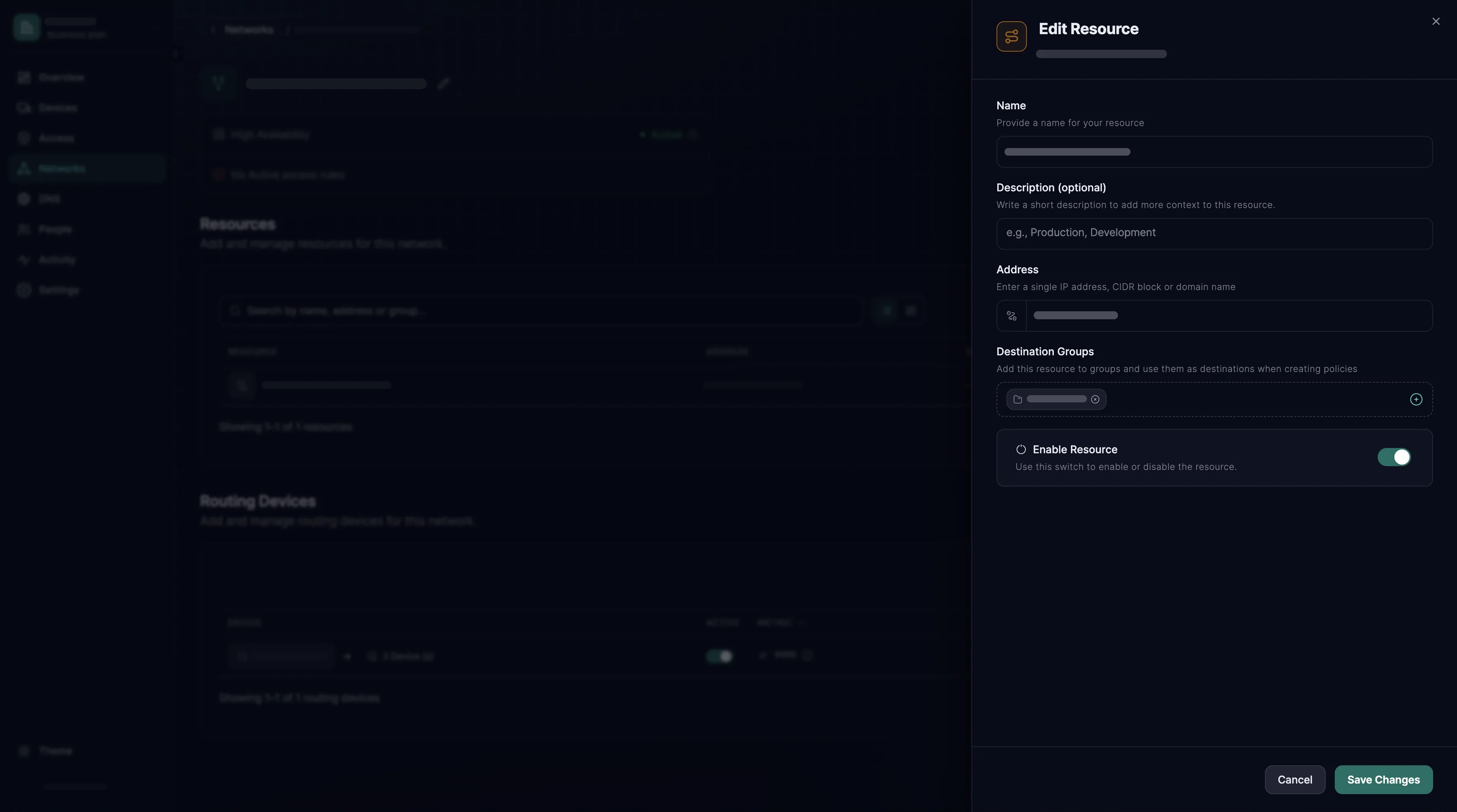
Create the network and the resource
Networks › Internal networks › Add internal network. Set Network Name to the VPC and region, such as
prod-vpc eu-central-1, and press Add Network. Add Resource opens next:- Name -
orders-db, the name laptops see, for example insxaccess reach list. - Address - the writer endpoint, such as
my-db.cluster-abc123.eu-central-1.rds.amazonaws.com. As a domain, it follows the address when AWS changes it, and the routing instance resolves it. - Destination Groups - type
vpc-databasesand press Enter; a resource needs a group.
Press Add Resource. Keep wildcards to your own endpoints, such as
*.cluster-abc123.eu-central-1.rds.amazonaws.com;*.rds.amazonaws.comwould route every RDS name a laptop looks up through your VPC. - Name -
- 8
Let engineering reach the database
The access rule form opens next, with
orders-dbalready filled in as the destination.Allow
engineeringto reachorders-dbover TCP on ports5432.- Access rule name - replace the suggested
orders-db access rulewith the intent, such as Engineering reaches the orders database. - Allow - pick
engineering. - over - choose TCP. A new rule starts at any protocol, which opens every port.
- on ports - click the field, type
5432and press Enter: the field shows 5432 instead of All. Left empty, it opens every port.
Direction stays locked to One-way. Press Create access rule.
- Access rule name - replace the suggested
- 9
Attach the routing instances as a group
Add Routing Device opens last. Switch to Device group, pick
vpc-routersand press Continue. The group takes in every instance the key enrols, replacements included; an entry naming one instance would stop working when it goes.Under Settings, keep Enable Routing Device and Masquerade on and Metric at 9999, and press Add Routing Device. With Masquerade on, the route tables and the source/destination check stay as they are. The database is now reachable.
For each further database, open the network by its name under Networks › Internal networks and press Add Resource. Then press Add Access rule in that resource's Access rules column, fill it in as in step 8 and press Create access rule. Let the instance in as in step 6.
Verify
Test from the tester's laptop, by endpoint name.
Expected result
The SXAccess app lists orders-db under Resources, and the database accepts a connection on 5432, for example from psql with the same endpoint it would use inside the VPC. The command below for your system checks the port: it must succeed, which PowerShell shows as TcpTestSucceeded : True.
With the CLI agent, sxaccess reach list shows orders-db with state: Selected, and sxaccess info -d lists a vpc-router device whose Reaches row names the endpoint.
Then check that the rule is what lets you in
A closed port proves nothing here, because the database's security group drops other ports anyway. Switch the rule off instead, in its Status column under Access › Access rules. Within seconds the laptop loses orders-db: sxaccess reach list prints There are no networks to show. and the connection fails. Switch the rule back on.
Then prove it survives a replacement
Terminate the routing instance in the EC2 console. The Auto Scaling group launches a new one, which enrols and joins vpc-routers, and access returns by itself within a few minutes. The old device leaves Devices about 10 minutes later.
nc -vz -G 5 my-db.cluster-abc123.eu-central-1.rds.amazonaws.com 5432nc -vz -w 5 my-db.cluster-abc123.eu-central-1.rds.amazonaws.com 5432Test-NetConnection my-db.cluster-abc123.eu-central-1.rds.amazonaws.com -Port 5432Troubleshooting
The first four are specific to AWS and catch most of it.
| Symptom | Likely cause | What to do |
|---|---|---|
| The instance never appears under Devices | No outbound path, such as a private subnet without a NAT gateway. Or the instance could not read the key: check the role, the region and the secret's name. | Fix the subnet's default route; add no inbound rule. In a Session Manager shell on the instance, read /var/log/cloud-init-output.log and journalctl -u sxaccess-enrol |
| Reaches the instance, not the database | The database's security group does not let the instance in, or IP forwarding was switched off after the agent turned it on. | Step 6. In a Session Manager shell, sysctl net.ipv4.ip_forward must print 1 |
| A domain resource does not resolve | The instance cannot resolve the endpoint, for example because the VPC has DNS resolution or DNS hostnames turned off. | In a Session Manager shell, getent hosts <endpoint> must print a private address |
| New instances stop enrolling, or one stays offline after an outage | The key expired or used up its Usage limit, so a removed instance cannot enrol again. sxaccess info on it prints This device is not signed in (NeedsLogin). | Replace the key as in Replacing the enrollment key. A key's settings cannot be edited |
| It worked, then stopped after a deploy | The routing device entry names one instance, or the image carried enrolled state, so two machines claim one identity. | Attach the group as a Device group (step 9). Never bake /var/lib/sxaccess/ into an AMI |
| Works from one place, not from another | The local network there uses addresses inside the VPC range, and the local network wins. Publishing single endpoints does not avoid this. | Give new VPCs a range those networks do not use |
| Terminated instances pile up under Devices | The key was created without Temporary devices, which cannot be switched on later. | Replace the key with one that has it on, as in Replacing the enrollment key |
| Still stuck? | Take the connection apart one stage at a time. | Trace why a connection is blocked |
Replacing the enrollment key
Create the new key as in step 2, and put your region in place of eu-central-1 in the block below. Run the block in bash or zsh (macOS, Linux, WSL or AWS CloudShell). Paste the whole block and press Enter once. When Enrollment key: appears, paste the key, and only the key, and press Enter. The key is not shown, and an empty line asks again.
You see: the ID of the secret's new version. Instances read the secret each time they enrol, so the next one uses the new key.
Then revoke the old key: under Access › Enrollment keys, choose Revoke in its row menu and confirm with Revoke key.
{ KEY='' until [ -n "$KEY" ]; do printf 'Enrollment key: '; read -rs KEY || break; echo; done [ -n "$KEY" ] && aws secretsmanager put-secret-value --region eu-central-1 \ --secret-id sxaccess/enrollment-key --secret-string "$KEY" --query VersionId --output text unset KEY}Advanced configuration
Surviving an availability zone
Give the Auto Scaling group private subnets in two zones and a capacity of 2. All instances in the vpc-routers entry share one Metric; clients prefer one they are connected to and move on when it stops answering.
To prefer one zone, give each zone its own key, group and launch template, and attach each group as its own entry. Then give the preferred entry a Metric below 9999.
An instance with an Elastic IP
The agent already learns the public address it is seen from, through STUN, and offers it to other devices as a connection candidate. That covers most instances with an Elastic IP. If a direct path still does not form, sxaccess start has a support-level option, --external-ip-map (see the command reference), that announces the public address explicitly; use it together with support.
Publishing the VPC CIDR after all
Sometimes there are too many endpoints to name. Then add the VPC range as one resource, check it first against the networks people work from, and remember it grants everything in the VPC, including what is created next month.
Other clouds
Azure and GCP work the same way: one small instance inside the network, outbound only, endpoints published as domain resources.