

Route private networks
Publish a whole CIDR range through a routing device from the Routes tab. To reach individual hosts and subnets, networks and resources are the better tool.
Not every machine can run an agent: printers, cameras, PLCs, managed databases and appliances cannot, and there are always servers nobody will let you touch. Routing solves that: the agent runs on one device inside the network, a routing device, and everything behind it becomes reachable through it.
There are two ways to publish what sits behind a routing device. Networks and resources is the main one, and the better choice for reaching hosts and subnets: you list what should be reachable, and access rules name it. The Routes tab, described here, publishes a whole CIDR range to the groups you choose.
Internet gateways are routes too: a route to 0.0.0.0/0 is listed on the Internet gateways tab, even when you add it here. Sending internet traffic through your own gateway walks through setting one up.
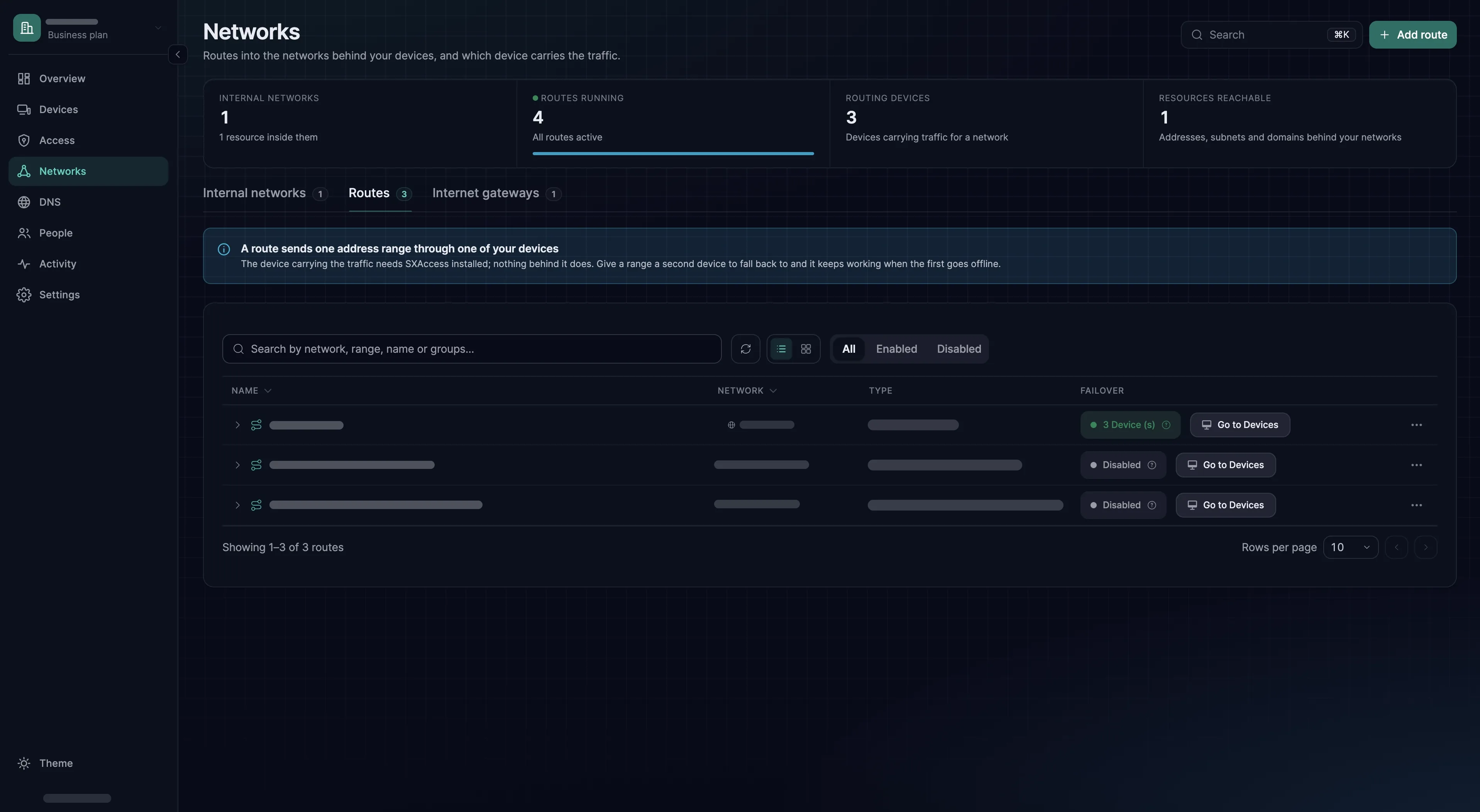
The route form
Networks → Routes → Add route opens it: four screens, Route, Groups, Name and Settings, with Continue between them and Add Route at the end.
| Field | What it does |
|---|---|
| Network Range or Domains | A private IPv4 range such as 172.16.0.0/16, or up to 32 domains whose addresses are looked up when they are used. Keep Routes keeps the addresses a domain resolved to earlier, so open connections survive a DNS change. |
| Routing Device or Device group | One device carries the route, or every device in one group does, with one shared metric. |
| Applies to | The groups whose devices receive the route. |
| Access Groups (optional) | Groups that access rules name as their destination to let traffic into the range. Left empty, the routing device lets everything in. |
| Network Identifier | The route's name, up to 40 characters. Devices use it as the ID in sxaccess reach. |
| Masquerade | On by default, and always on for a routing device that does not run Linux and for a Domains route. The routing device replaces the source address of routed traffic with its own LAN address (source NAT), so the LAN needs no route back to the devices. |
| Metric | 1 to 9999, default 9999. The lower metric wins when several routing devices carry the same range. A routing device added later with Add Device also starts at 9999; Redundancy shows where to change it. |
Setting up a route
- 1
Enrol a machine inside the target network
Always on, on the same LAN as the things you want to reach: a small Linux host or a VM in the VPC.
IP forwarding needs nothing from you: on Linux the agent switches it on (
net.ipv4.ip_forward=1) as soon as the device starts routing, and leaves it on until the host reboots or you reset the setting. See Routing devices. Run the command as root, so that it can read the key file.sxaccess start --enrollment-key-file /run/secrets/sxaccess-key --hostname fra-edge-1 - 2
Create the route
Networks → Routes → Add route. On Route, enter the Network Range, for example
192.168.10.0/24, and pick the Routing Device, herefra-edge-1. On Groups, choose the groups it Applies to and set Access Groups. On Name, give it a Network Identifier such asoffice-fra. On Settings, keep Masquerade on unless the LAN routes the overlay range back to the routing device. Add Route saves it. - 3
Allow it in an access rule
With Access Groups set, Add Route opens the access rule straight away, in a sheet titled Edit access rule; the rule exists only once you save it. Its source is the route's Applies to groups and its destination the Access Groups, with any protocol and One-way. Narrow it to what the service uses, for example a web application on TCP 443: choose TCP, type
443in the ports field and press Enter. A port field left empty means every port. Then choose Save access rule. If you closed the sheet, write the rule under Access → Access rules → Create access rule. - 4
Put the routing device in the Access Group
A device receives the route only when an access rule connects it with the routing device. With
fra-edge-1in the Access Group, the rule you just saved does that as well. Open Devices →fra-edge-1, add the Access Group under Assigned groups, and choose Save changes. Devices in the Applies to groups can then also reachfra-edge-1itself, on the rule's ports. - 5
Confirm it arrived
The route applies on its own. On a device in an Applies to group, run the commands for its system below. With the CLI agent,
sxaccess reach listshould list the route withstate: Selected. The target must answer on the port the rule allows: here the web application from step 3, at192.168.10.20on port 443. Apinggets through only if the rule allows ICMP.
sxaccess reach listnc -vz -G 5 192.168.10.20 443sxaccess reach listnc -vz -w 5 192.168.10.20 443Test-NetConnection 192.168.10.20 -Port 443Redundancy
Give a route more than one routing device and devices keep reaching the range when one goes offline. There are two ways, and they differ in how you steer traffic:
- A device group as the routing device: every device in the group carries the route, with one shared metric, so none is preferred. The route's Failover column then shows Go to Devices, because you add a device by putting it in the group. Put each device of the group in the Access Group too, as in step 4.
- Several routing devices, added one at a time: create the route with one device, then choose Add Device in its Failover column for each further device, and put that device in the Access Group, as in step 4. The Add routing device sheet asks for the device and, for this entry alone, Applies to and Access Groups (optional); give it the same groups as the first. Add Route saves it with metric 9999 and masquerade on.
To prefer one routing device, give it a lower metric. Click the route's row to expand it, and choose Edit in that device's row menu. In the sheet, titled Update followed by the Network Identifier, set Metric on the Settings tab, then choose Save Changes; Masquerade is there too. The lowest metric is preferred.
Each device chooses for itself, in this order:
- A routing device it has a live connection to beats an idle one.
- Then the lower metric wins.
- Then a direct path beats a relayed one.
- Then the lower latency wins.
It moves away from the routing device it uses only for a gain of more than 10 ms, so routes do not flap. Connections that were open through the old routing device break when it moves.
Two routing devices per site are cheap insurance; the second can be a Raspberry Pi. Make sure both actually have a path to the range - two routing devices on the same switch fail together.
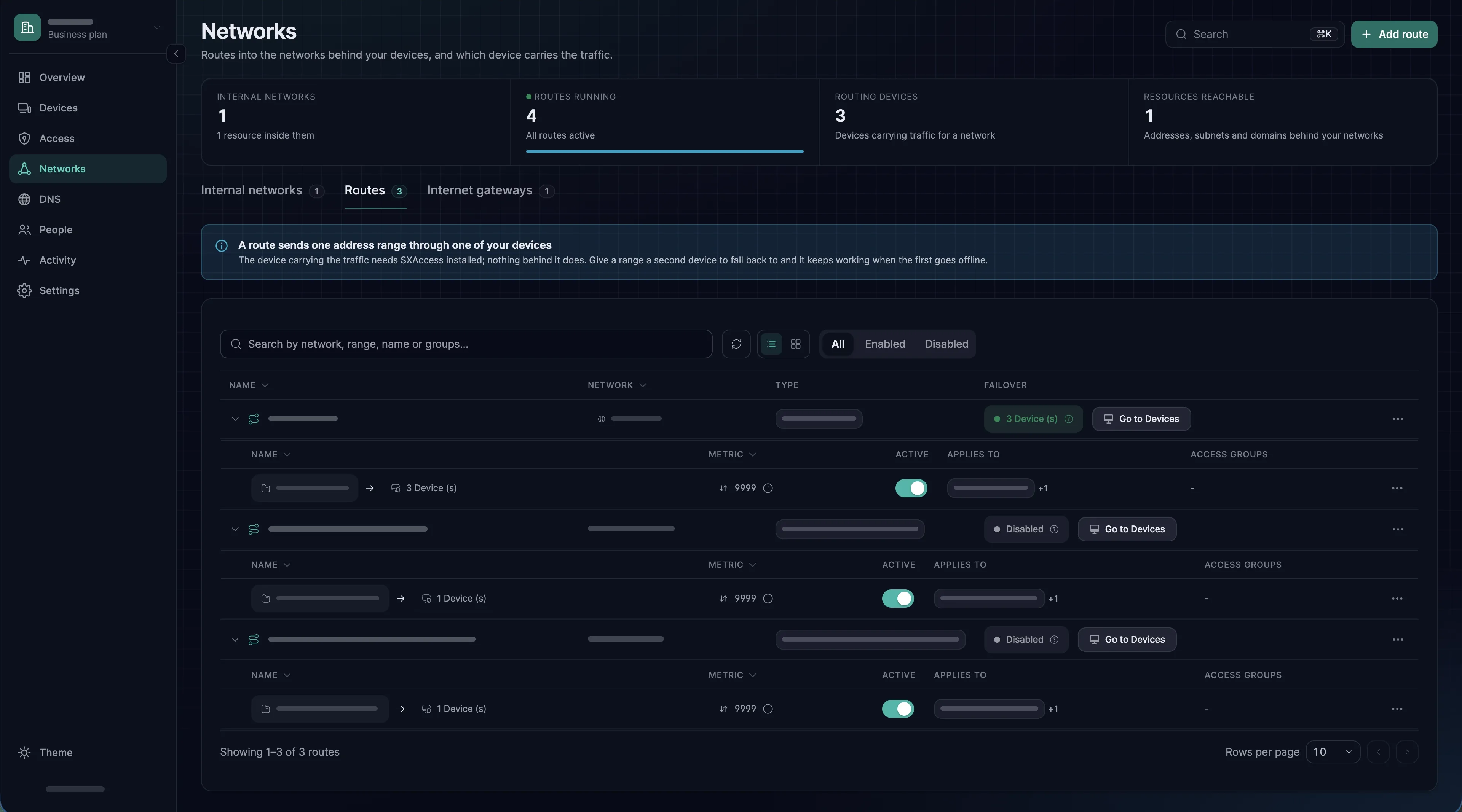
What devices do with a route
A device that receives a route uses it on its own; there is no accept step. Each device keeps a list of the networks it has switched off and uses everything else. A route that applies to a group therefore reaches every device in it that an access rule connects with the routing device. The route is part of the device's network map, the list of devices and routes that the management service keeps up to date on each device.
People opt out on their own device: in the apps, on the Resources screen; with the CLI, with sxaccess reach. The ID is the route's Network Identifier, or a resource's name.
sxaccess reach list shows every network published to this device as Selected or Not Selected. sxaccess reach remove stops using one, sxaccess reach add -a uses it again and keeps the others, and sxaccess reach add all uses every network, including ones published later.
sxaccess reach listsxaccess reach remove office-frasxaccess reach add -a office-frasxaccess reach add allAgent options that stop routing
Some options of sxaccess start change what a device does with routes. Check them when a route that looks right does not work; the CLI reference lists them all. start saves no setting while the device is connected, so to change one there, stop and start the agent in one command: sxaccess stop && sxaccess start --<option>. Run it as one line: a connection that goes through SXAccess, such as an SSH session to this machine, drops until start has finished. It does not work in a session opened with sxaccess shell: stopping the agent closes that session and ends the command, so use the console or an OpenSSH session.
--disable-server-routesor--block-inboundon the routing device: it stops routing for others.--block-inboundalso refuses every inbound connection, whatever the access rules allow.--disable-client-routeson a device: it uses no routes at all.--block-lan-accesson the routing device: routed traffic may not reach the subnets on the routing device's own network interfaces. It is meant for an Internet gateway; on a routing device for its own LAN it blocks exactly the traffic the route is for.
When a route does not work
Check these in order. The first three cover almost every case.
- The device has the route.
sxaccess reach listshould list it withstate: Selected. If it is missing, check that the device is in an Applies to group and that an access rule connects it with the routing device, for example because the routing device is in the Access Group. - An access rule lets the traffic in. With Access Groups set, a rule from the device's group to an Access Group must allow the protocol and port. Test with that port: under a TCP rule,
pingfails even when the route works. - Forwarding is actually on. The agent sets it on Linux, but a hardened host or a configuration-management run can put it back.
sysctl net.ipv4.ip_forwardshould printnet.ipv4.ip_forward = 1. - The routing device can reach the target itself. Test the same port from the routing device, for example with
nc -vz -w 5 192.168.10.20 443, before blaming SXAccess. - Return path. With masquerade off, the LAN needs a route back to the overlay range.
- Host firewall on the target. It may accept its own LAN and drop the overlay range.
- Agent options. See the options above, on the routing device and on the device that uses the route.
- Overlapping subnets. Two routes publishing the same CIDR to one device.