

Networks and resources
Model a site as an internal network, list the resources inside it that should be reachable, and let access rules name them. The main way to reach private networks.
An internal network is a named place - an office, a VPC, a data centre. Inside it you list resources, the addresses that should actually be reachable, and routing devices, the devices with SXAccess installed that carry traffic into it. Nothing behind a routing device needs SXAccess.
This is the main way to reach private networks. A resource is an object an access rule can name, so you can write "Support may reach the ticketing host on 443" instead of opening a whole subnet. When you really do want to hand out a whole CIDR range, use a route instead.
Resource types
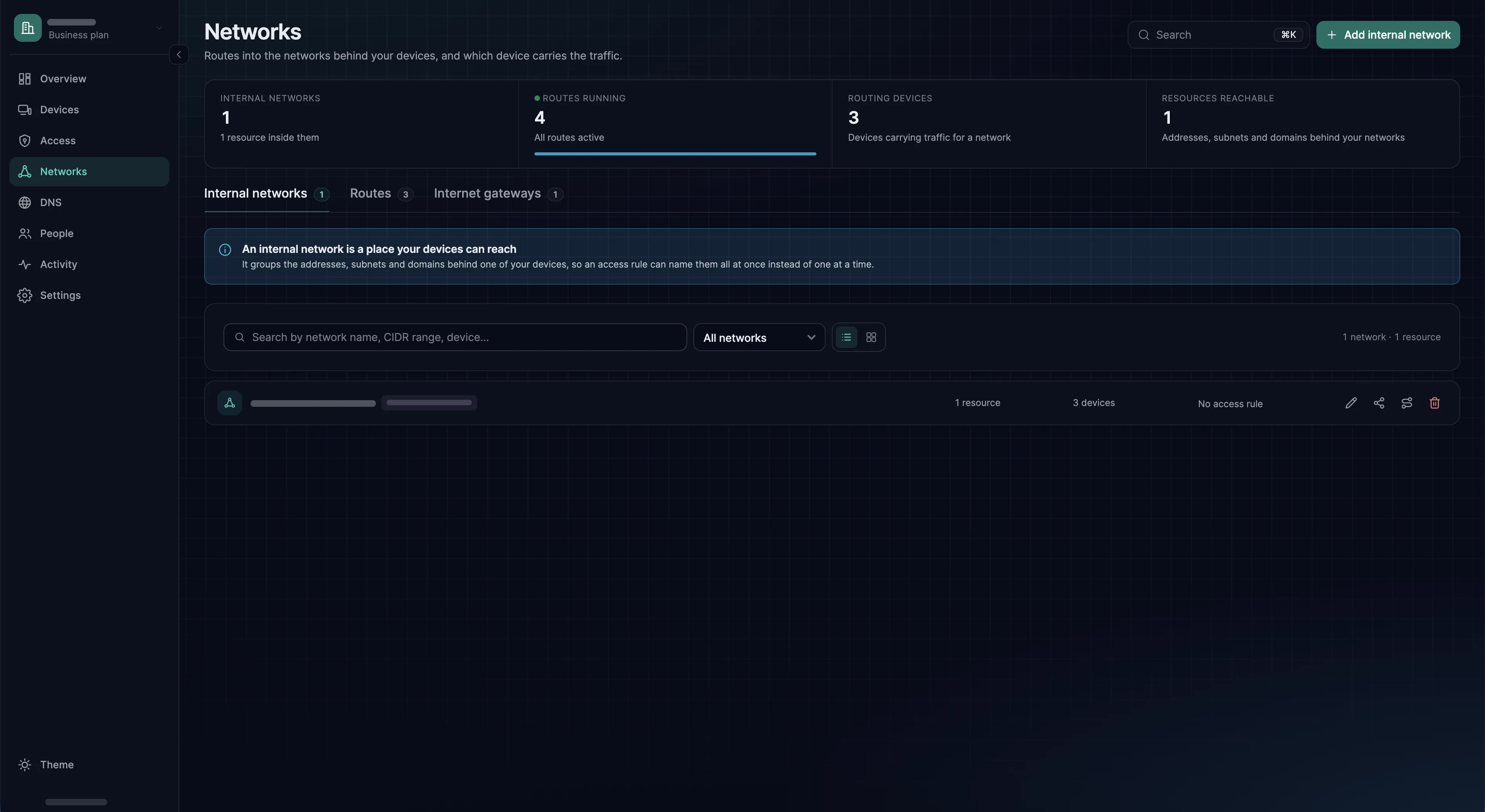
You do not choose a type: it follows from what you enter as the Address.
| Type | Address | Example | Use for |
|---|---|---|---|
host | A single IP address | 10.20.0.15 | One server, appliance or printer |
subnet | A CIDR range | 10.20.4.0/24 | A whole segment, when naming each host is impractical |
domain | A DNS name, optionally starting with *. | *.internal.example.com | Services whose address changes - cloud endpoints, load balancers |
Routing devices
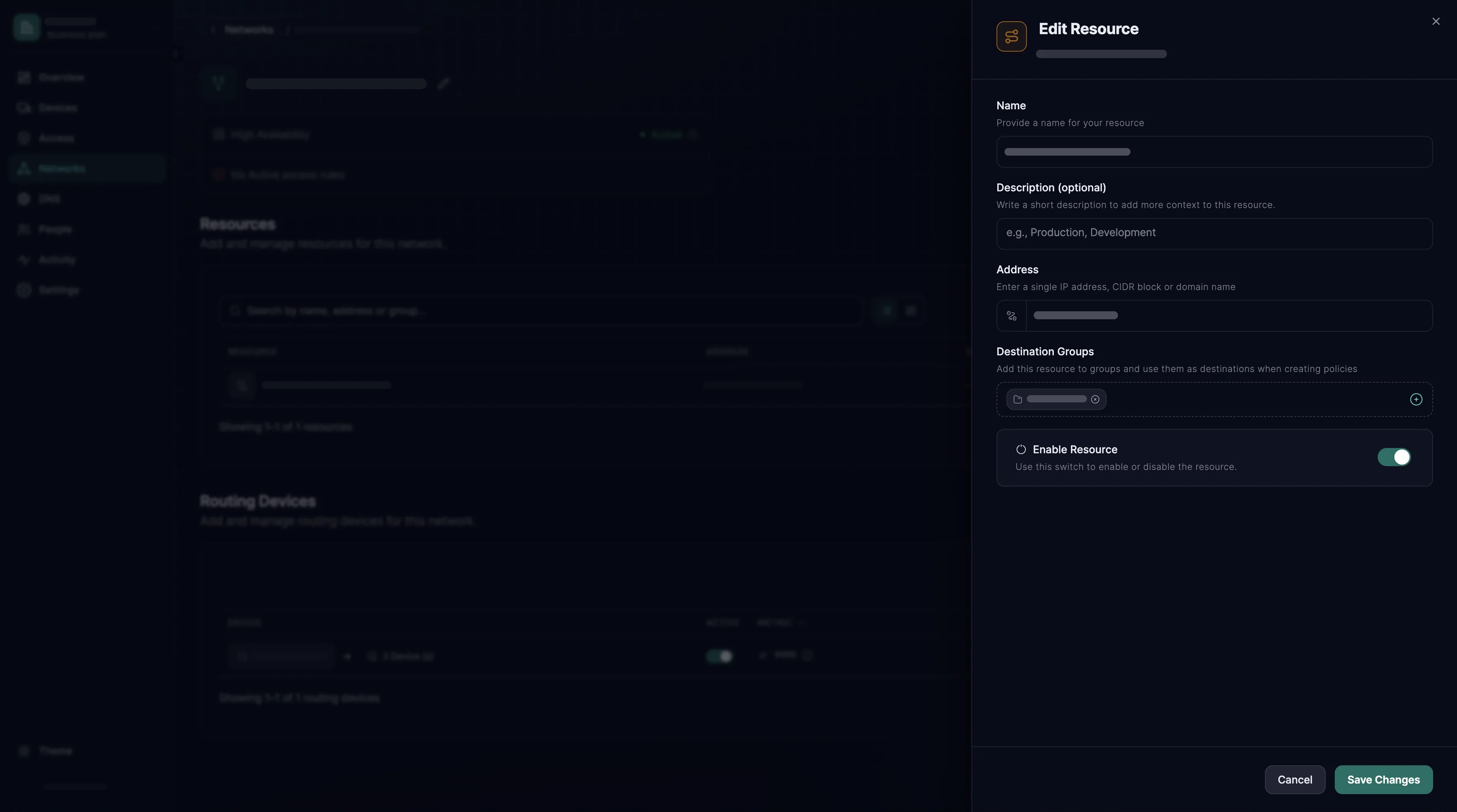
A routing device is an ordinary device that also forwards traffic into the network. Add one with Add Routing Device on the network. On the first step, choose a single device on the Routing Devices tab, or every device of a group on the Device group tab, then Continue. The second step holds its settings, and Add Routing Device saves them:
- Enable Routing Device - switch it off without removing it.
- Masquerade - on by default. The routing device rewrites traffic entering the network so that it comes from the routing device's own LAN address (source NAT). The LAN then needs no route back to the overlay range, the addresses SXAccess gives your devices. Turn it off only when the LAN does route that range back to the routing device; without the return path, replies never arrive.
- Metric - 1 to 9999, default 9999. When a network has several routing devices, the lower metric is preferred.
A device group shares one metric, so the devices in it are equals. To prefer one device, add each device as its own routing device and give the preferred one the lower metric. How each device chooses is described under Redundancy.
A routing device does not have to run Linux. On Linux, the agent switches on IP forwarding (net.ipv4.ip_forward=1) by itself as soon as the device starts routing, so there is nothing to configure. It does not switch it back off when the device stops routing, so the host keeps forwarding until it is rebooted or you reset the setting. On other systems the agent forwards the traffic itself, and the dashboard keeps Masquerade on for such a device. Two agent options stop any device from routing: --disable-server-routes and --block-inbound. Leave both off on a routing device.
In the API, routing devices are under /api/networks/{networkId}/connectors.
Exposing a site
- 1
Enrol a machine inside the site
It needs to be always on and on the same LAN as what you want to reach. A small always-on Linux host is ideal. There is no IP forwarding to set up: the agent does it, as described under Routing devices above. Run the command as root, so that it can read the key file.
sxaccess start --enrollment-key-file /run/secrets/sxaccess-key --hostname office-fra1 - 2
Create the internal network
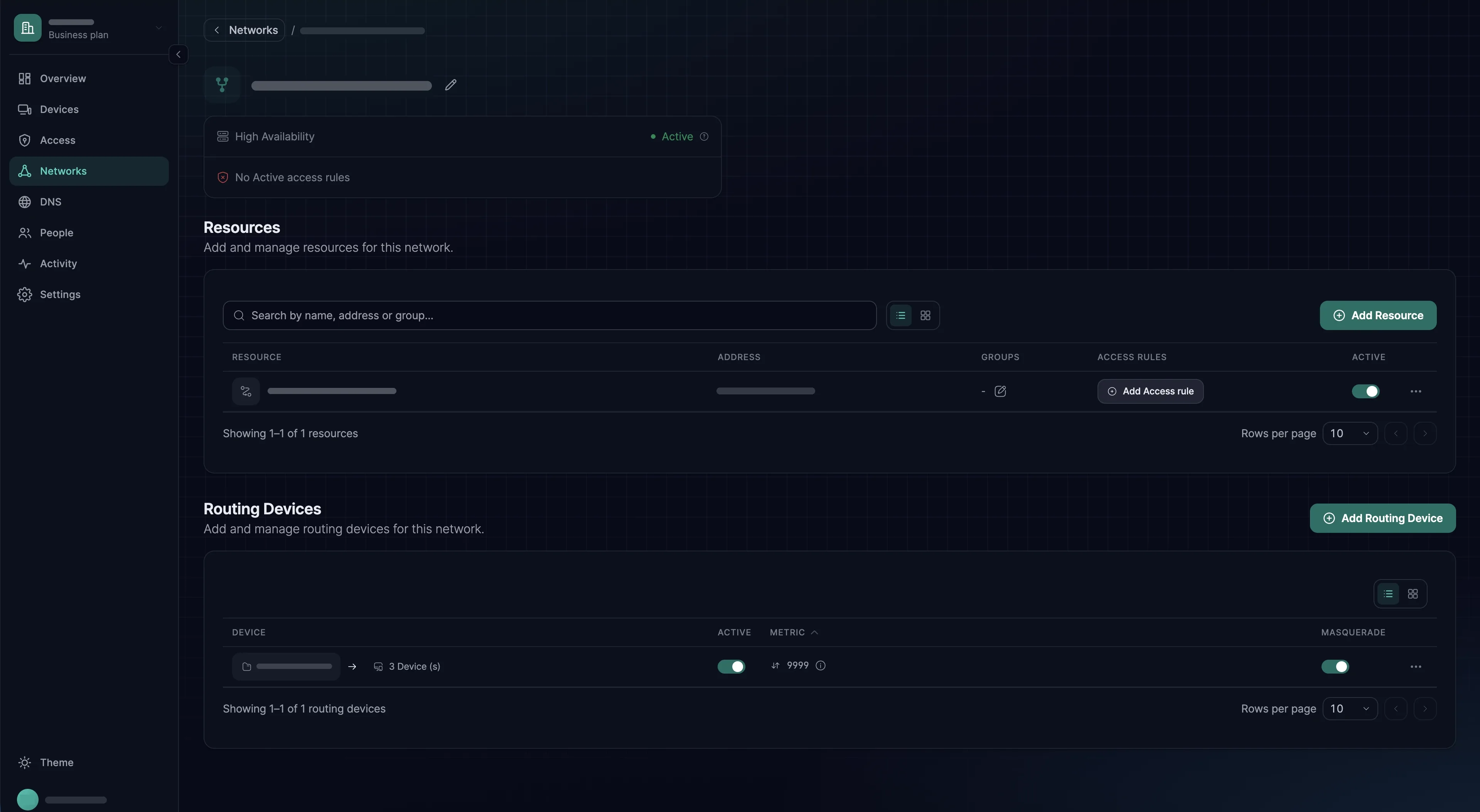
Networks → Internal networks → Add internal network. Name it after the place and choose Add Network. The dashboard then takes you through the next three steps in this order.
- 3
Add resources
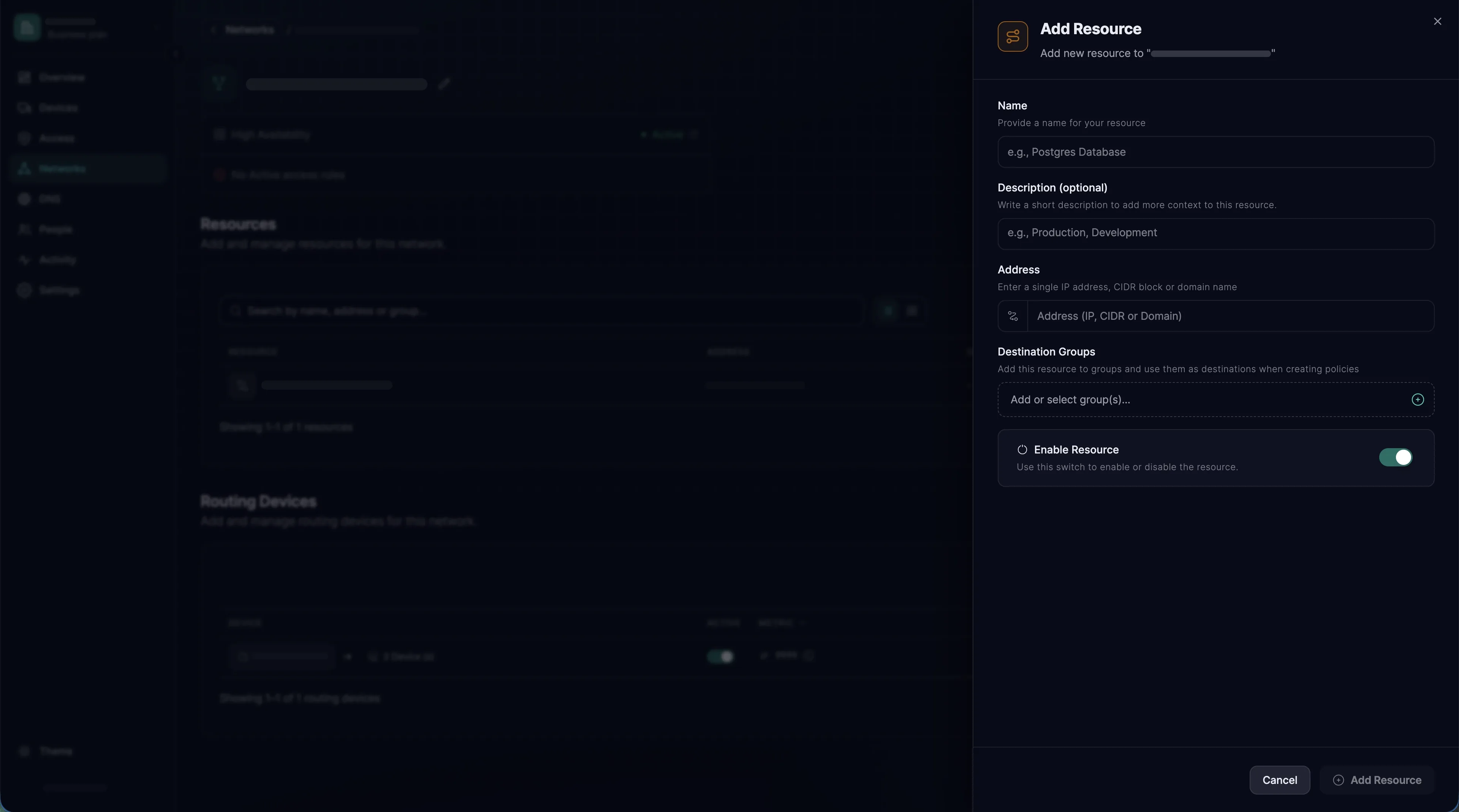
Add Resource: a Name, the Address, and one or more Destination Groups. A destination group is a group the resource joins so that access rules can name it as their destination; it does not decide who may reach the resource. Enable Resource is on by default. Choose Add Resource.
- 4
Write the access rule
A resource is distributed only once an access rule names it: until then, no device gets a route to it. The rule opens with the resource already set as its destination. Choose the source: the group of people who need it. Protocol and ports: only what the service uses. A rule to a resource is always One-way. Choose Create access rule. For a resource you add later, use Add Access rule in its row on the network page. A rule written under Access → Access rules can name one of the resource's destination groups instead, which covers every resource in that group. See Access rules.
- 5
Add the routing device
Add Routing Device: choose the machine you enrolled, then Continue. Leave Masquerade on and choose Add Routing Device. Until the network has a routing device, nothing inside it is reachable.
- 6
Verify from a device in the source group
The resource should be listed with
state: Selected, the routing device'sReachesline insxaccess info -dshould show its address, and it should answer.sxaccess reach listsxaccess info -d
What devices see
A device in the source group of an access rule that names a resource gets a route to it, through the network's routing devices. The route is part of the device's network map, the list of devices and routes that the management service keeps up to date on each device. The device needs no other rule to reach the routing devices, and there is no accept step.
Someone whose home LAN collides with a subnet resource can switch that resource off on their own device. In the apps, they use its switch on the Resources screen. With the CLI, they run sxaccess reach remove <name> with the name sxaccess reach list shows, which for a resource is its Name; sxaccess reach add -a <name> switches it back on. The rest of the reach command is under What devices do with a route.
When a resource does not answer
- The resource is missing from
sxaccess reach list. The device has no route to it. Check the access rule: it must be active, its source must include a group of this device, and its destination must be the resource or one of its destination groups. The device must also meet any device requirement on that rule. Then check that Enable Resource is on, and that the network has a routing device with Enable Routing Device on. - It is listed with
state: Not Selected. It was switched off on this device. Runsxaccess reach add -a <name>with the namereach listshows, or switch it on under Resources in the app. - It is selected and still does not answer. Test with the protocol and port the rule allows: a rule for TCP 443 lets no
pingthrough. Check under Devices that the routing device is online, and that its agent runs without--disable-server-routesand--block-inbound. With Masquerade off, the LAN needs a route back to the overlay range. - A wildcard domain does not resolve. Resolve wildcard domains must be on under Organization settings; see the note on domain resources above.